Users
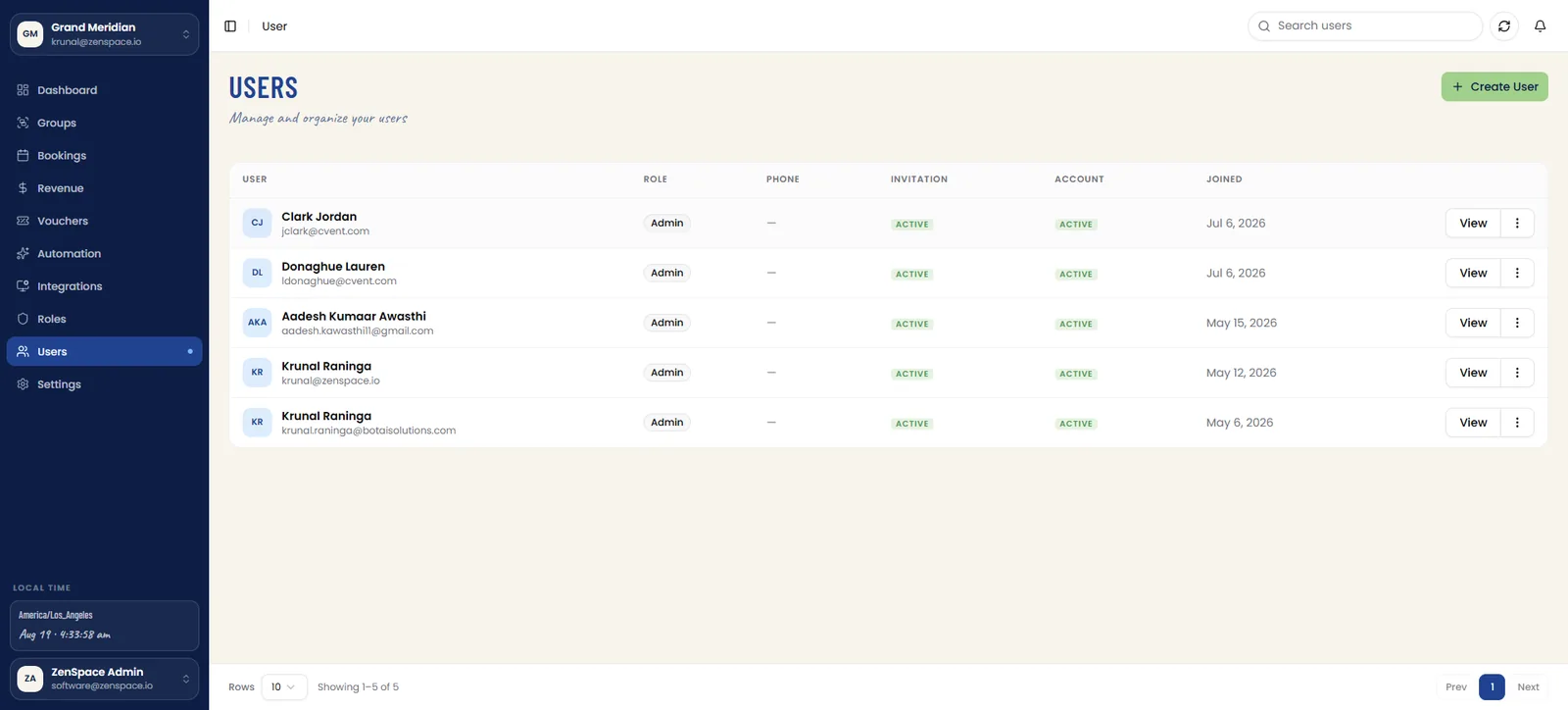
📸 Users List
Updated Users list table showing Email (with role/permission label), First Name, Last Name, Phone, Invitation status, Status badge, and Created At timestamp. Includes search, refresh, pagination controls, and a Create User button. Route: /user
📸 Users — Row Actions
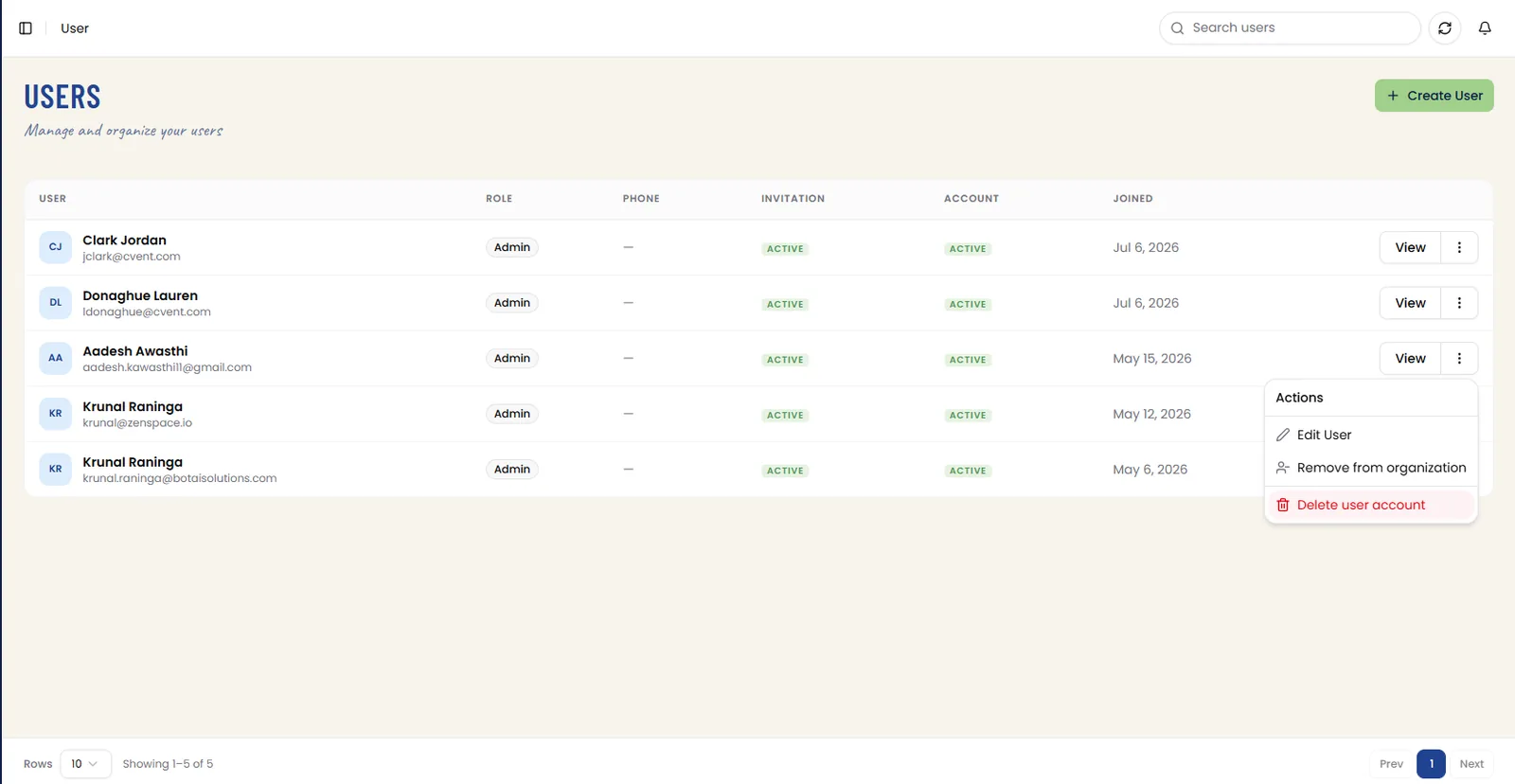
Every row carries a View button and an overflow menu. The Actions menu offers Edit User, Remove from organization, and Delete user account, the last styled in red as a destructive action. Removing a user from an organization and deleting their account are separate operations with very different scope, and each has its own confirmation step.
Remove from organization is available to any role that holds the corresponding permission. Delete user account is restricted to Admin.
📸 Remove User from Organization
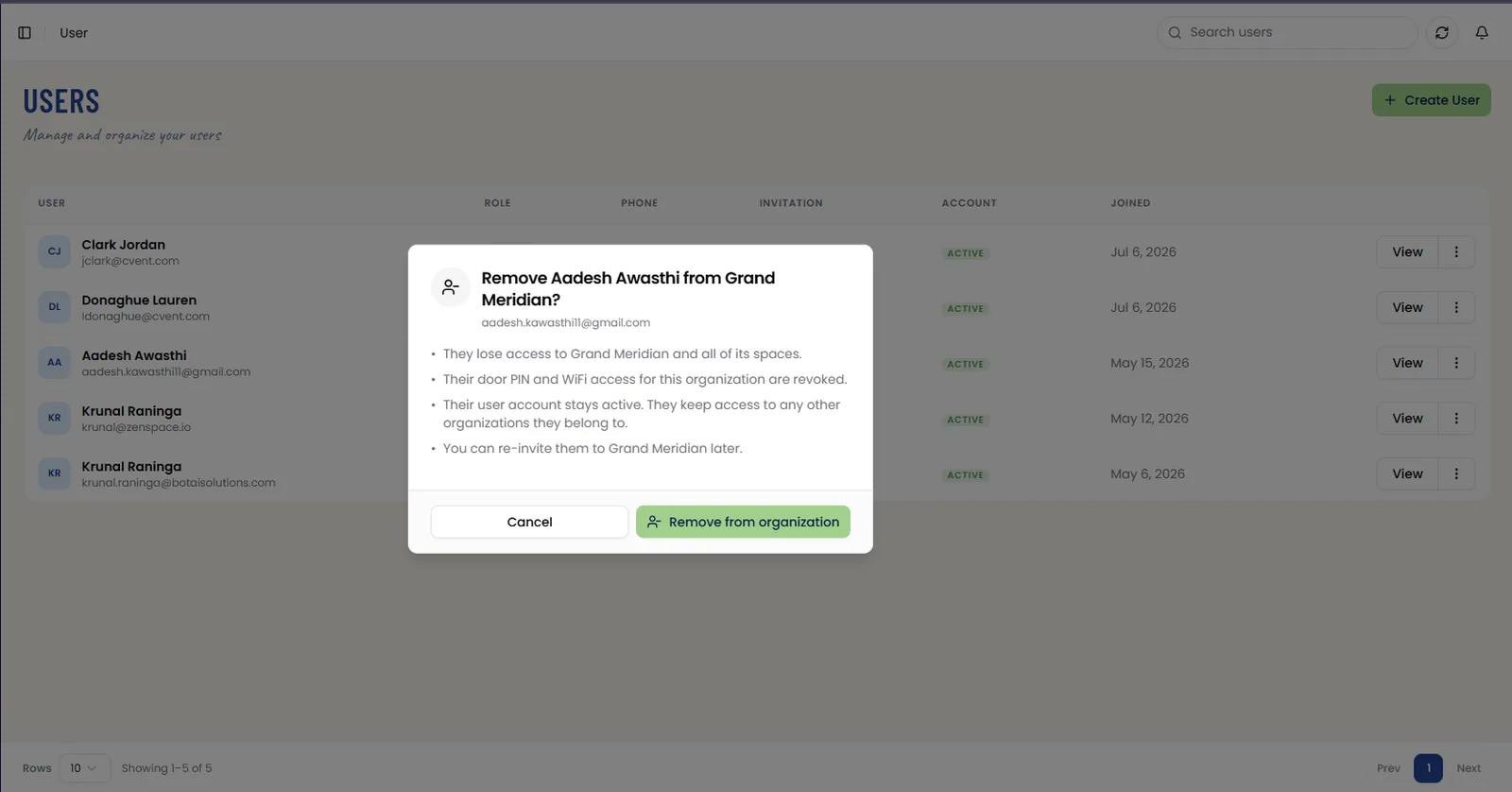
Remove from organization detaches a user from the current organization only. The confirmation names both the user and the organization, and states the consequences: they lose access to the organization and all of its spaces; their door PIN and WiFi access for that organization are revoked; their user account stays active and they keep access to any other organizations they belong to; and they can be re-invited to the organization later.
Cancel backs out without changes; Remove from organization commits.
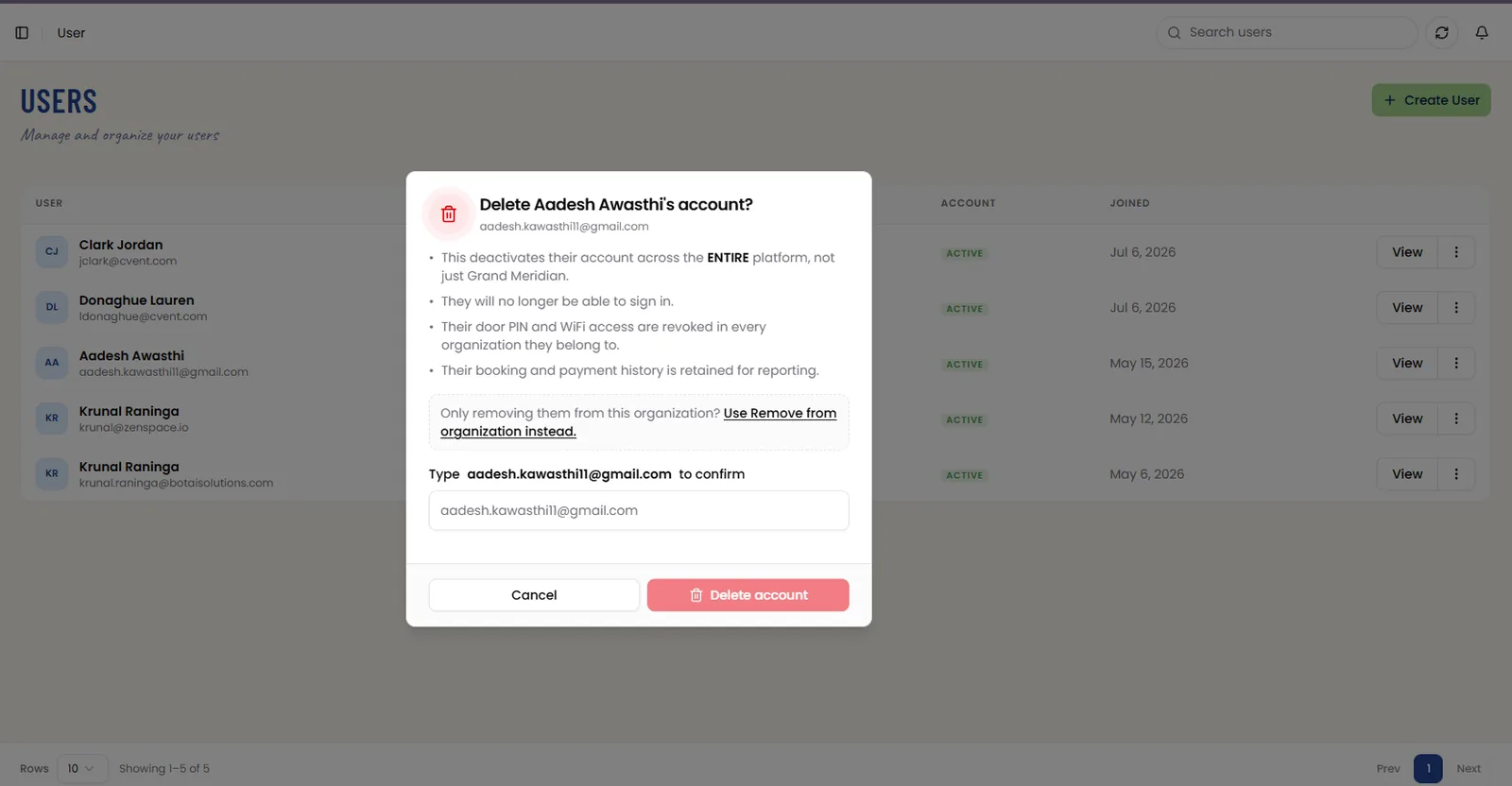
📸 Delete User Account
Delete user account acts across the whole platform rather than a single organization, and is restricted to Admin. The confirmation states that the action deactivates the account across the entire platform, not just the current organization; that the user will no longer be able to sign in; that their door PIN and WiFi access are revoked in every organization they belong to; and that their booking and payment history is retained for reporting.
A hint box points to Remove from organization for the narrower case, and the user’s email address must be typed into a confirmation field before Delete account can be used. Cancel backs out without changes.
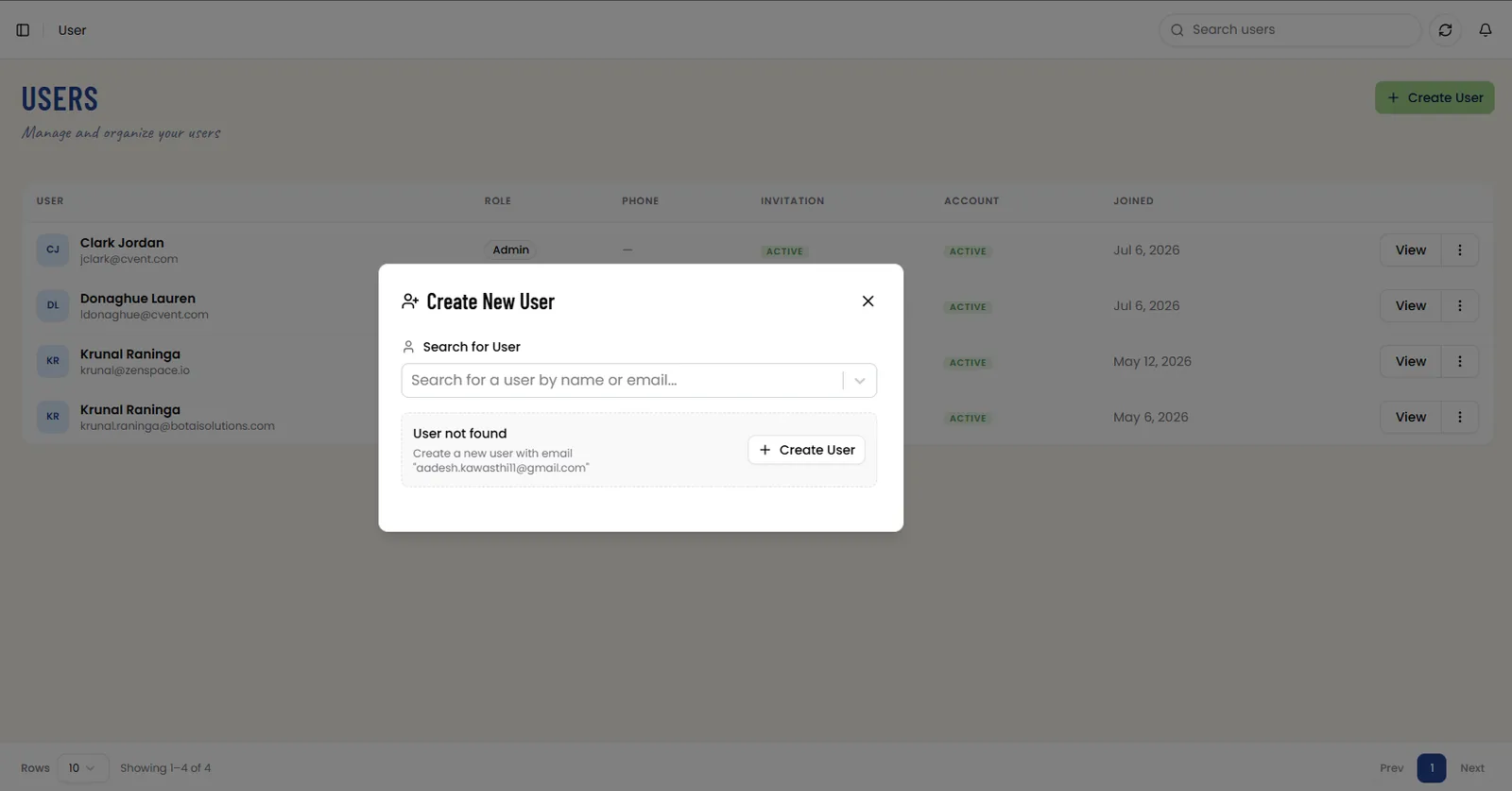
📸 Create New User — Search Modal
Create User opens the Create New User modal. First search for an existing user by name or email — if the user already exists they can be assigned directly to the organization. If the searched email doesn't match an existing user, the same modal shows a User not found result beneath the search field, with a Create User shortcut that carries the entered email into the full creation form.
📸 Create New User Form
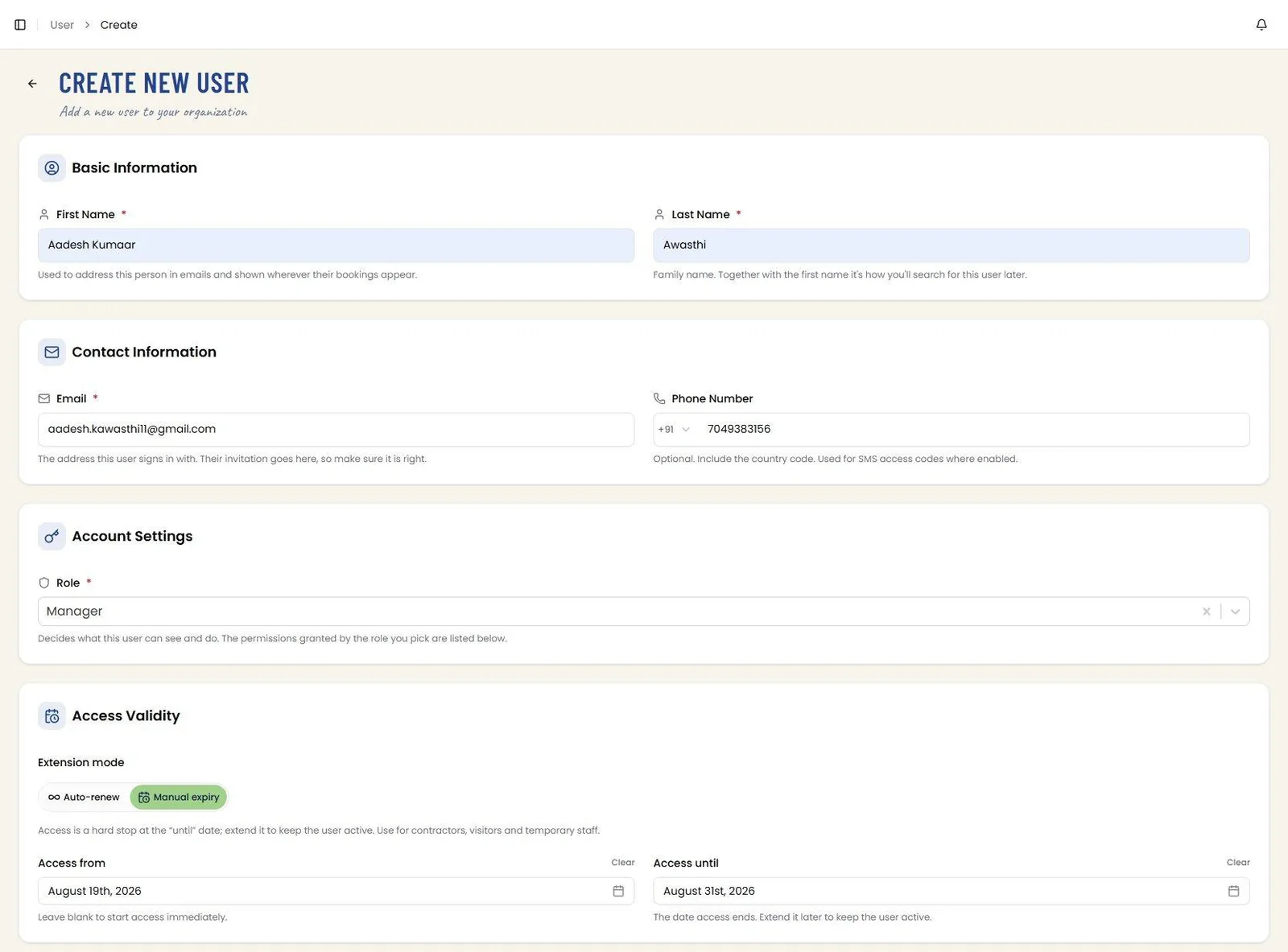
Full-page user creation form. Basic Information takes the required First Name and Last Name — the first name is used to address the person in emails and appears wherever their bookings show, and together the two are how the user is searched for later.
Contact Information takes the required Email, which is the address the user signs in with and where the invitation is sent, validated inline; Phone Number is optional, takes a country code, and is used for SMS access codes where enabled. Account Settings takes the required Role, which decides what the user can see and do, with the permissions granted by the chosen role listed beneath. Route: /user/create
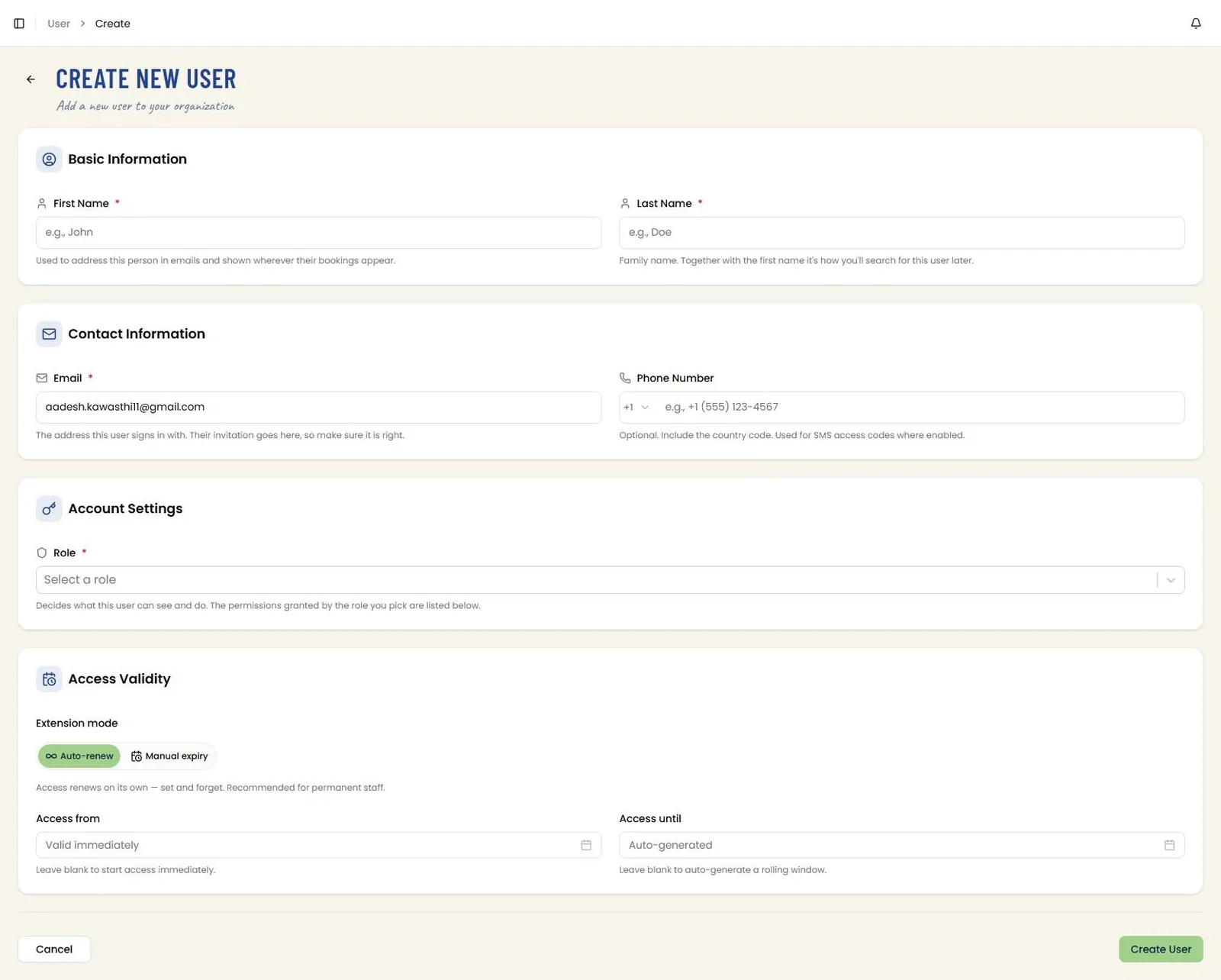
📸 Create New User — Access Validity (Auto-renew)
The Access Validity card sets the user’s access window through an Extension mode of Auto-renew or Manual expiry. Under Auto-renew, access renews on its own — set and forget — which is recommended for permanent staff. Access from can be left blank to start access immediately, and Access until is auto-generated as a rolling window.

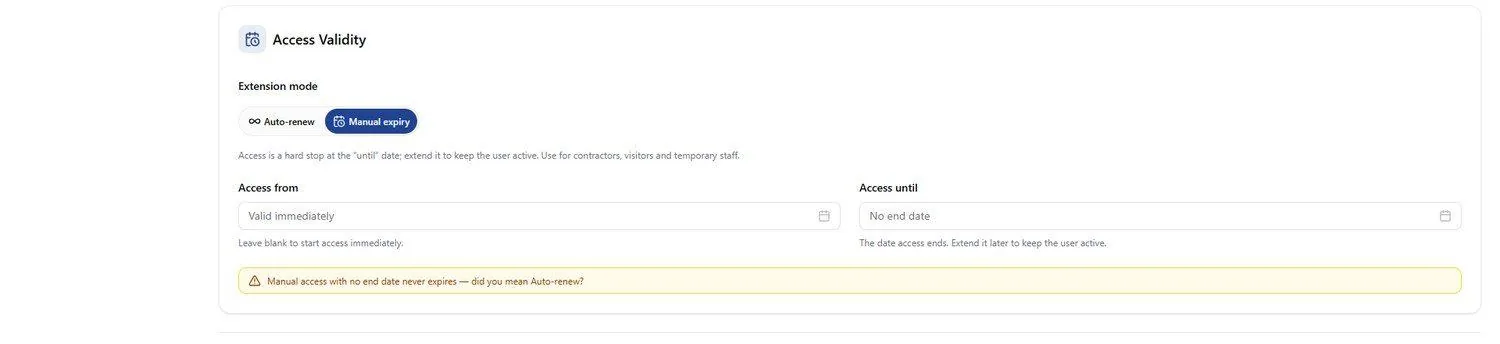
📸 Create New User — Access Validity (Manual Expiry)
Under Manual expiry, access is a hard stop at the until date and must be extended to keep the user active, which suits contractors, visitors, and temporary staff. Access until takes the date access ends; leaving it empty raises an inline caution that manual access with no end date never expires, and suggests Auto-renew instead.
📸 Create New User — Role Permissions Preview
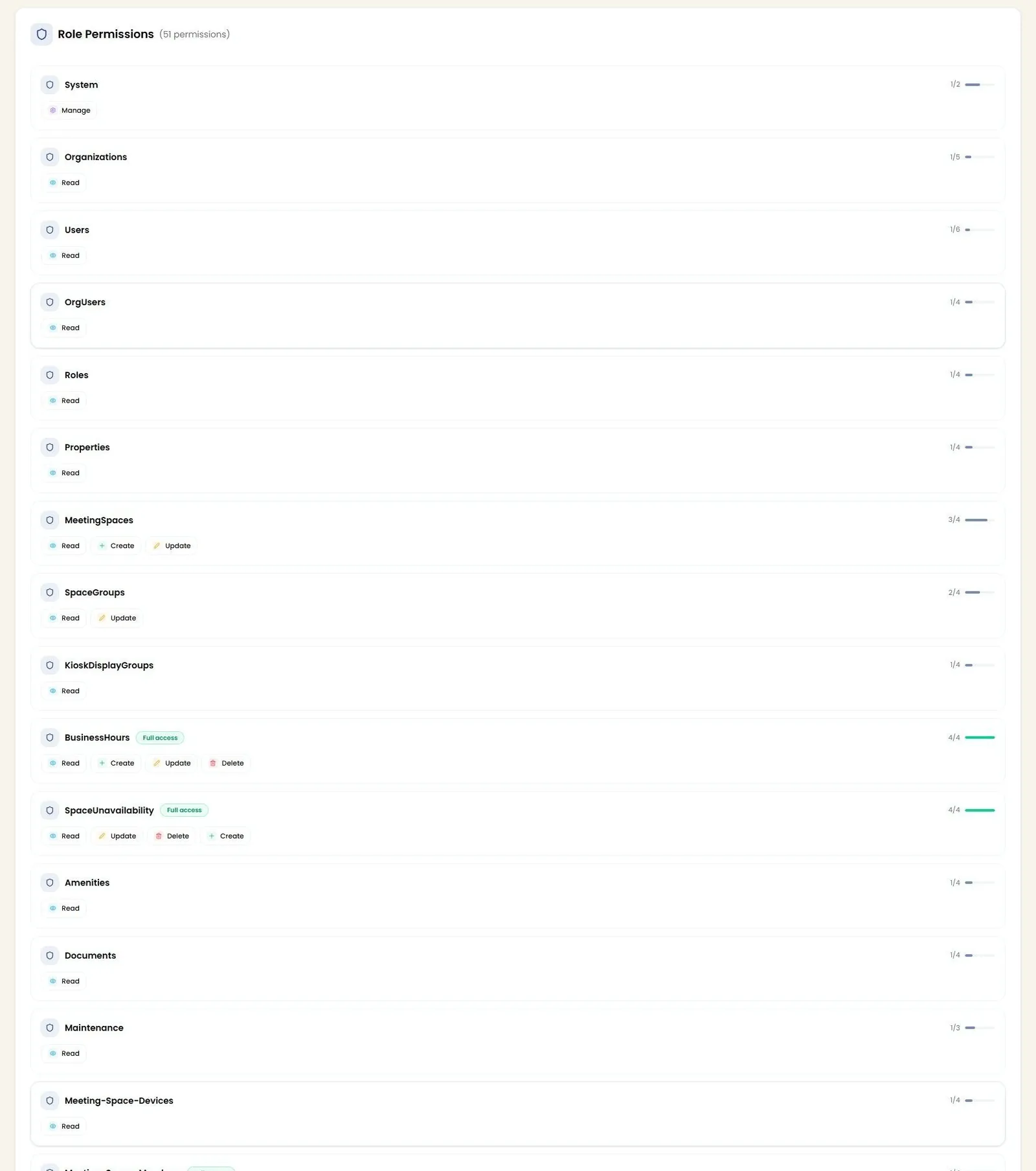
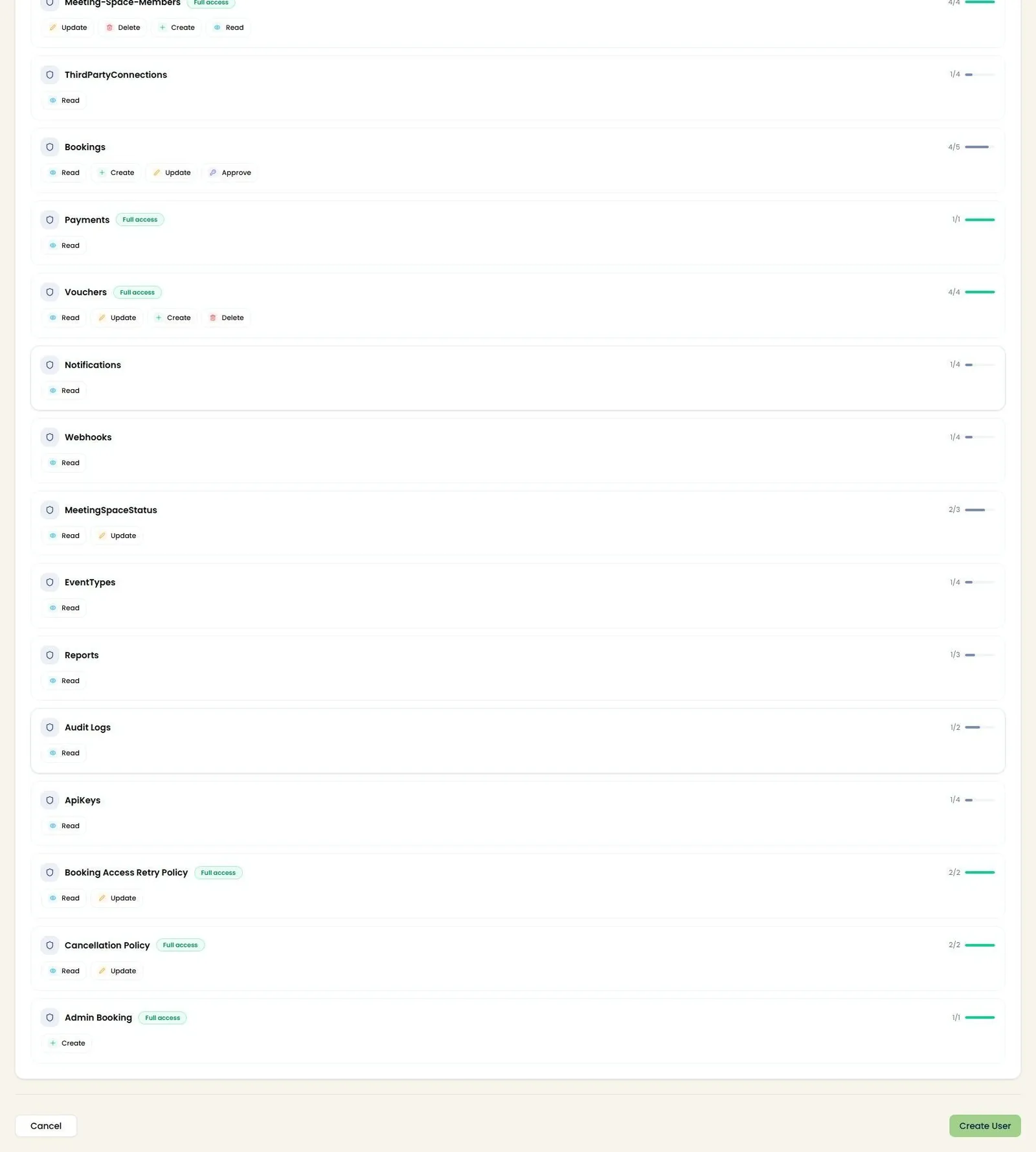
Once a Role is chosen and the form is otherwise filled in, a Role Permissions section appears beneath Access Validity, listing every resource group the selected role grants — System, Organizations, Users, and on through Admin_booking — each with its granted actions, a ratio and progress bar, and a Full access badge where every action in that group is included. This mirrors the same breakdown shown on Role Detail, letting the admin sanity-check what the chosen role actually grants before creating the user.
📸 User Detail — Contact, Identity & Access
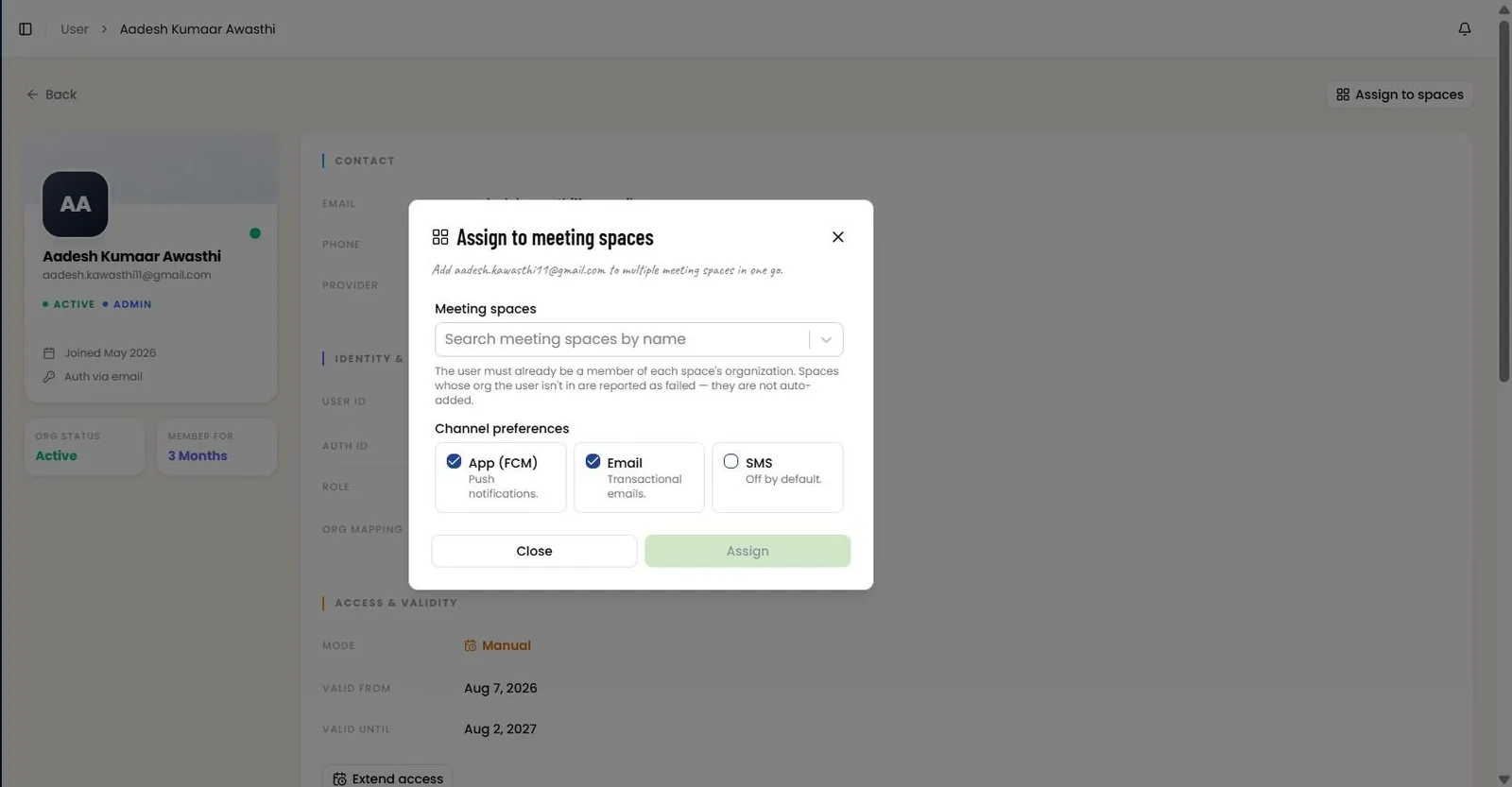
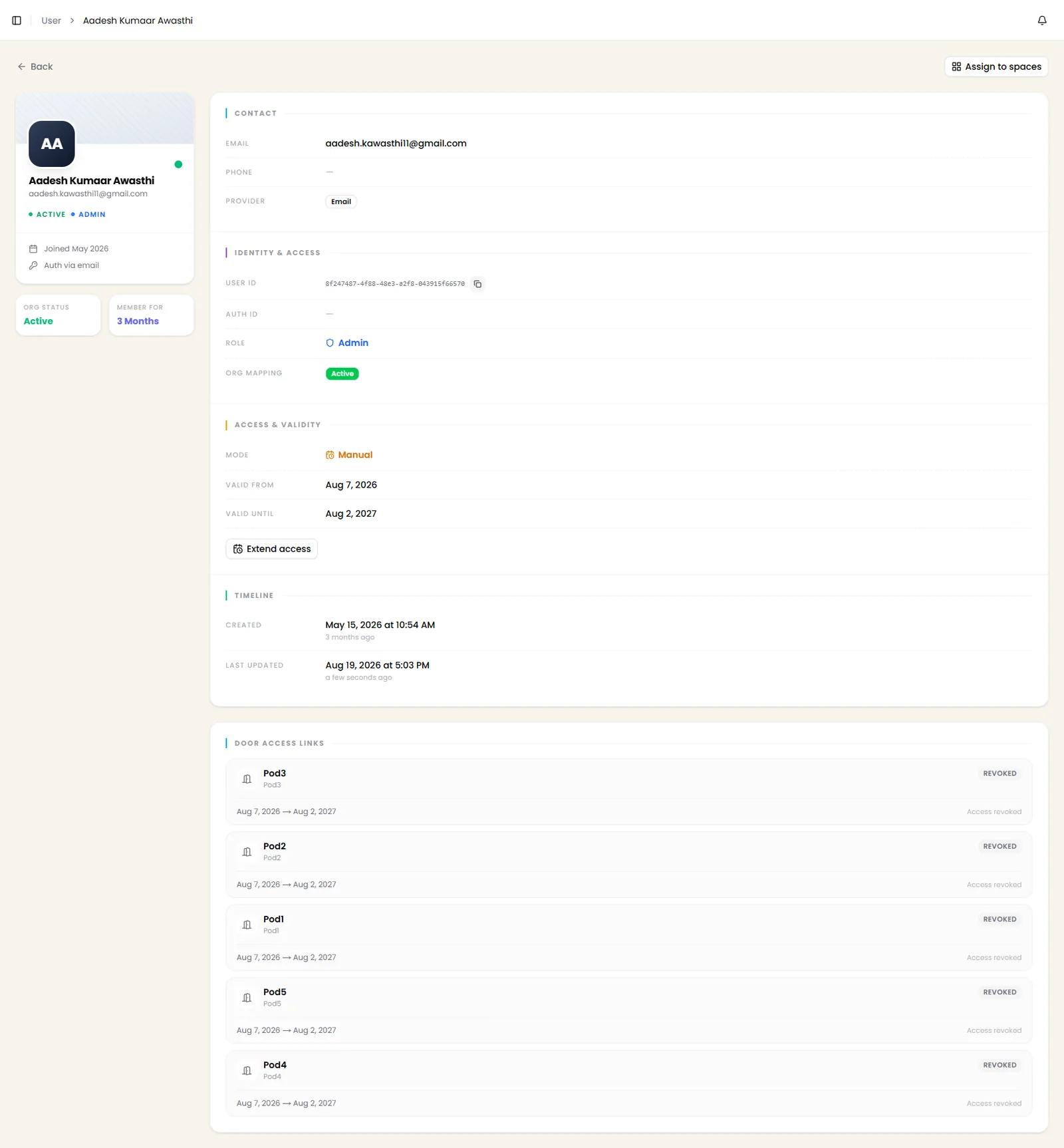
User detail page header with breadcrumb, Back navigation, and Assign to spaces action. Left panel shows avatar, Active/role badges, joined date, auth method, Org Status, and membership duration. Right panel shows Contact (Email, Phone, Provider), Identity & Access (User ID with copy action, Auth ID, Role, Org Mapping status), Access & Validity (Mode, Valid From / Valid Until, and an Extend access action), and Timeline (Created and Last Updated timestamps with relative time).Below that, Door Access Links lists every access link provisioned for the user, each named for its space with the validity window it was granted and a status badge — Active while the link works, or Revoked once access has been pulled (e.g., after removal from the organization). Route: /user/:id
📸 Assign to Meeting Spaces
Assign to spaces (top right of User Detail) opens the Assign to meeting spaces modal, which adds the user to multiple meeting spaces in one go. Meeting spaces is a searchable multi-select — the user must already belong to each space's organization, and spaces in an organization they aren't part of fail rather than being auto-added. Channel preferences sets which notification channels apply to the assignment: App (FCM) push and Email are on by default, and SMS is off by default. Assign commits once at least one space is selected; Close backs out.