Meeting Spaces
Create New Meeting Space
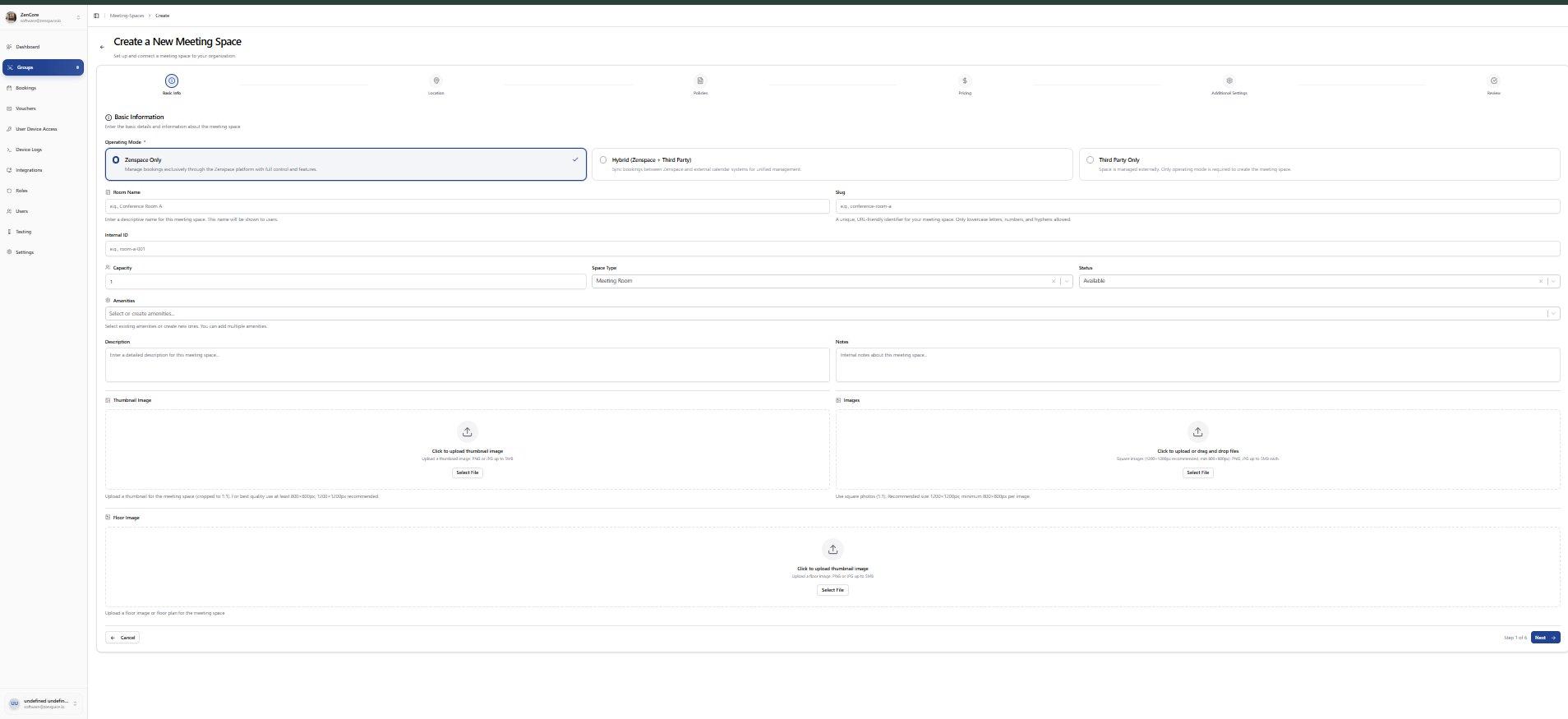
📸 Step 1: Basic Info
Enter Operating Mode (Zenspace Only / Hybrid / Third Party), Room Name, Slug, Internal ID, Capacity, Space Type, Status, Amenities, Description, Notes, Thumbnail Image, Images, and Floor Image. Route: /meeting-spaces/create
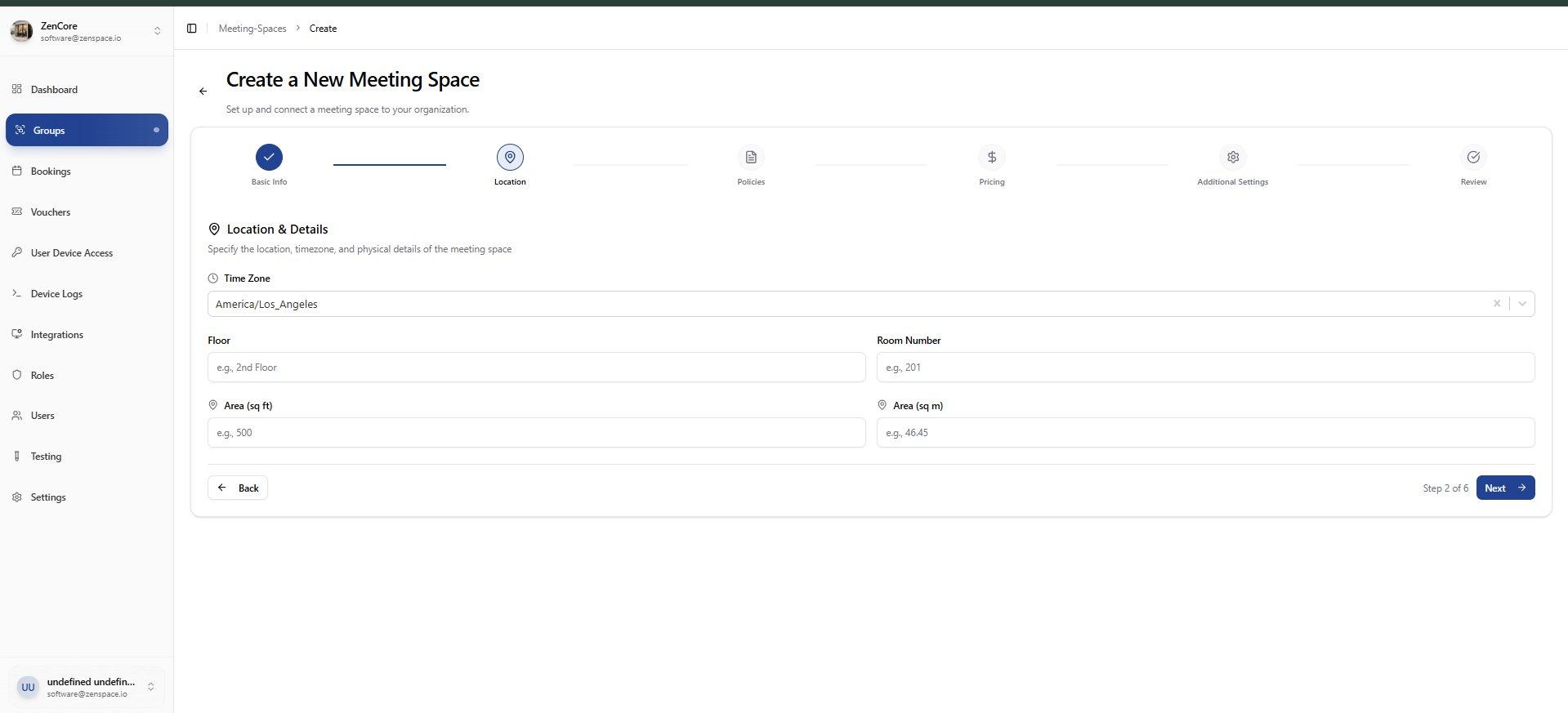
📸 Step 2: Location
Set Time Zone, Floor number, Room Number, and Area in sq ft and sq m.
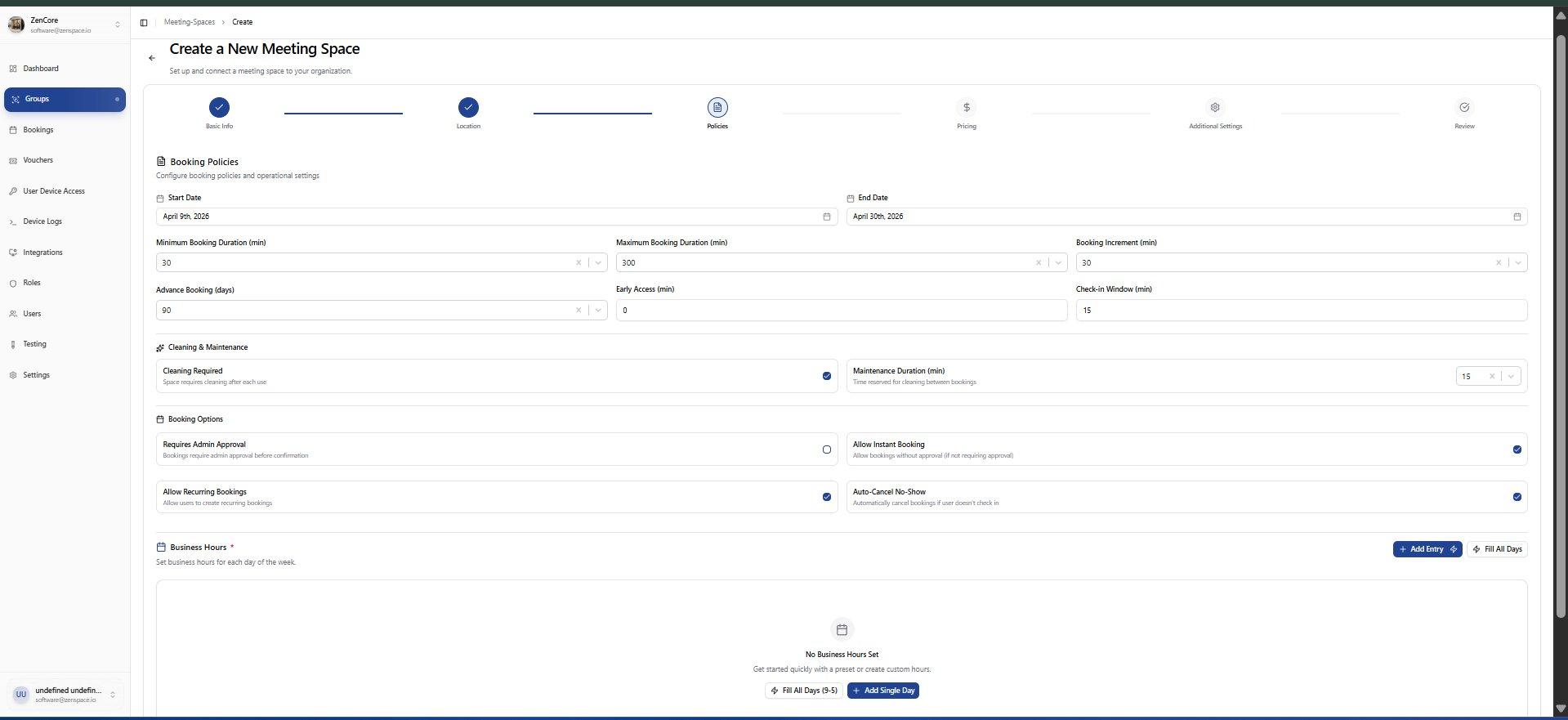
📸 Step 3: Policies
Configure Booking Policies: Start/End dates, Min/Max Duration, Booking Increment, Advance Booking, Early Access, Check-in Window, Cleaning and Maintenance, and Booking Options.
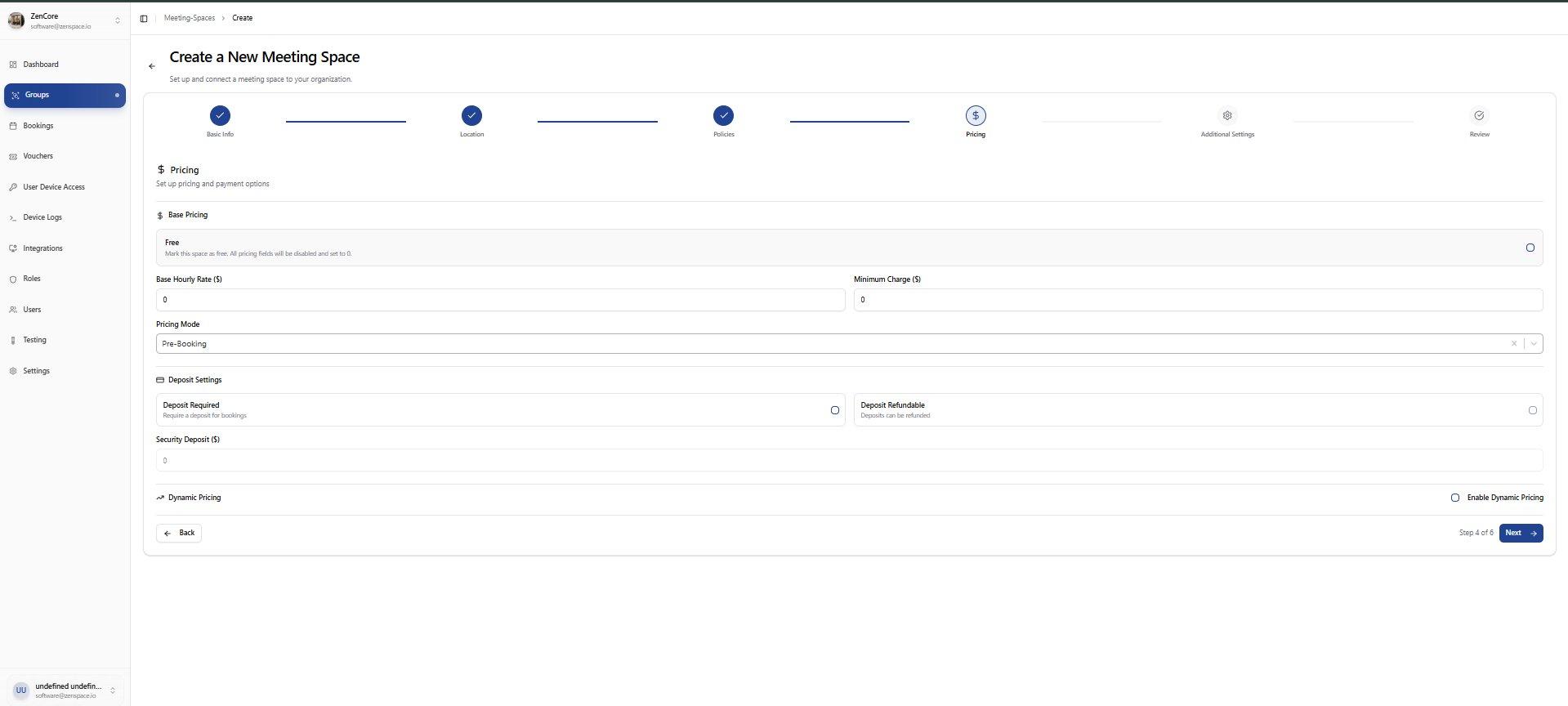
📸 Step 4: Pricing
Set Base Hourly Rate, Minimum Charge, Pricing Mode, Deposit Settings (Required, Refundable, Security Deposit), and Dynamic Pricing toggle.
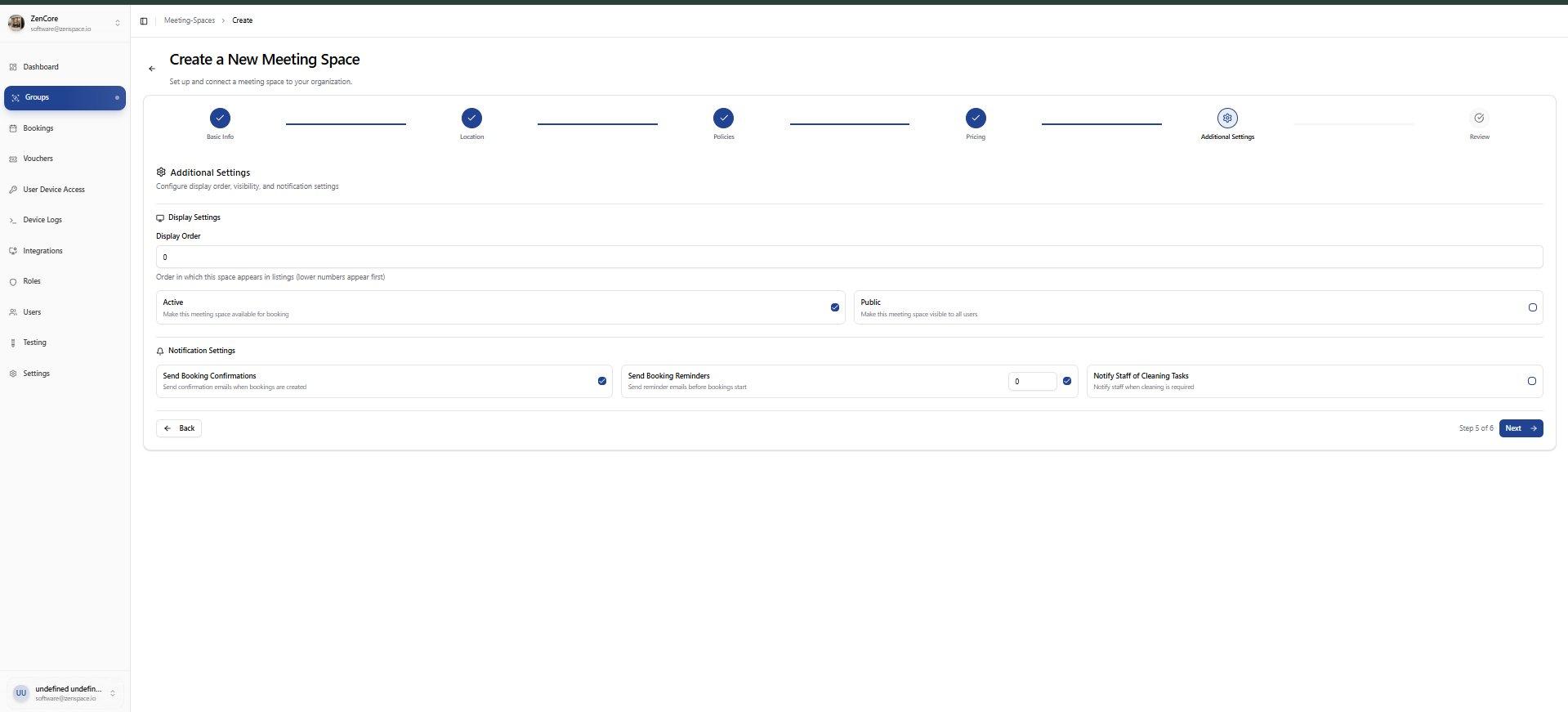
📸 Step 5: Additional Settings
Configure Display Order, Active and Public visibility toggles, and Notification Settings (Booking Confirmations, Reminders, Cleaning Tasks).
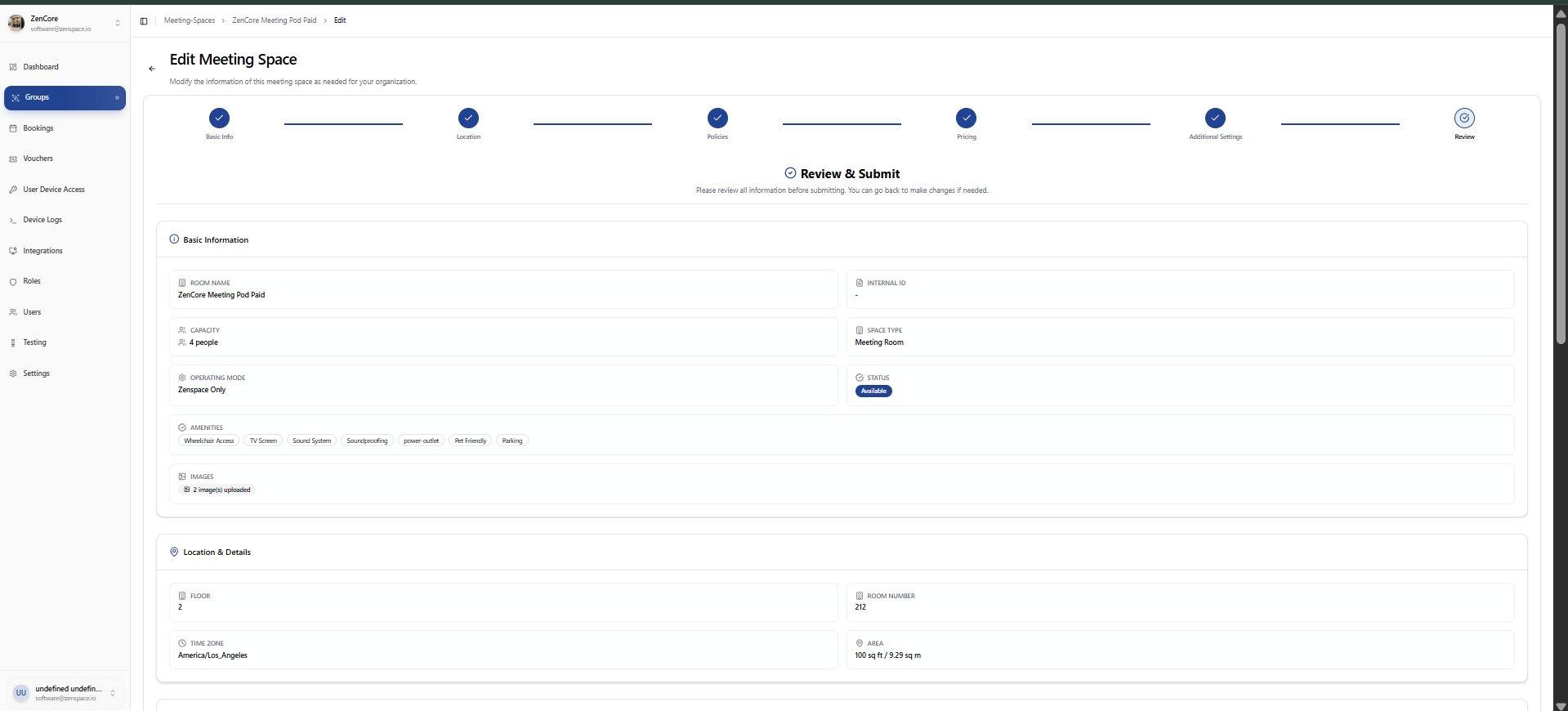
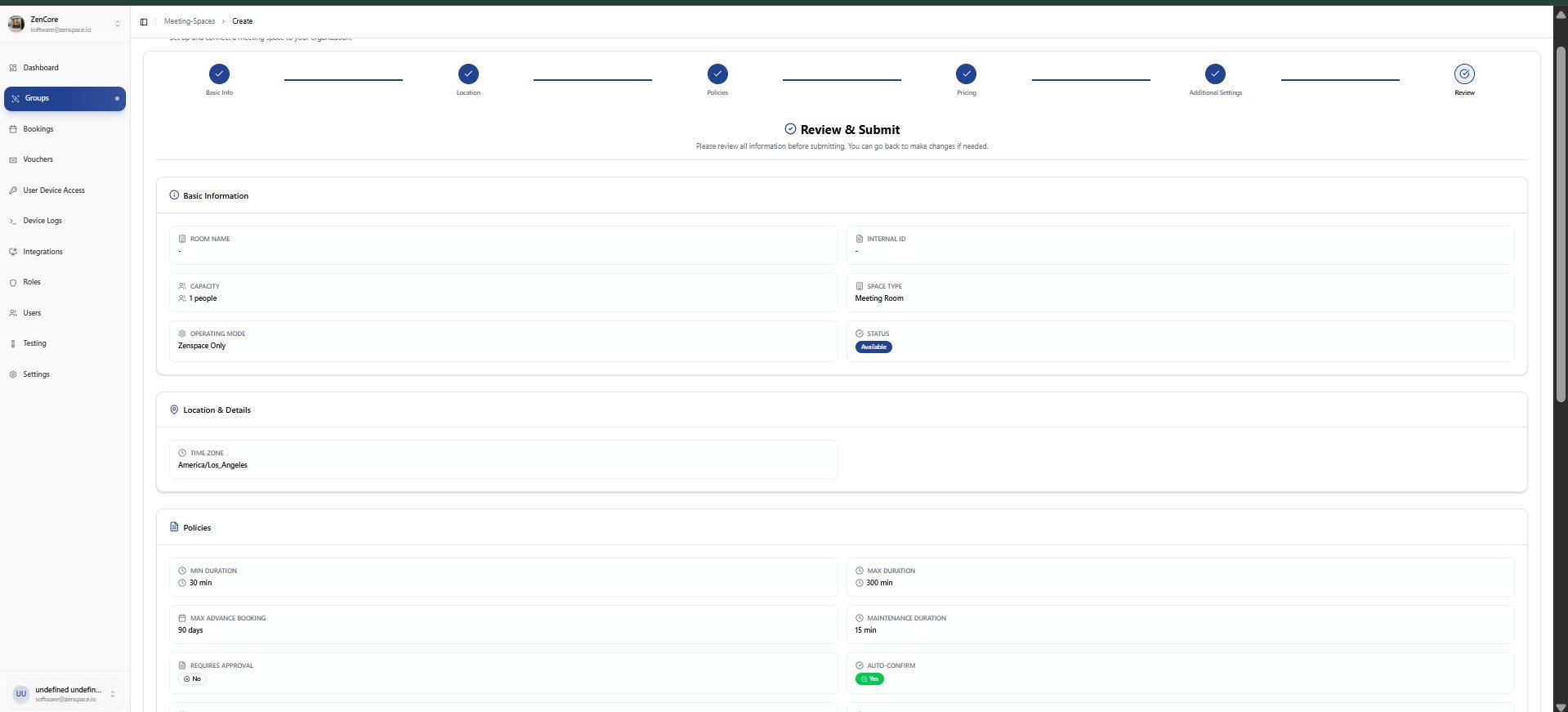
📸 Step 6: Review & Submit
Final review before creating the meeting space. Shows complete summary: Basic Information (Room Name, Capacity, Operating Mode, Status, Amenities, Images) and Location & Details.
Meeting Space Detail Tabs
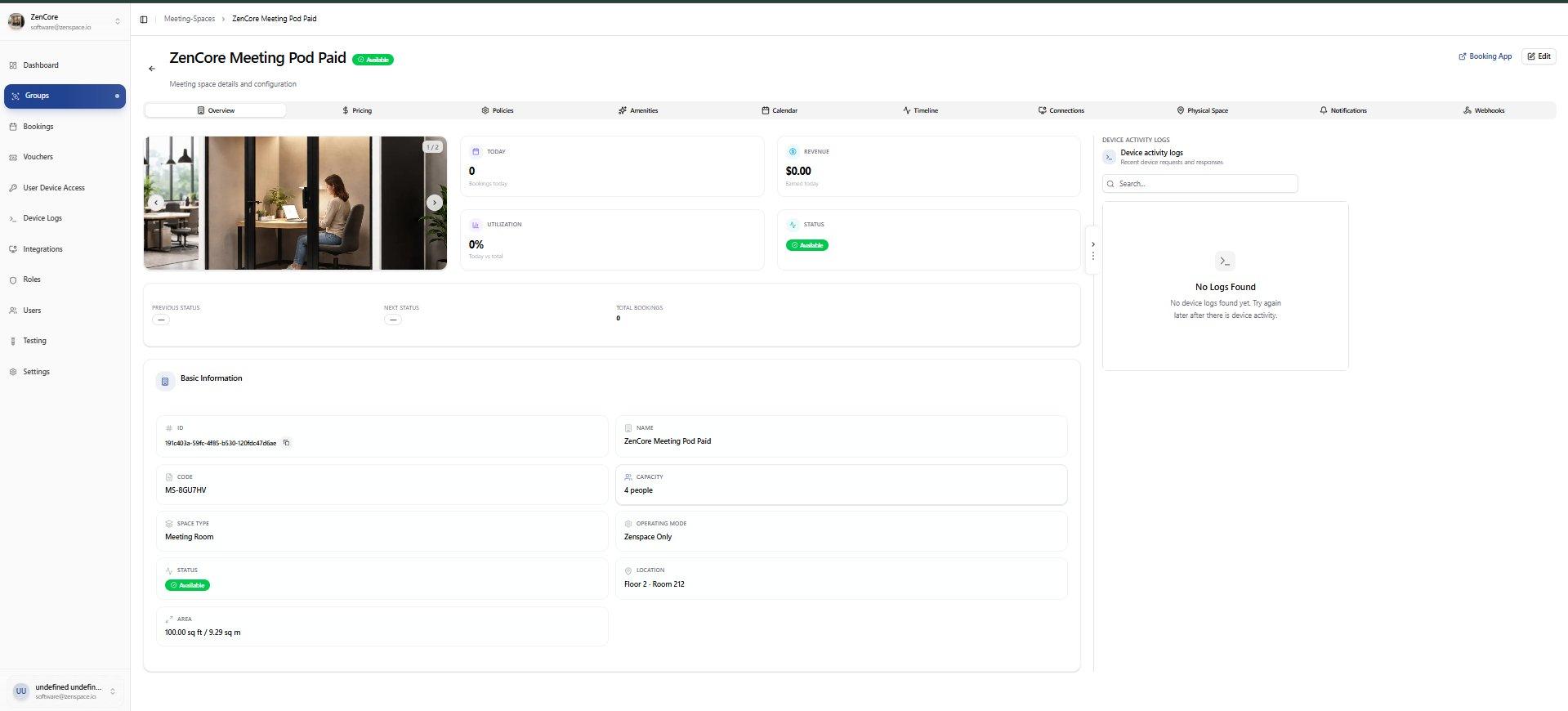
📸 Overview Tab
Space overview showing status, booking stats, pricing summary, recent bookings table, and quick action buttons. Route: /meeting-spaces/:id
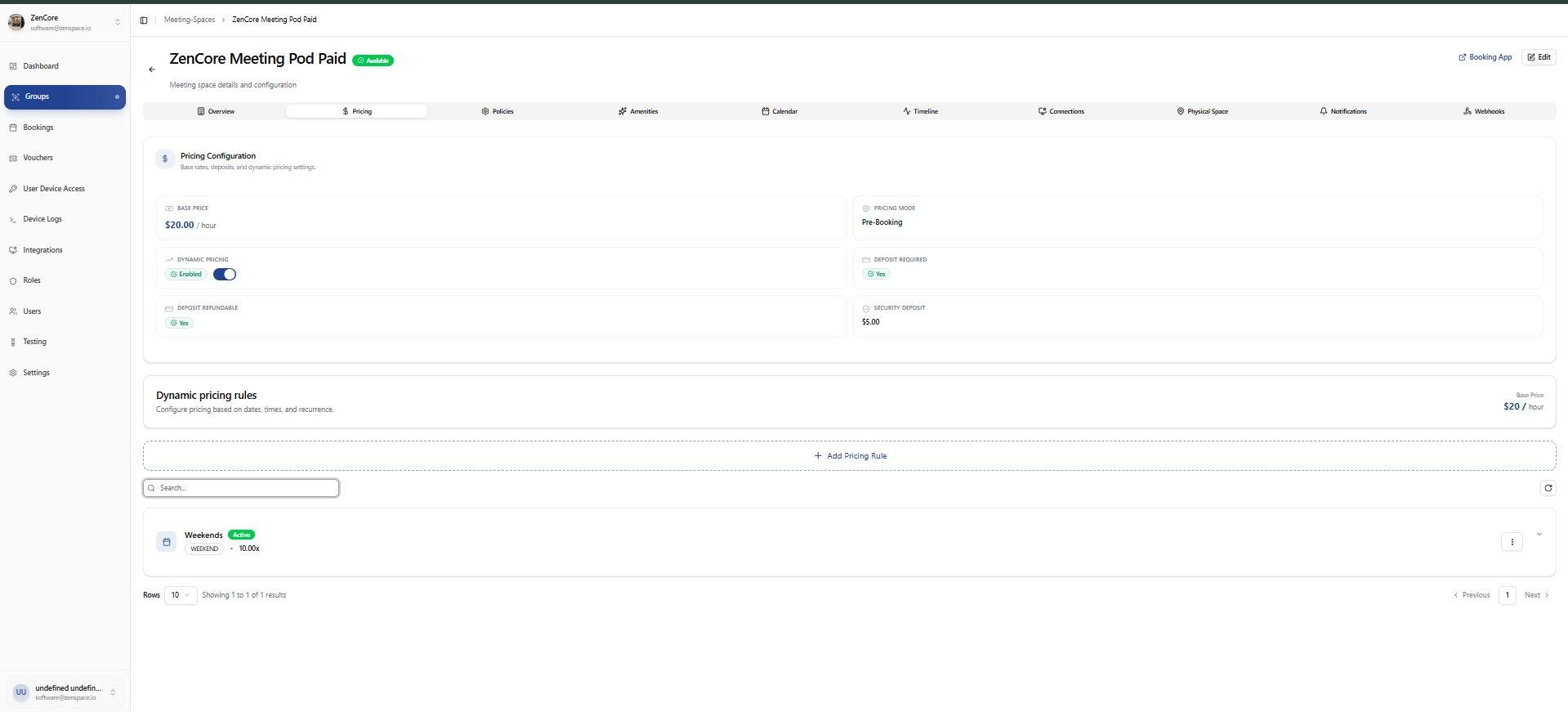
📸 Pricing Tab
View and manage pricing rules: Base Hourly Rate, Minimum Charge, Pricing Mode, Deposit settings, and Dynamic Pricing configuration.
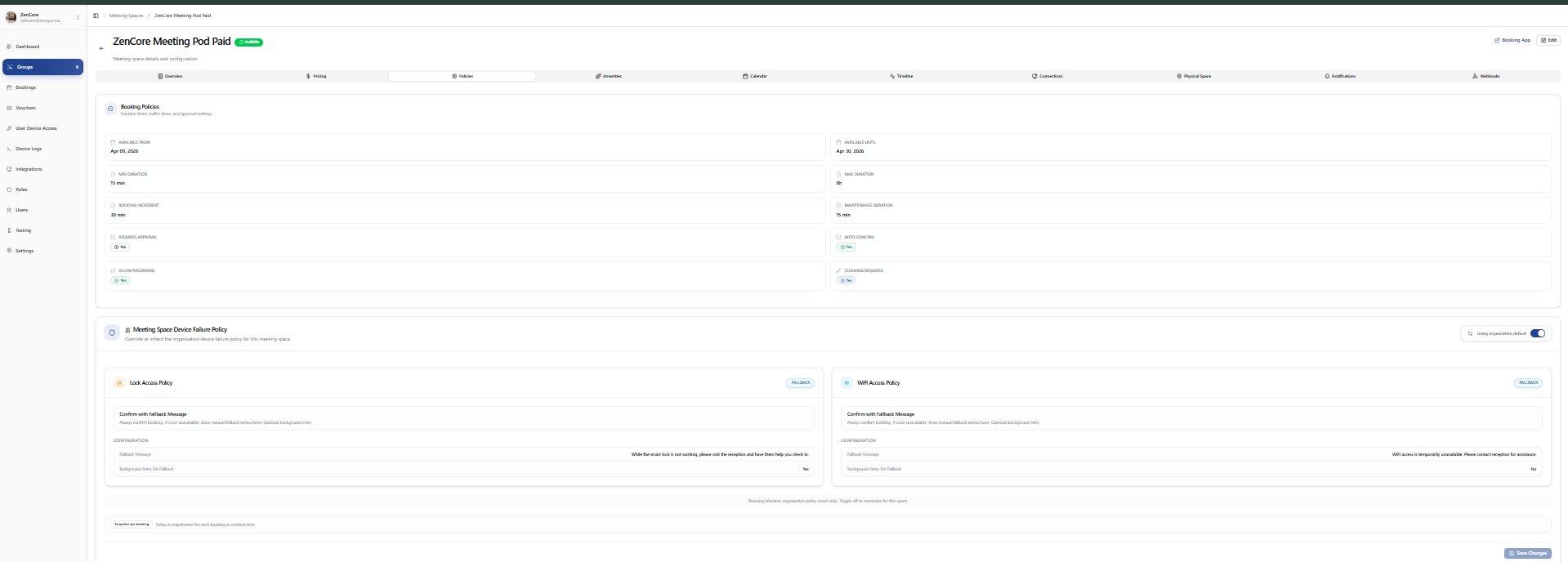
📸 Policies Tab
View booking policy configuration: Start/End dates, Min/Max Duration, Booking Increment, Advance Booking, Early Access, Check-in Window, Cleaning & Maintenance, and Booking Options.
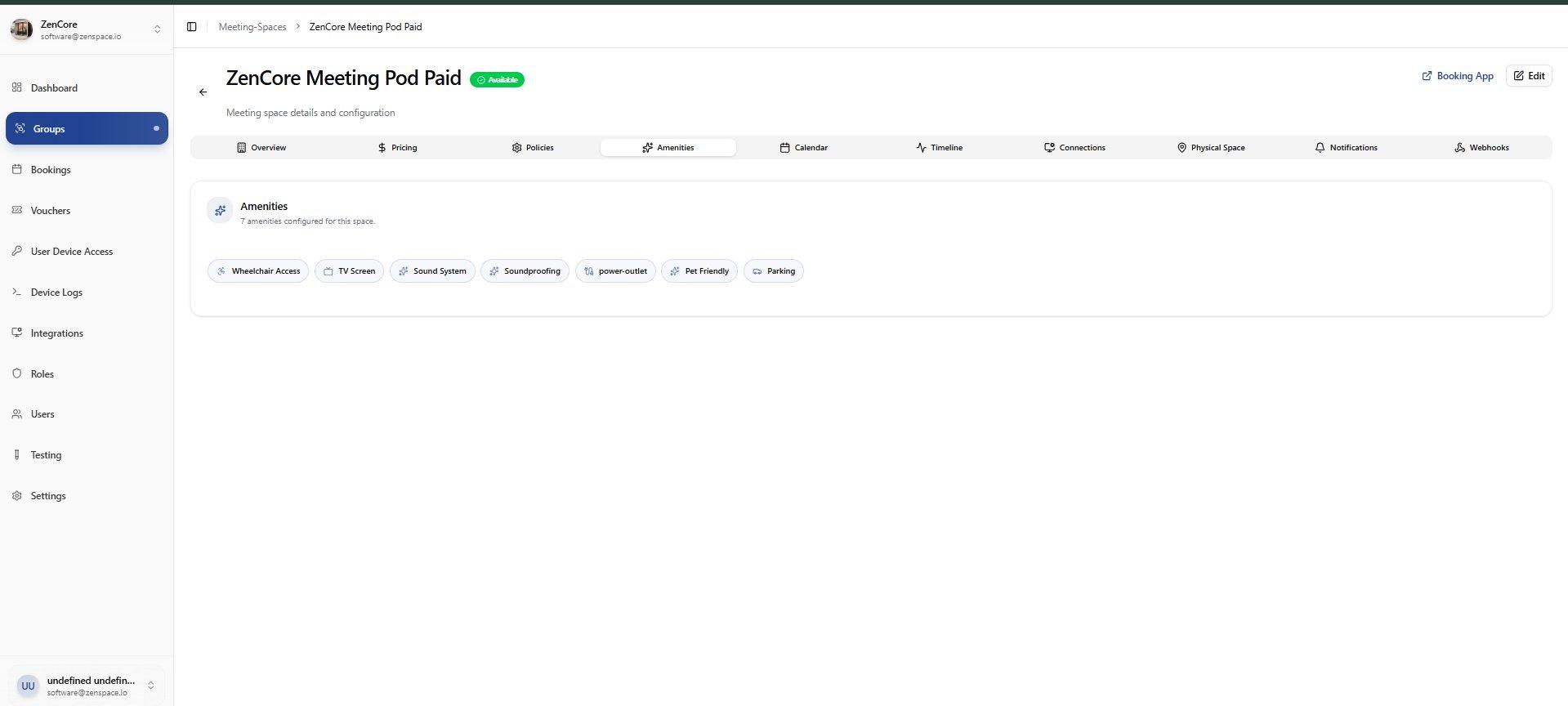
📸 Amenities Tab
View and manage amenities assigned to the meeting space. Shows amenity badges with icons. Route: /meeting-spaces/:id/amenities
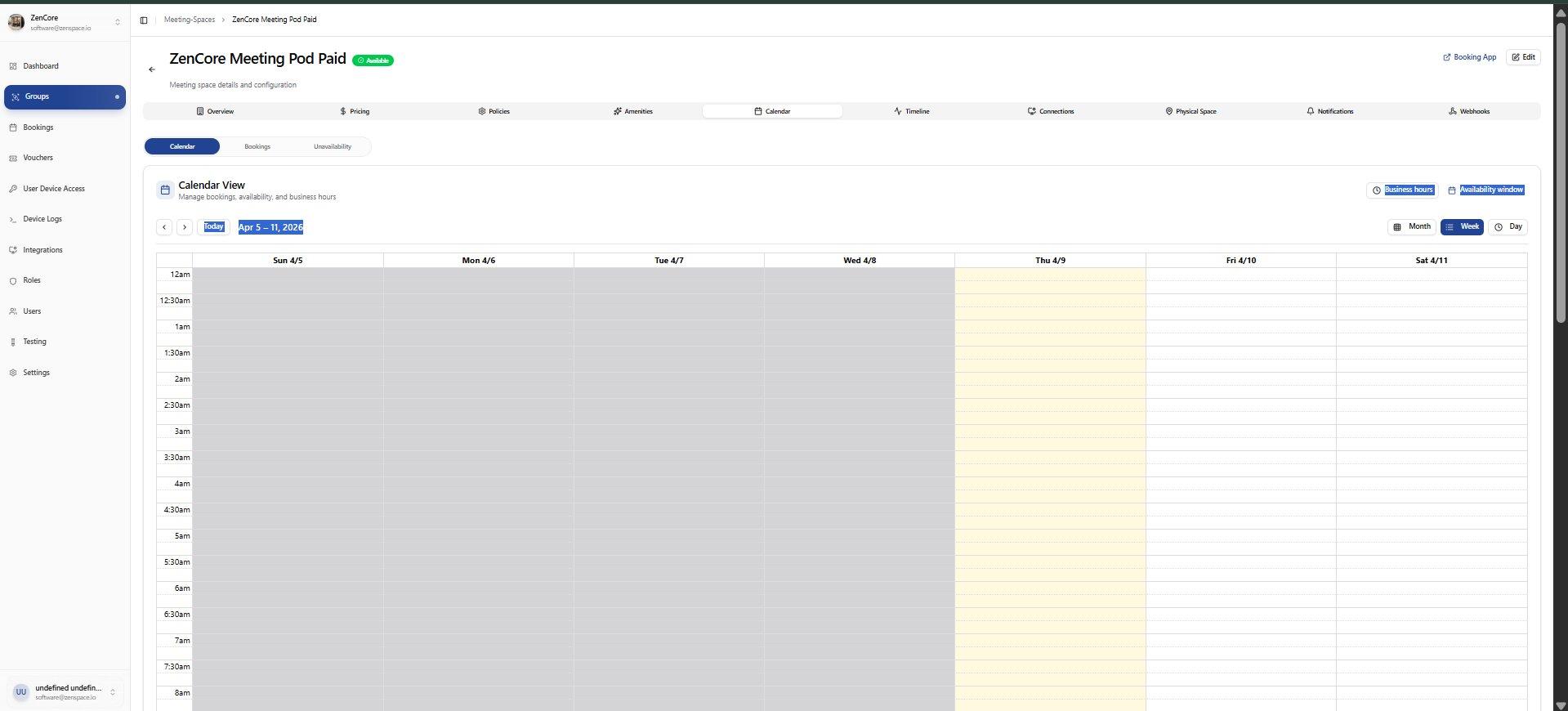
📸 Calendar Tab
Weekly Calendar View showing bookings and availability for the space. Supports Month/Week/Day views. Includes Business Hours and Availability Window toggles.
📸 Timeline Tab
Visual timeline of bookings across a selected date range. Shows booking blocks with organizer name, time, and status.
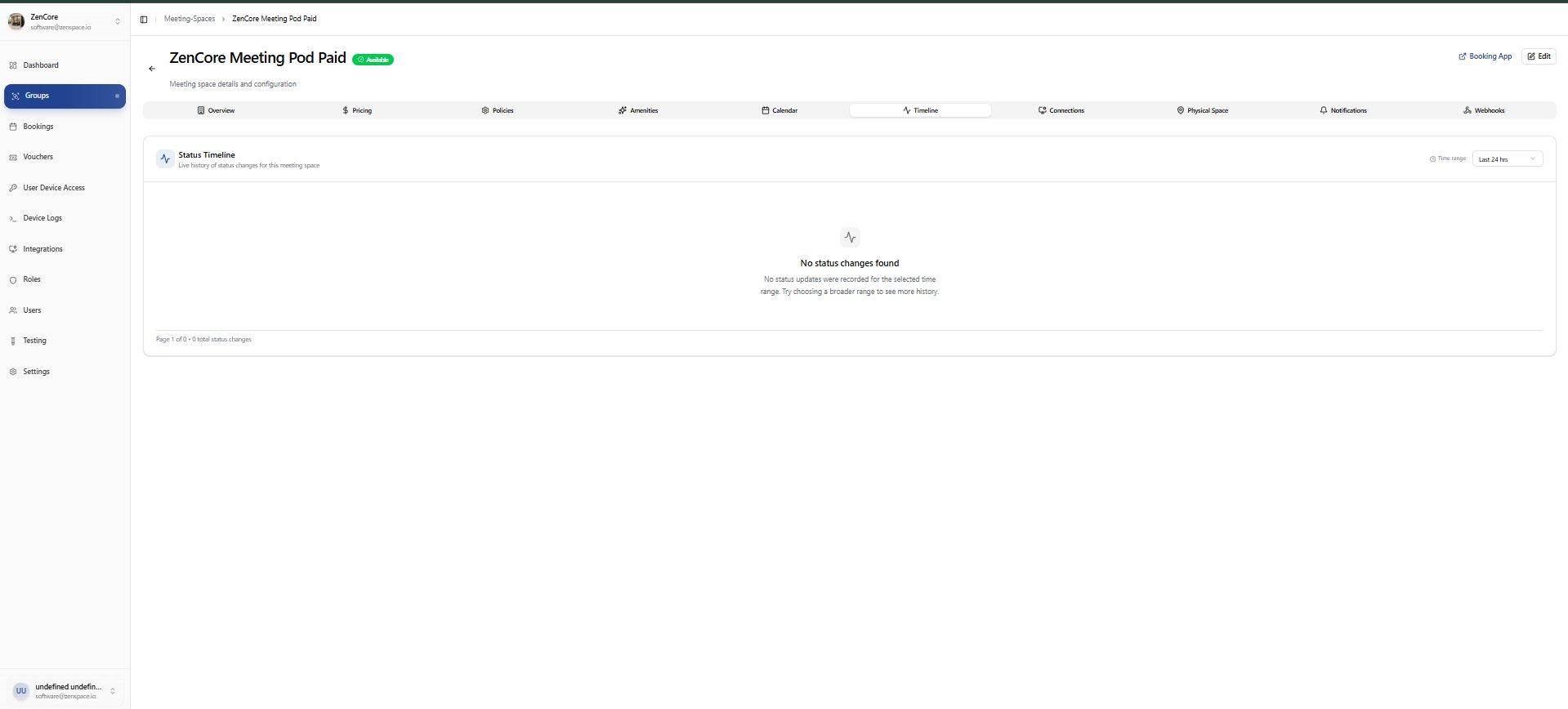
📸 Connections Tab
Manage external calendar connections (Google Calendar, Outlook) for this meeting space. Shows connected accounts and sync status.
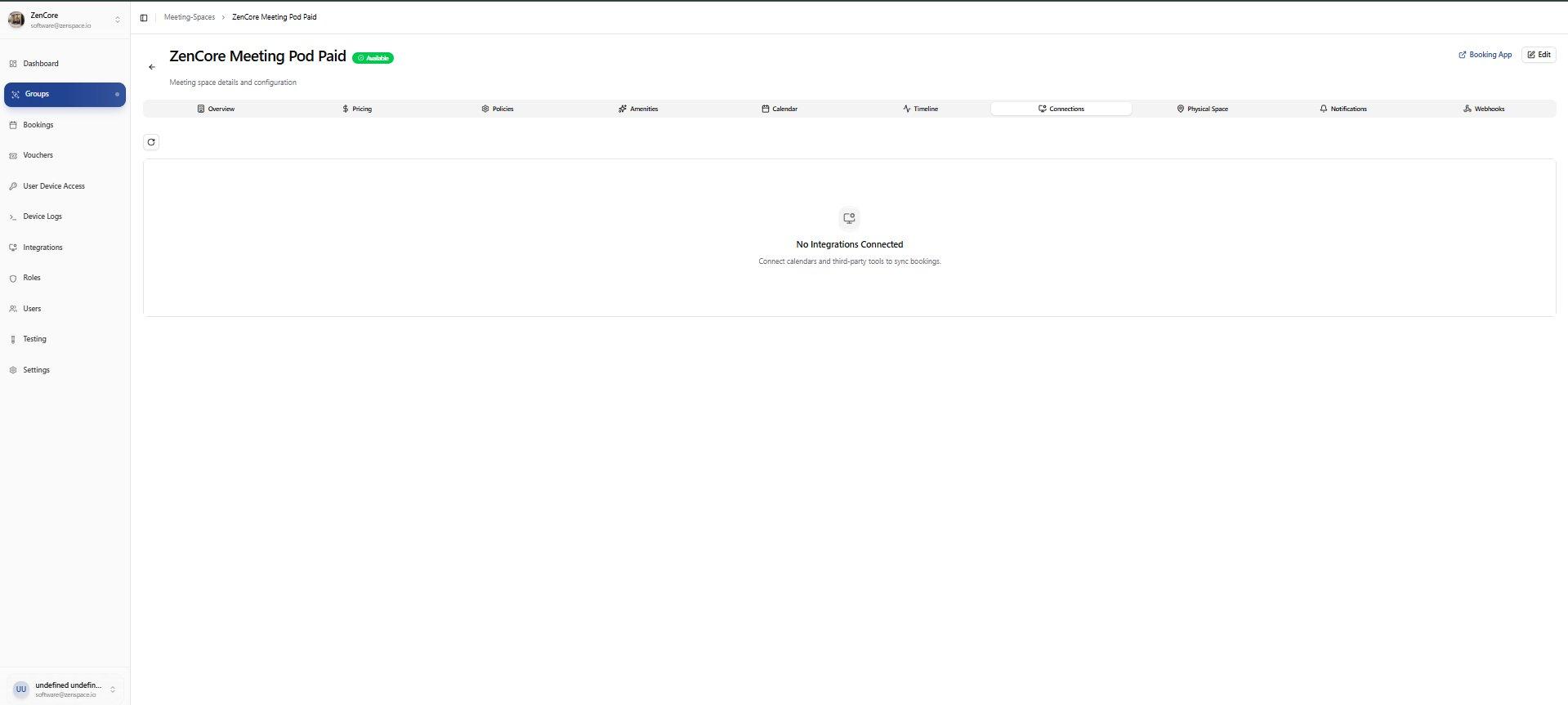
📸 Physical Space Tab
Link this virtual meeting space to a physical space via MRD API. Shows current physical space mapping, Space ID, and Mapping ID.
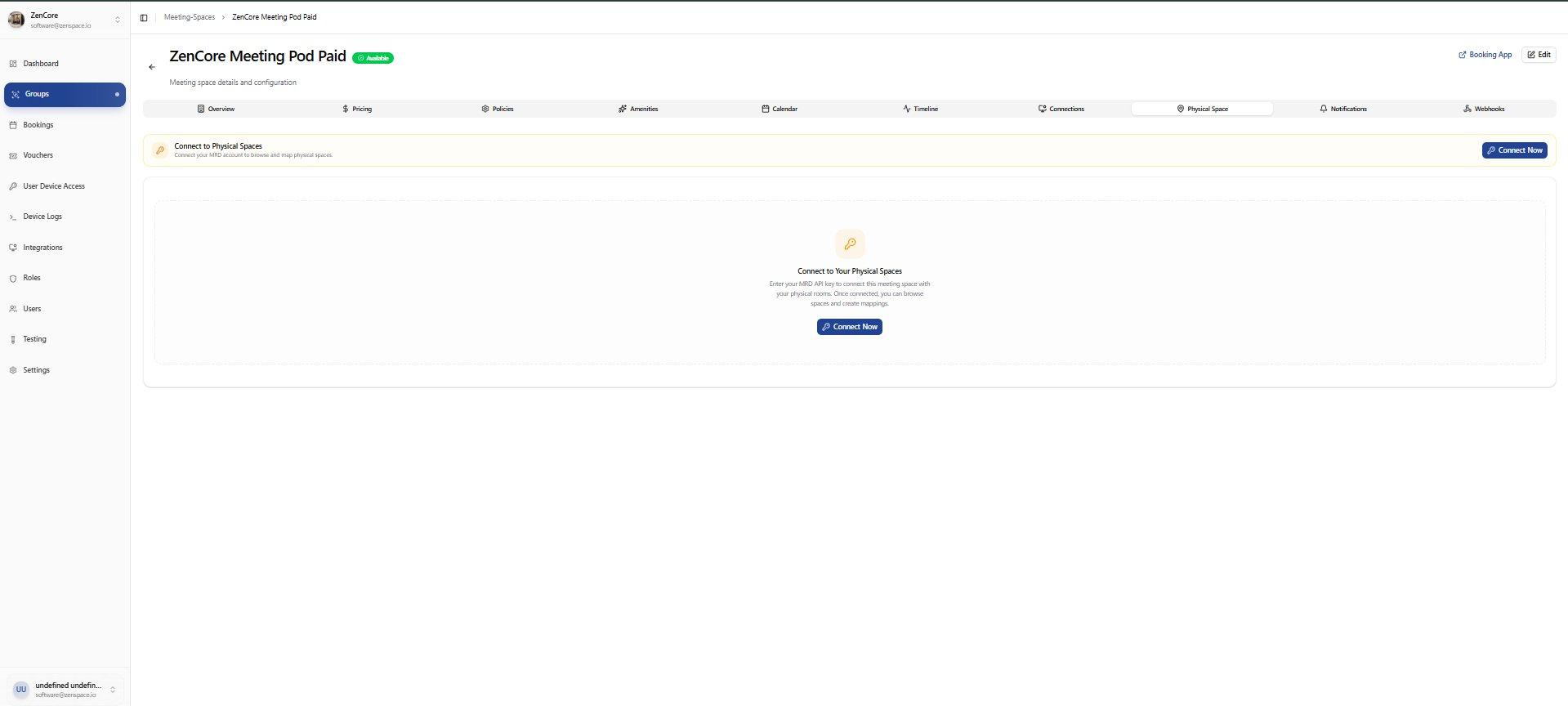
📸 Notifications Tab
Configure notification settings for this meeting space: Booking Confirmations, Booking Reminders, and Cleaning Task notifications.
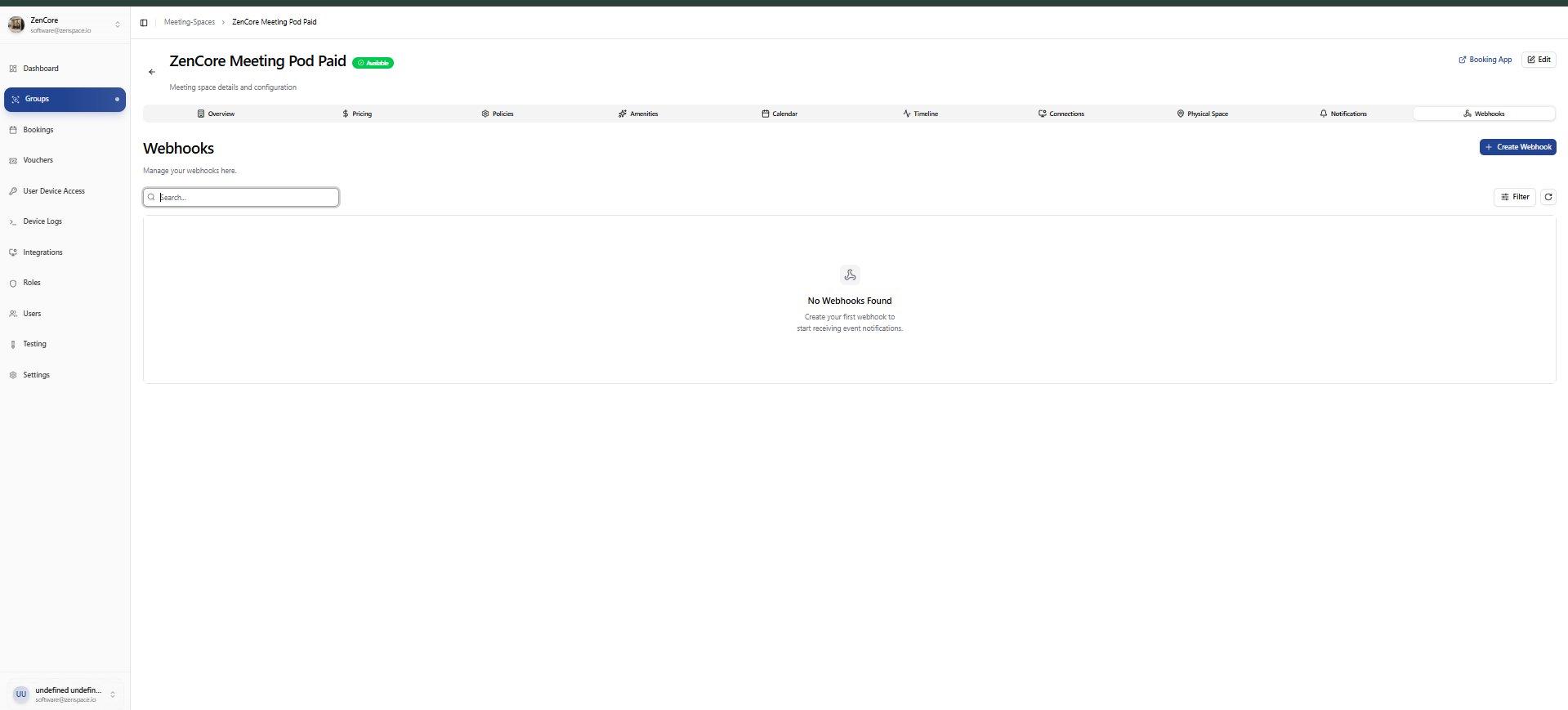
📸 Webhooks Tab
Manage webhooks for this meeting space to receive event notifications. Includes search bar and Create Webhook button. Empty state: No Webhooks Found.
Edit Meeting Space
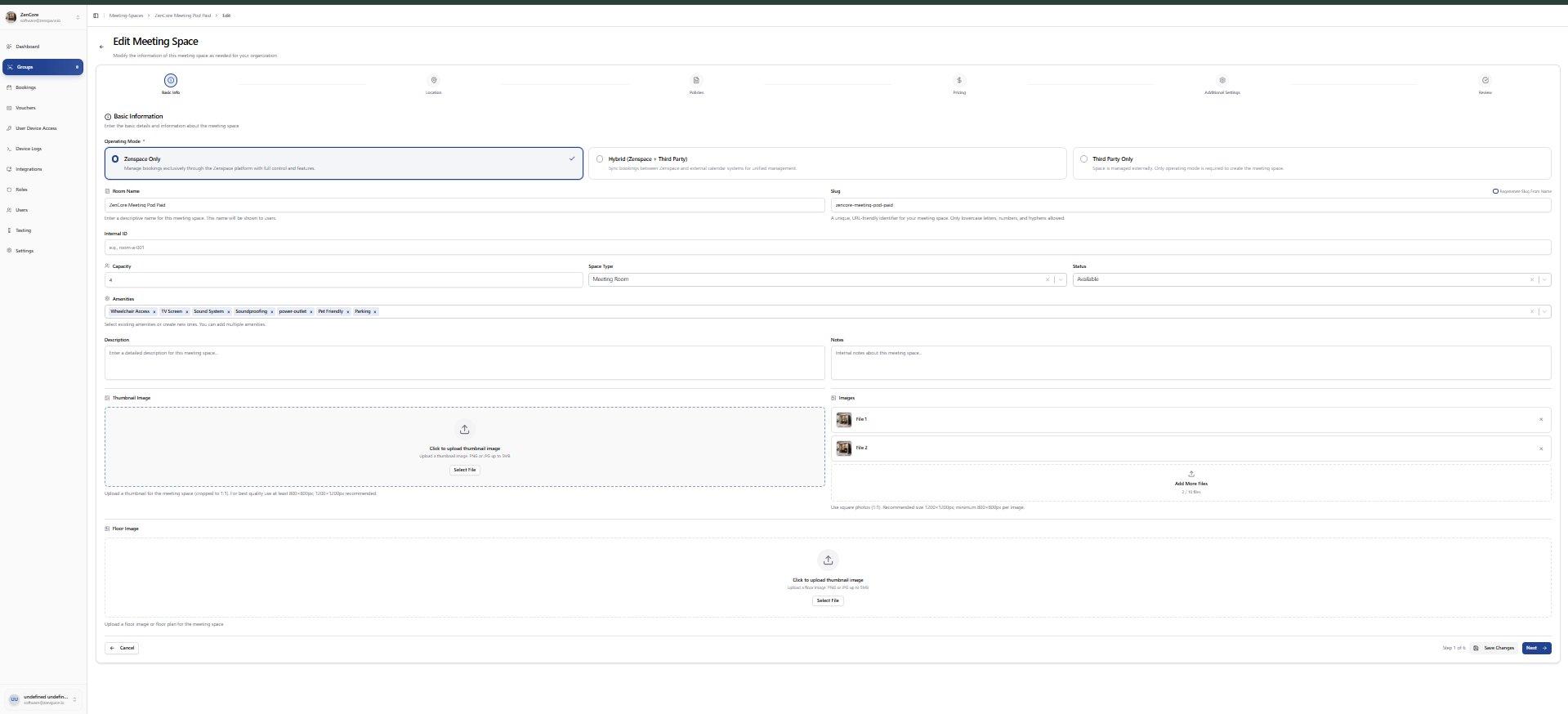
📸 Step 1: Basic Info
Edit Operating Mode, Room Name, Slug, Internal ID, Capacity, Space Type, Status, Amenities, Description, Notes, Thumbnail Image, Images, and Floor Image. Route: /meeting-spaces/:msId/edit
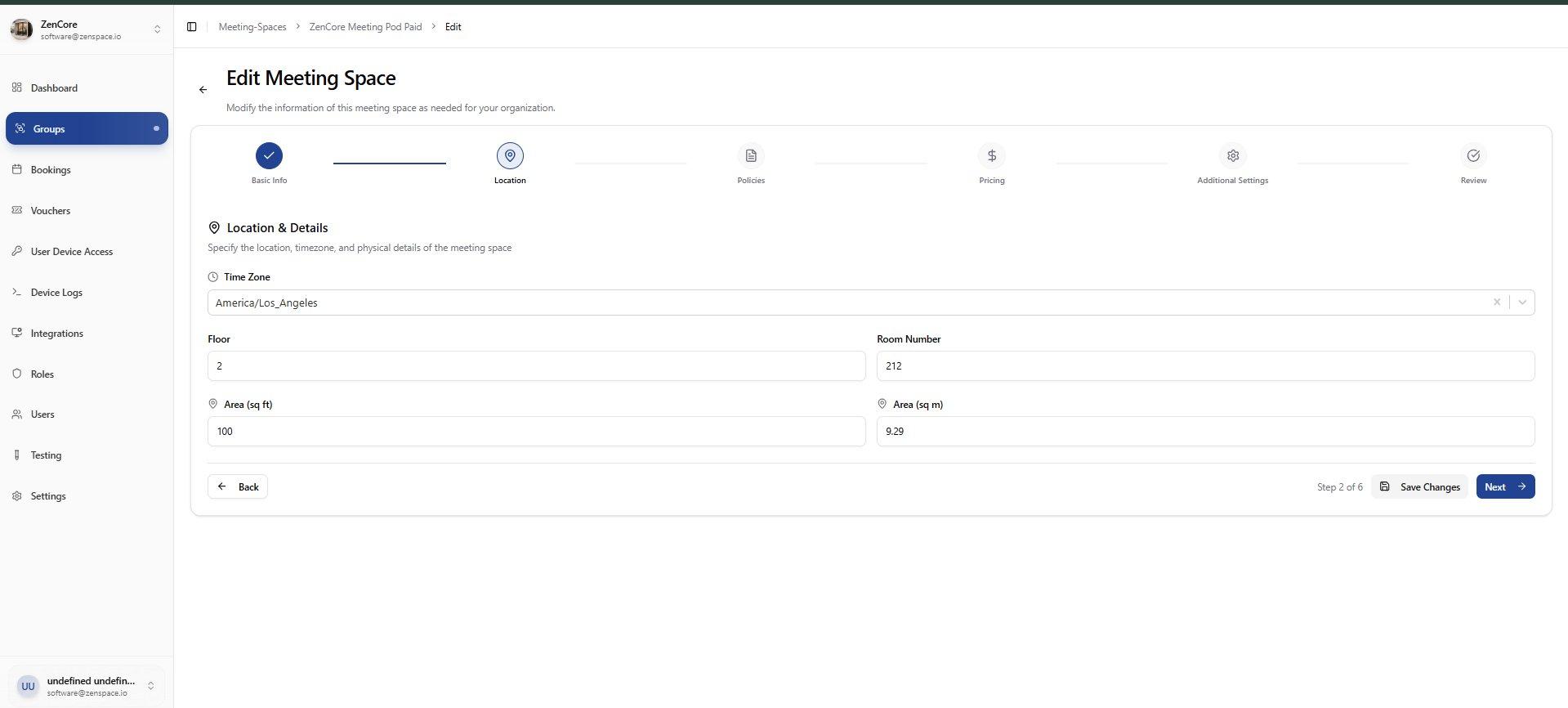
📸 Step 2: Location
Edit location details: Time Zone, Floor number, Room Number, and Area in sq ft and sq m. Step 2 of 6.
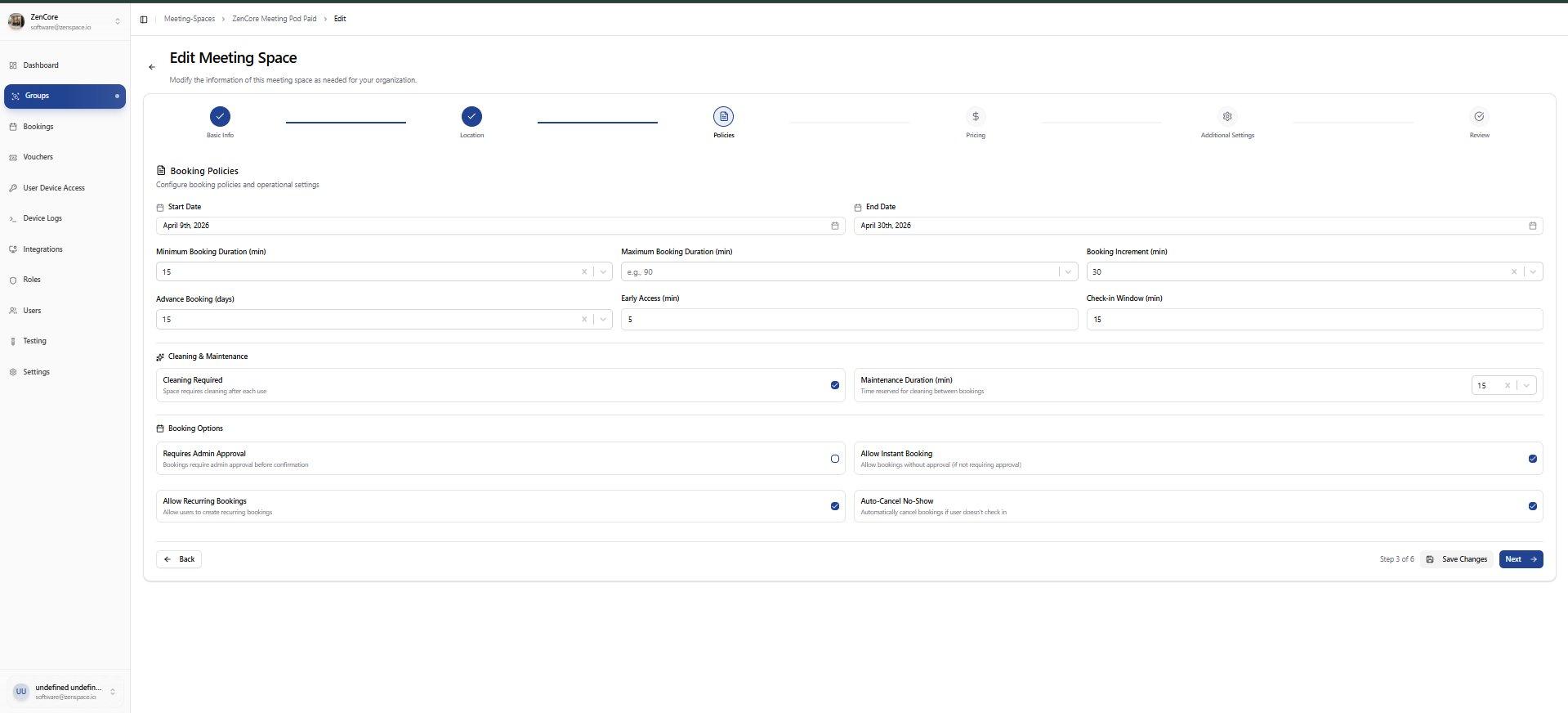
📸 Step 3: Policies
Edit Booking Policies: Start/End dates, Min/Max Duration, Booking Increment, Advance Booking, Early Access, Check-in Window, Cleaning and Maintenance, and Booking Options. Step 3 of 6.
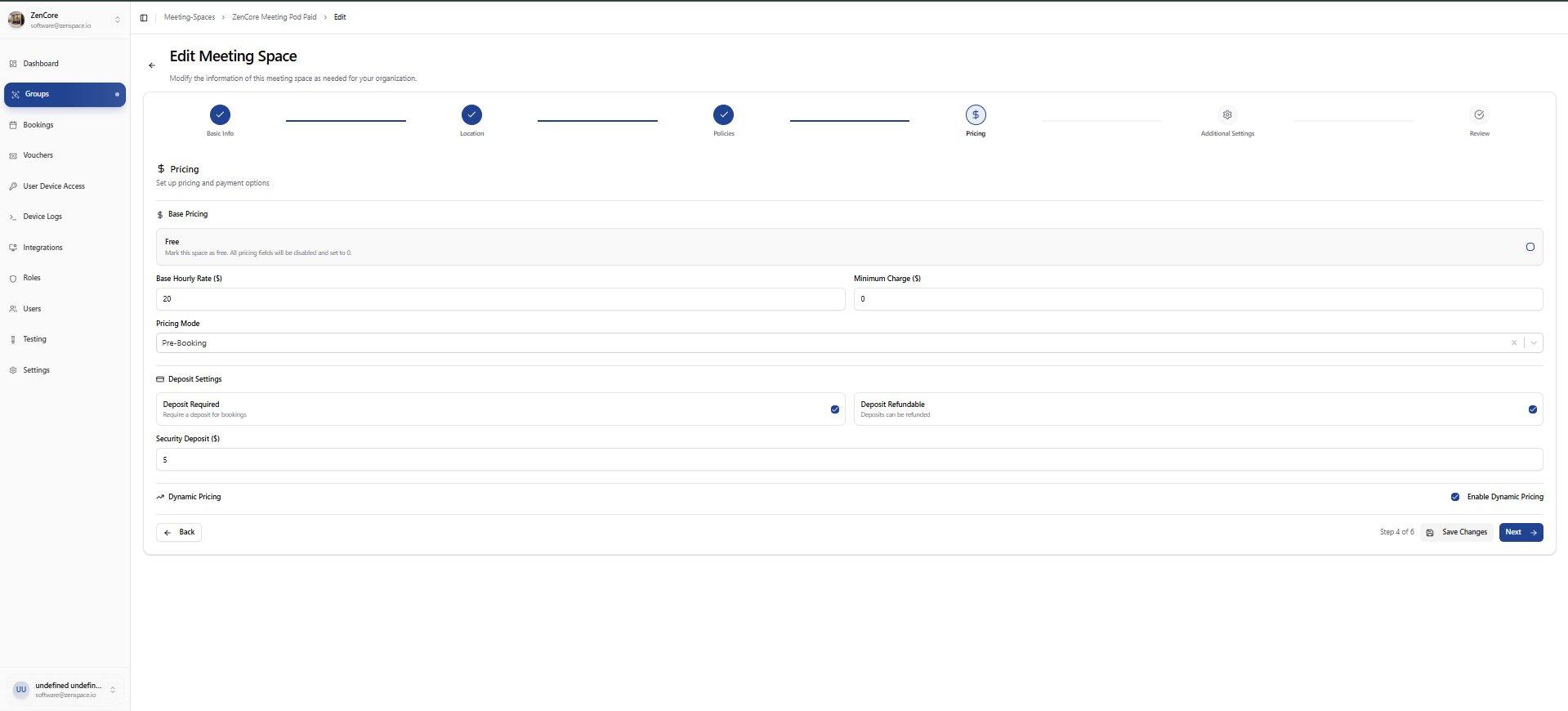
📸 Step 4: Pricing
Edit pricing: Base Hourly Rate, Minimum Charge, Pricing Mode, Deposit Settings (Required, Refundable, Security Deposit), and Dynamic Pricing toggle. Step 4 of 6.
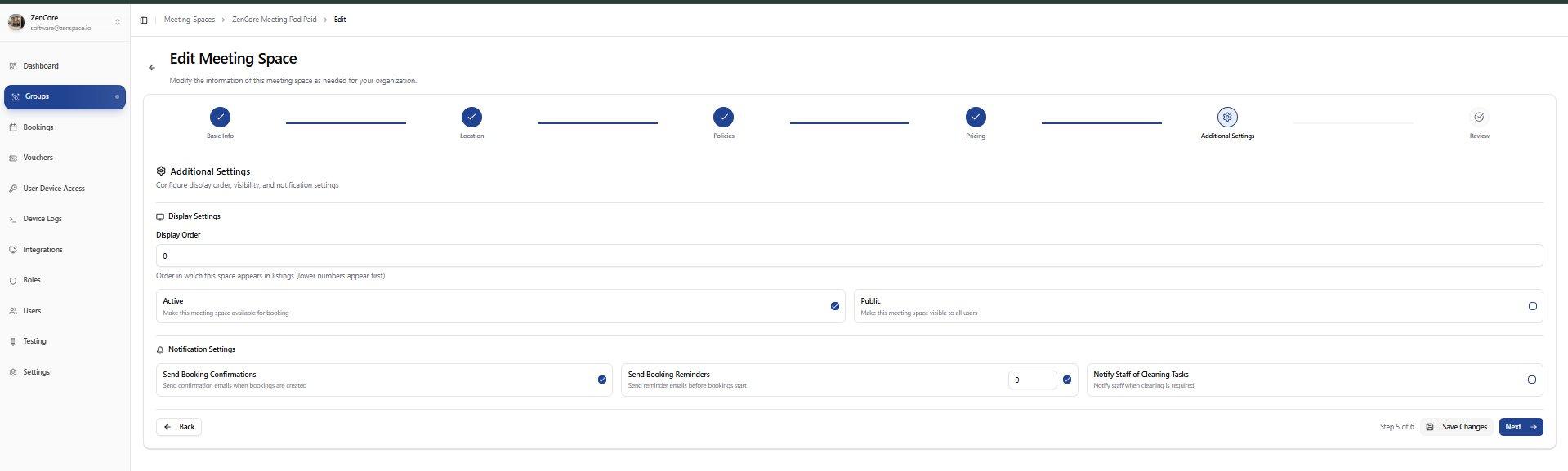
📸 Step 5: Additional Settings
Edit Display Order, Active and Public visibility toggles, and Notification Settings. Step 5 of 6.
📸 Step 6: Review & Submit
Final review before saving changes. Shows complete summary: Basic Information (Room Name, Capacity, Operating Mode, Status, Amenities, Images) and Location & Details. Step 6 of 6.