Bookings
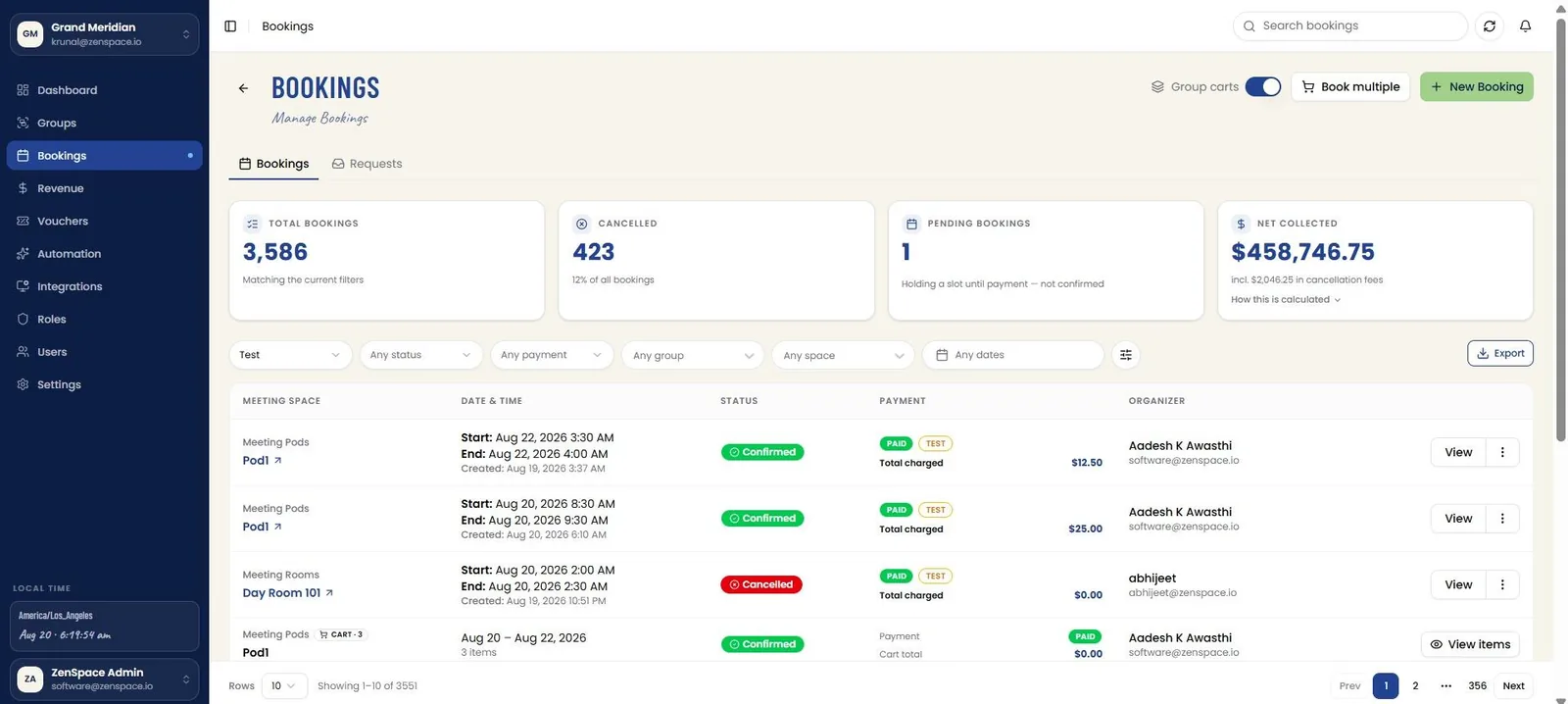
📸 Bookings List
Manage all bookings across the organization via the Bookings and Requests tabs. Header actions: Group carts toggle, Book multiple, and New Booking. Stats tiles show Total Bookings (matching the current filters), Cancelled with its share of all bookings, Pending Bookings, and Net Collected including any cancellation fees, with Search, Export, and refresh. Filters: Mode (Live/Test), Status, Payment, Group, Space, and Date Range. The table lists Meeting Space, Date & Time (with created time), Status, Payment (status, mode, Total charged), Organizer, and a View action per booking. Route: /bookings
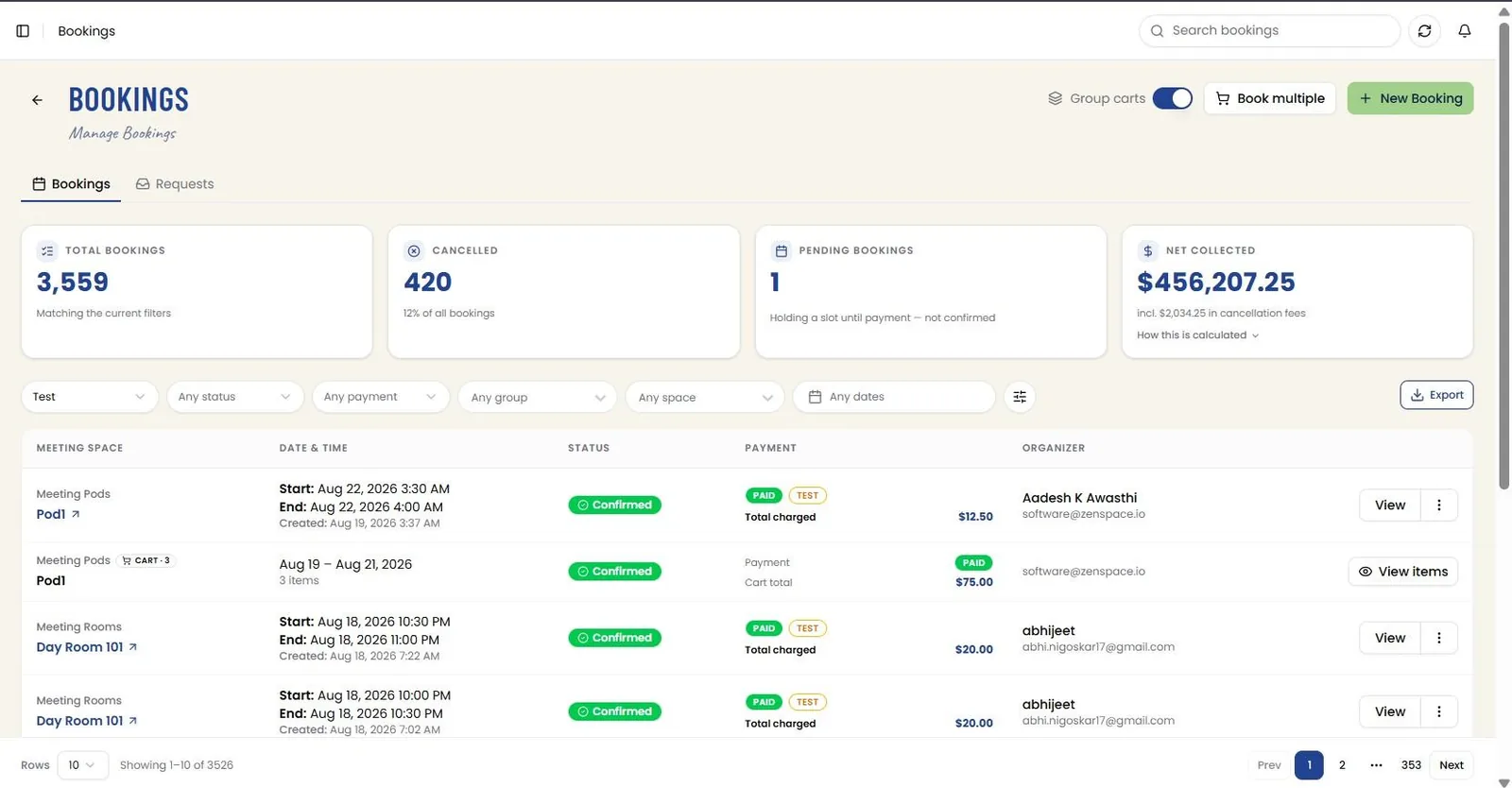
📸 Booking Requests Tab
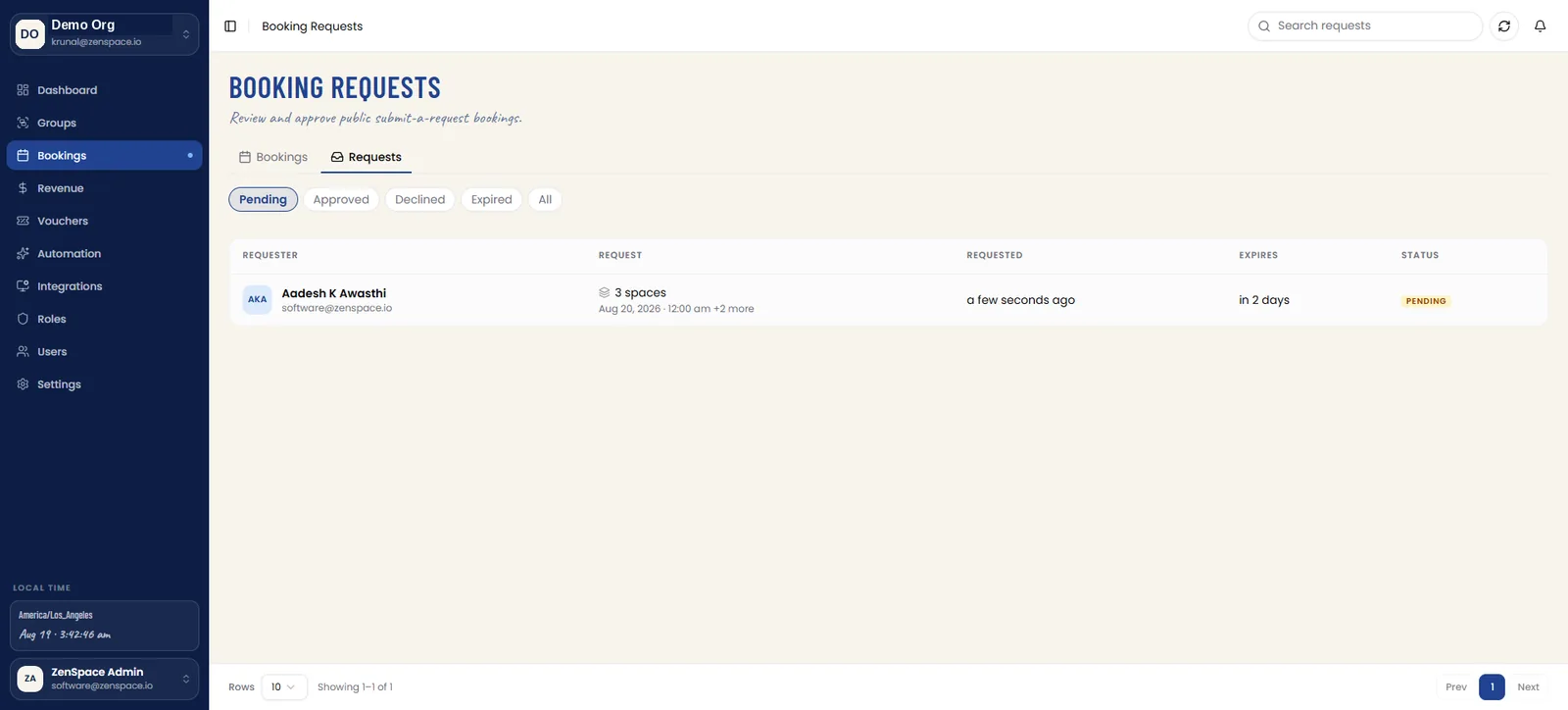
The Requests tab reviews and approves public submit-a-request bookings. Status filter chips — Pending, Approved, Declined, Expired, and All — scope the list, and the table carries Requester, Request, Requested, Expires, and Status columns with a search field and refresh. Where nothing is awaiting review, an empty state explains that requests appear here when visitors submit them for spaces set to "Submit a request".
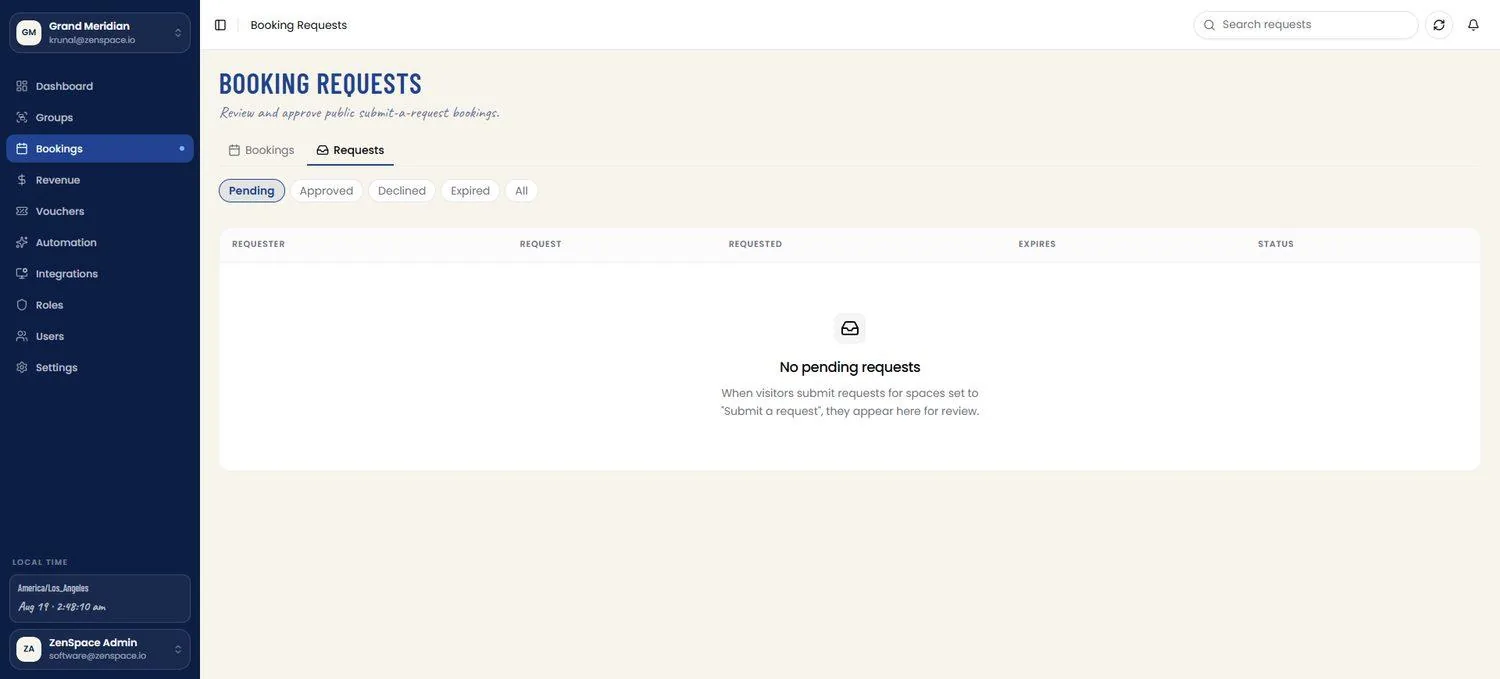
📸 Bookings List — Cart Bookings Expanded
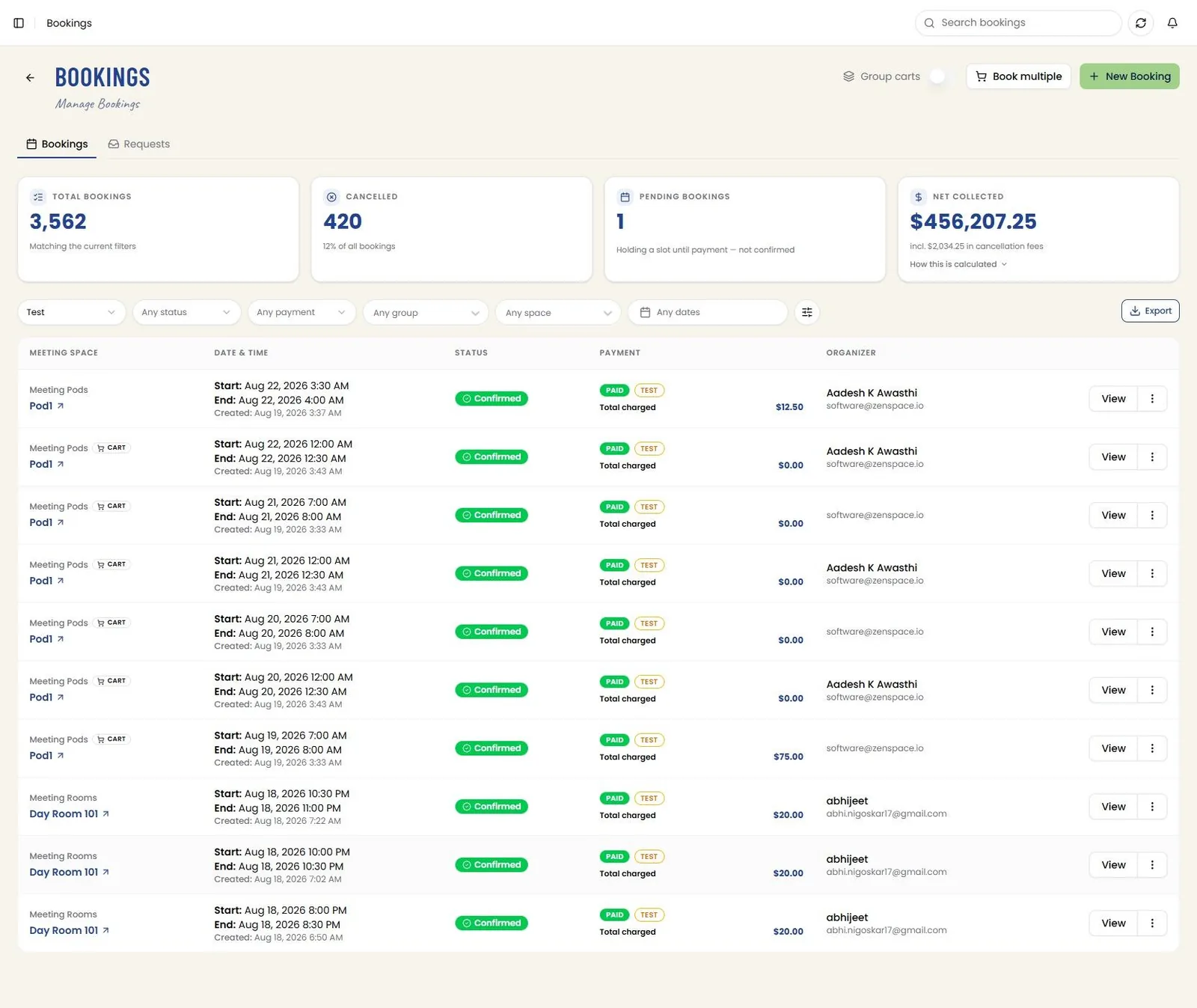
With the Group carts toggle turned off, bookings made through a cart are listed as individual rows tagged with a CART badge, and the stats expand accordingly (e.g. 8 grouped rows become 13 individual bookings). Each row keeps its own status and payment details.
📸 New Booking
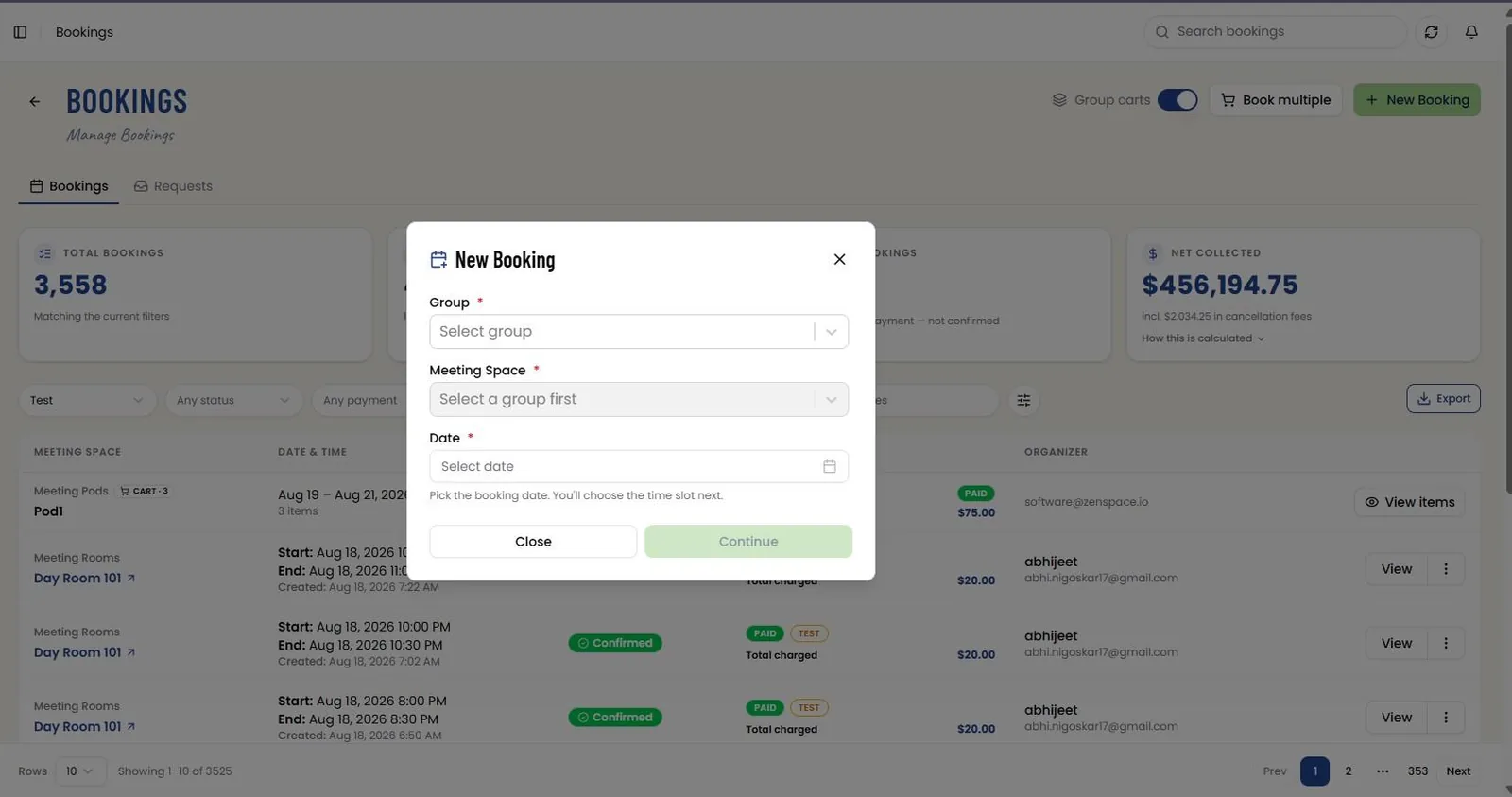
Clicking New Booking opens a modal that walks through three fields in order. First, Group is selected from the required Group dropdown. Once a group is chosen, the Meeting Space dropdown unlocks and lists every meeting space that belongs to that group — one of these is selected next. Finally, a Date is picked. Continue stays disabled until all three are chosen, and clicking it closes this modal and opens Add Space Booking.
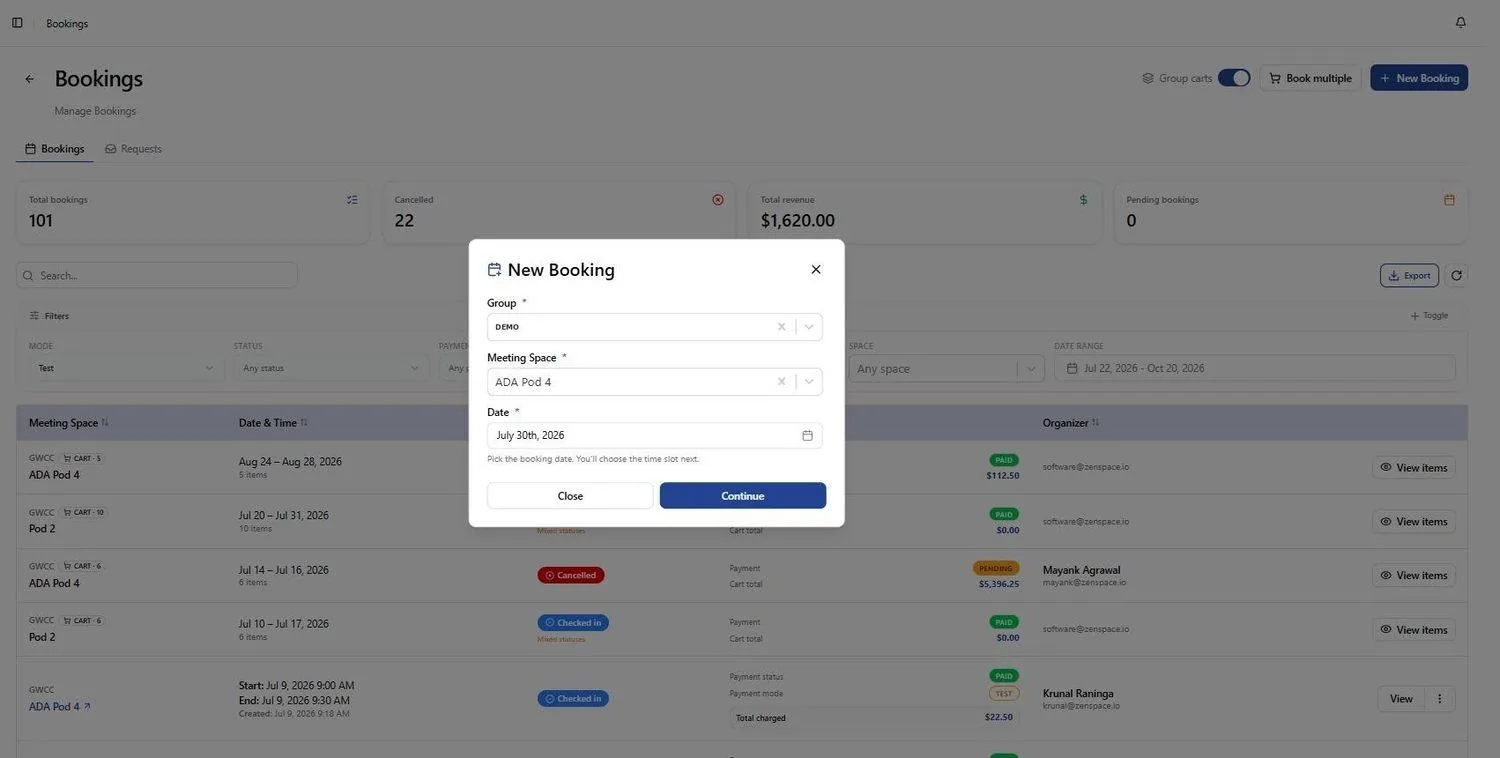
📸 New Booking — Selection Completed
With Group, Meeting Space, and Date selected (e.g. Demo / ADA Pod 4 / July 30th), Continue proceeds to the booking details step.
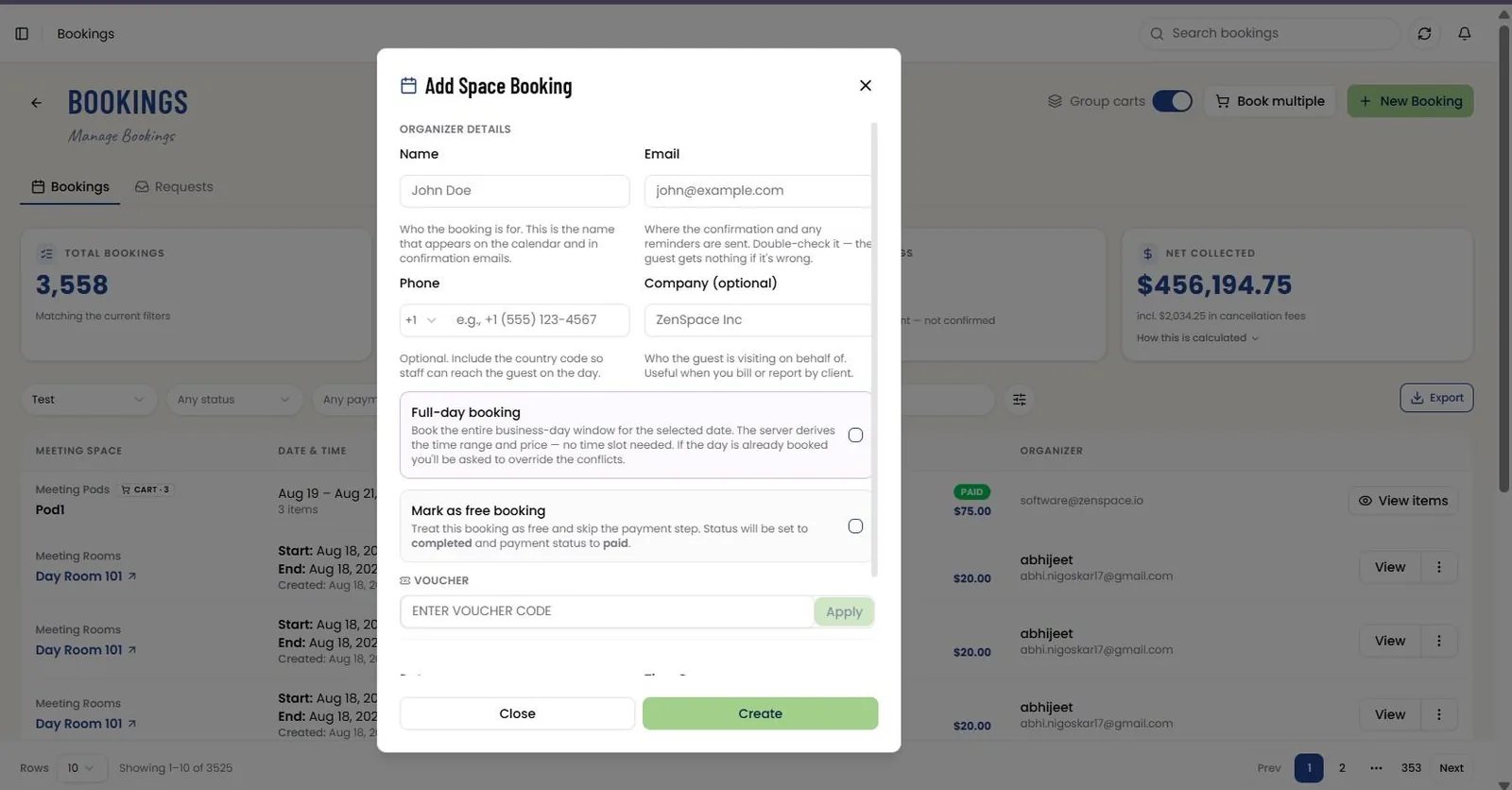
📸 Add Space Booking
The booking details modal captures organizer Name, Email, Phone, and optional Company. Options: Full-day booking (books the entire business-day window — the server derives the time range and price, and prompts to override conflicts if the day is already booked) and Mark as free booking (skips payment; status set to completed and payment to paid).
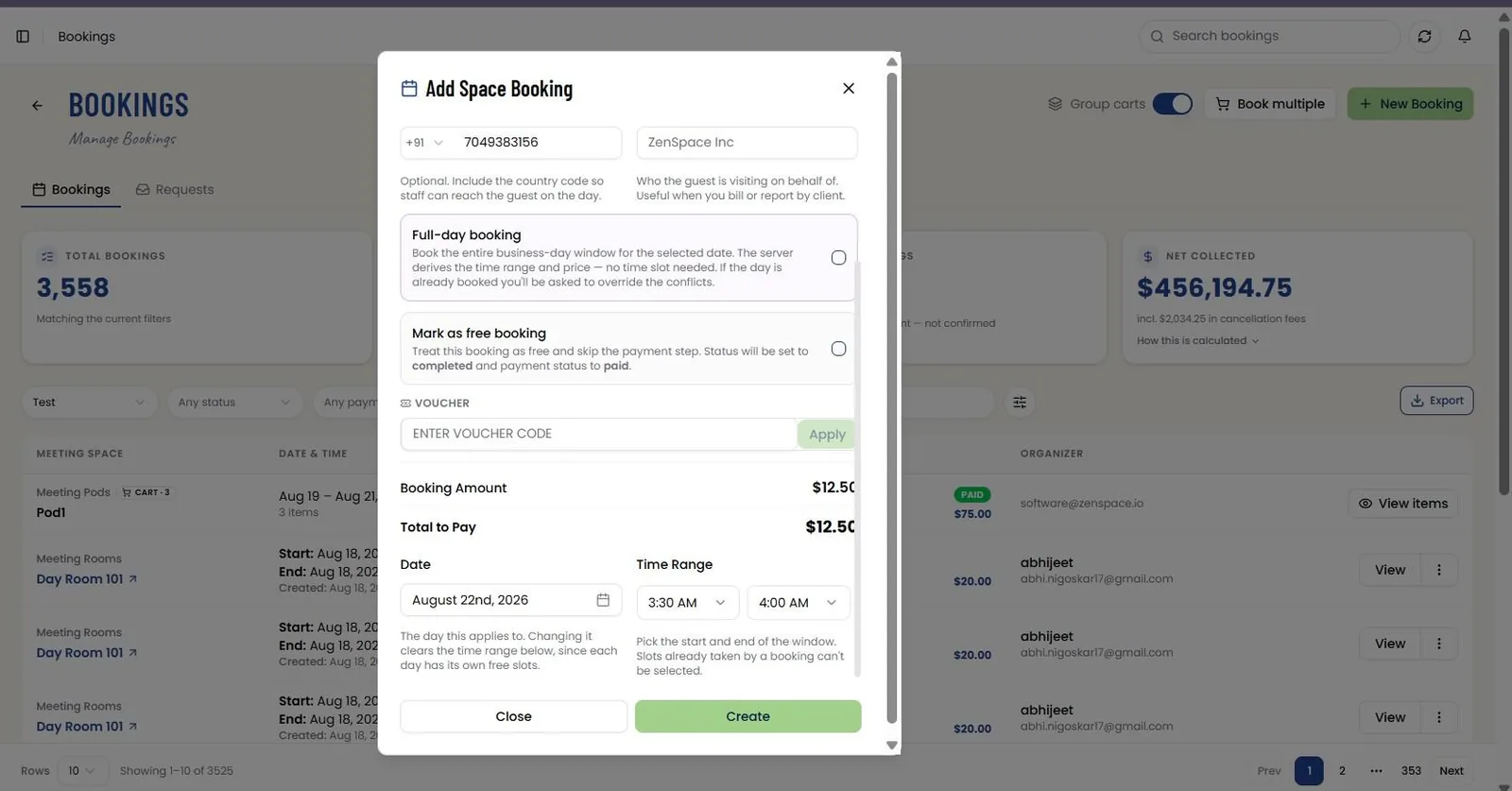
📸 Add Space Booking — Pricing & Schedule
Scrolling down, a voucher code can be applied, with Booking Amount and Total to Pay shown above Date and Time Range selectors --- the Date field notes that changing it clears the time window below since each day has its own slots --- then Close or Create.
📸 New Booking — Payment
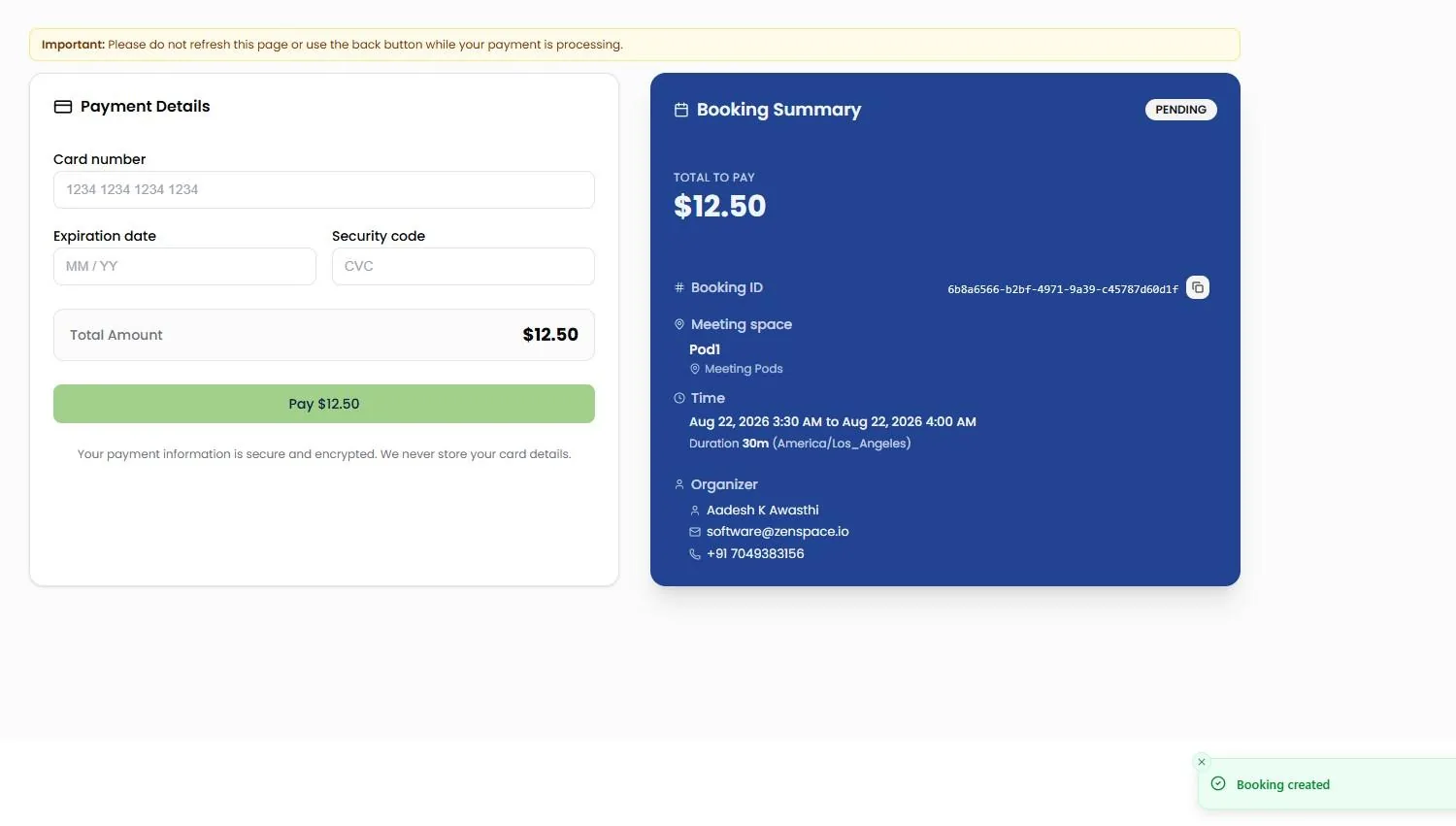
After Create, the payment step shows a card form (Card number, Expiration date, Security code) with the Total Amount and a Pay button, alongside a Booking Summary panel (PENDING) listing Total to Pay, Booking ID, Meeting space, Time with duration and timezone, and Organizer details. A warning advises not to refresh or go back while payment is processing.
📸 Booking Detail
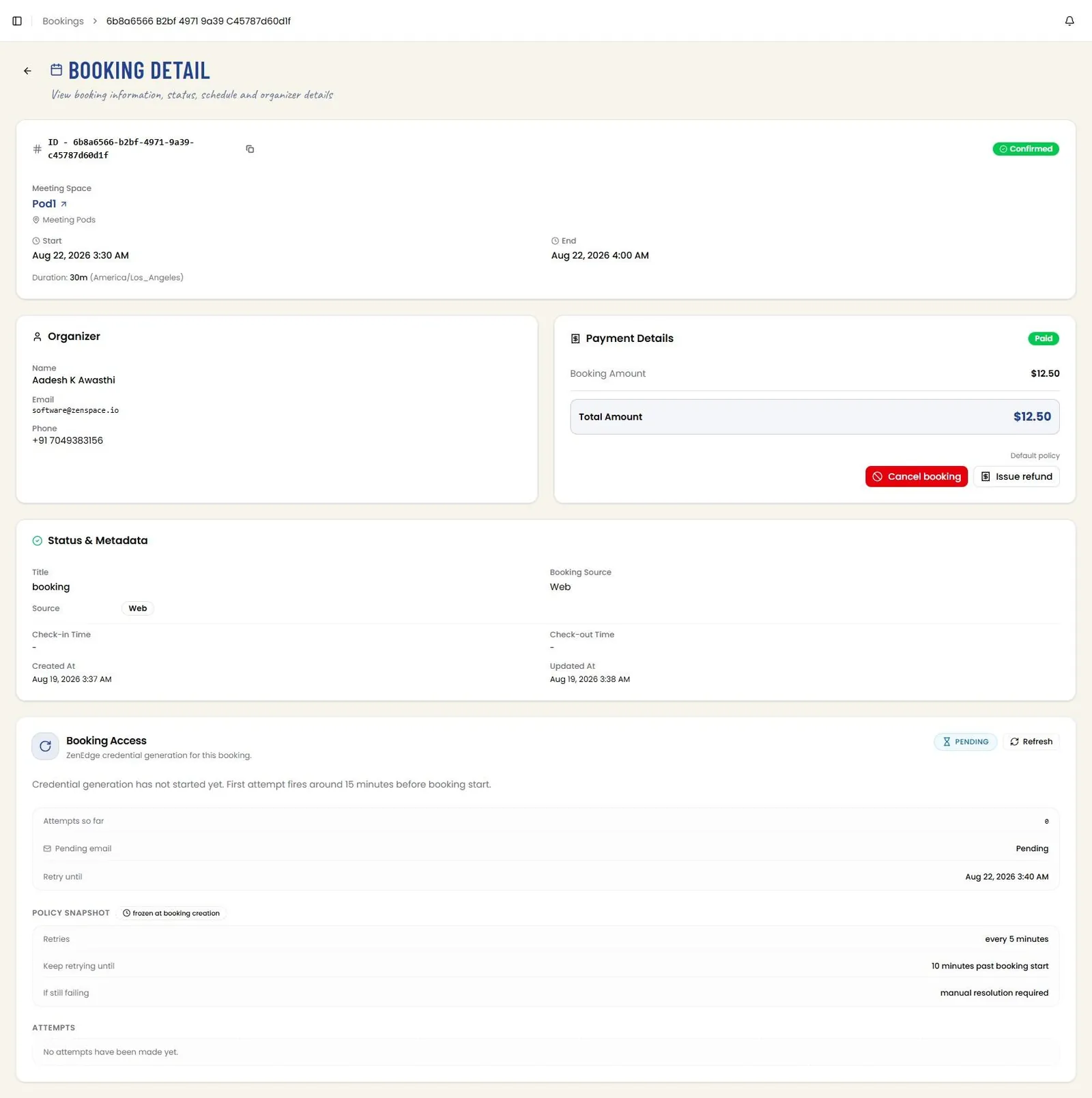
Full booking detail view. Shows the Booking ID with copy button and status badge, the Meeting Space (with group) linked to its detail page, Start/End time with Duration and timezone, Organizer info (Name, Email, Phone), and Payment Details with payment status badge, Booking Amount, and Total Amount, the applicable cancellation policy noted beneath (e.g., Default policy), plus Cancel booking and Issue refund actions. A Status & Metadata card follows below, recording Title, Booking Source, Source, Check-in Time, Check-out Time, Created At, and Updated At. A Booking Access card then reports ZenEdge credential-generation status for the booking (e.g., Pending, with a Refresh action), the countdown until the first attempt fires, and a Policy Snapshot frozen at booking creation --- Retries cadence, how long retries continue past booking start, and the fallback if still failing (manual resolution required) --- followed by an Attempts log. Route: /bookings/:id
📸 Book Multiple — Build Cart (Empty)
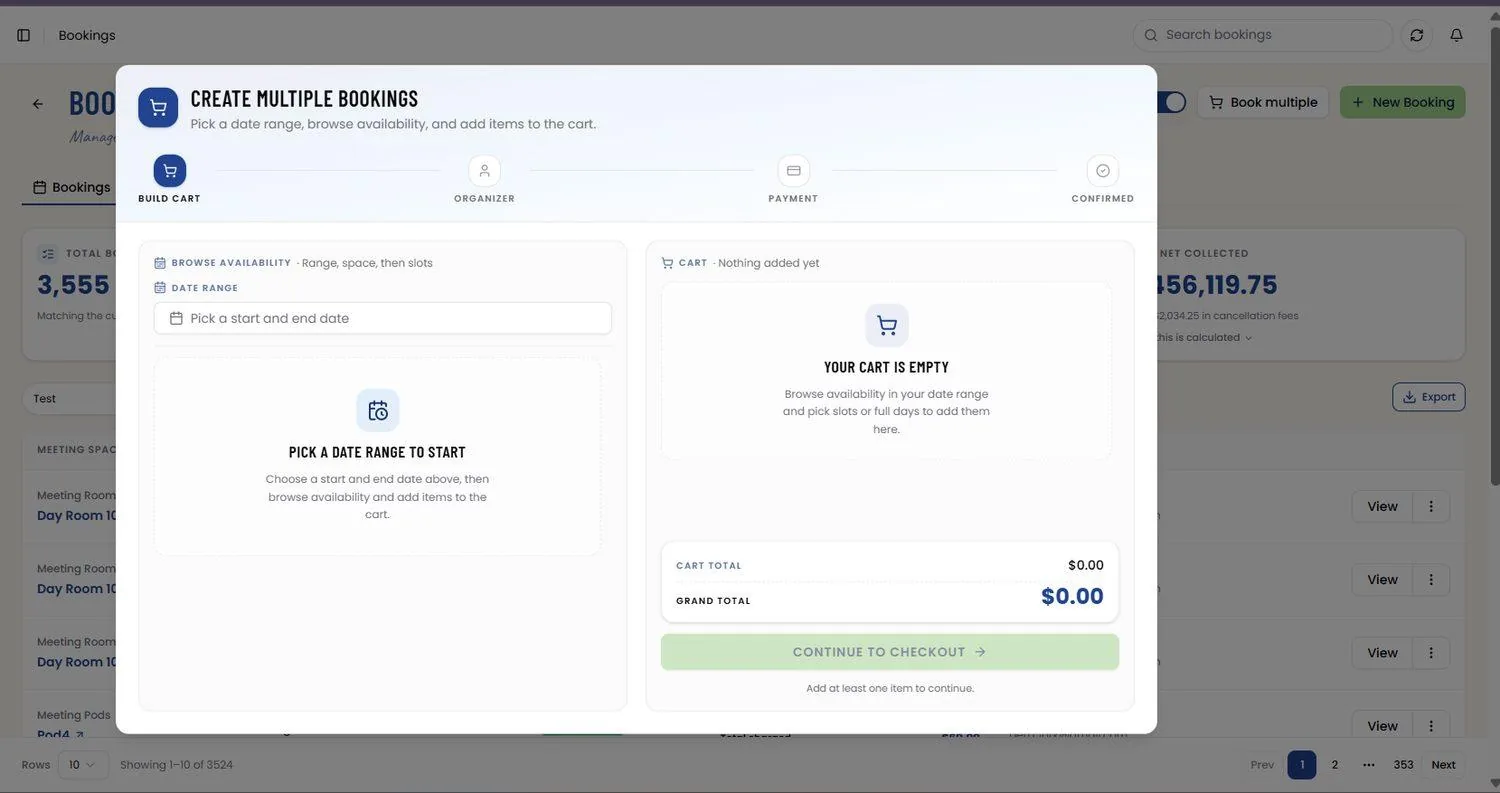
Book multiple opens the Create Multiple Bookings wizard (Build cart, Organizer, Payment, Confirmed) where all items are booked together. Start by picking a start and end date, then browse availability and add slots or full days to the cart. Continue to checkout stays disabled until the cart has at least one item.
📸 Book Multiple — Add Items
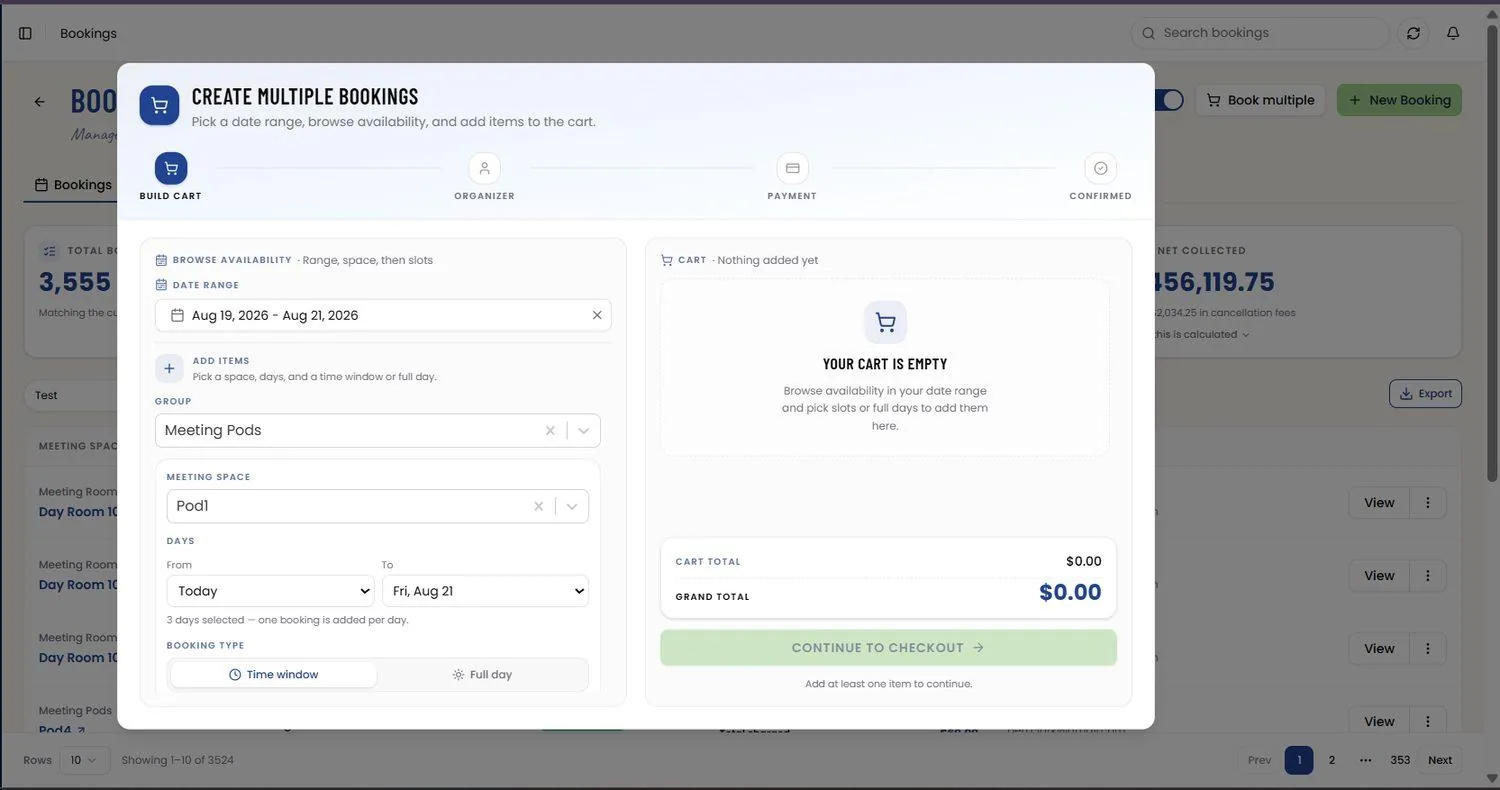
Once a date range is picked, an Add items panel appears for choosing a space, days, and a time window or full day. Group and Meeting Space selectors narrow the target, Days sets a From/To span with a note that one booking is added per day, and Booking type switches between Time window and Full day.
📸 Book Multiple — Build Cart with Items
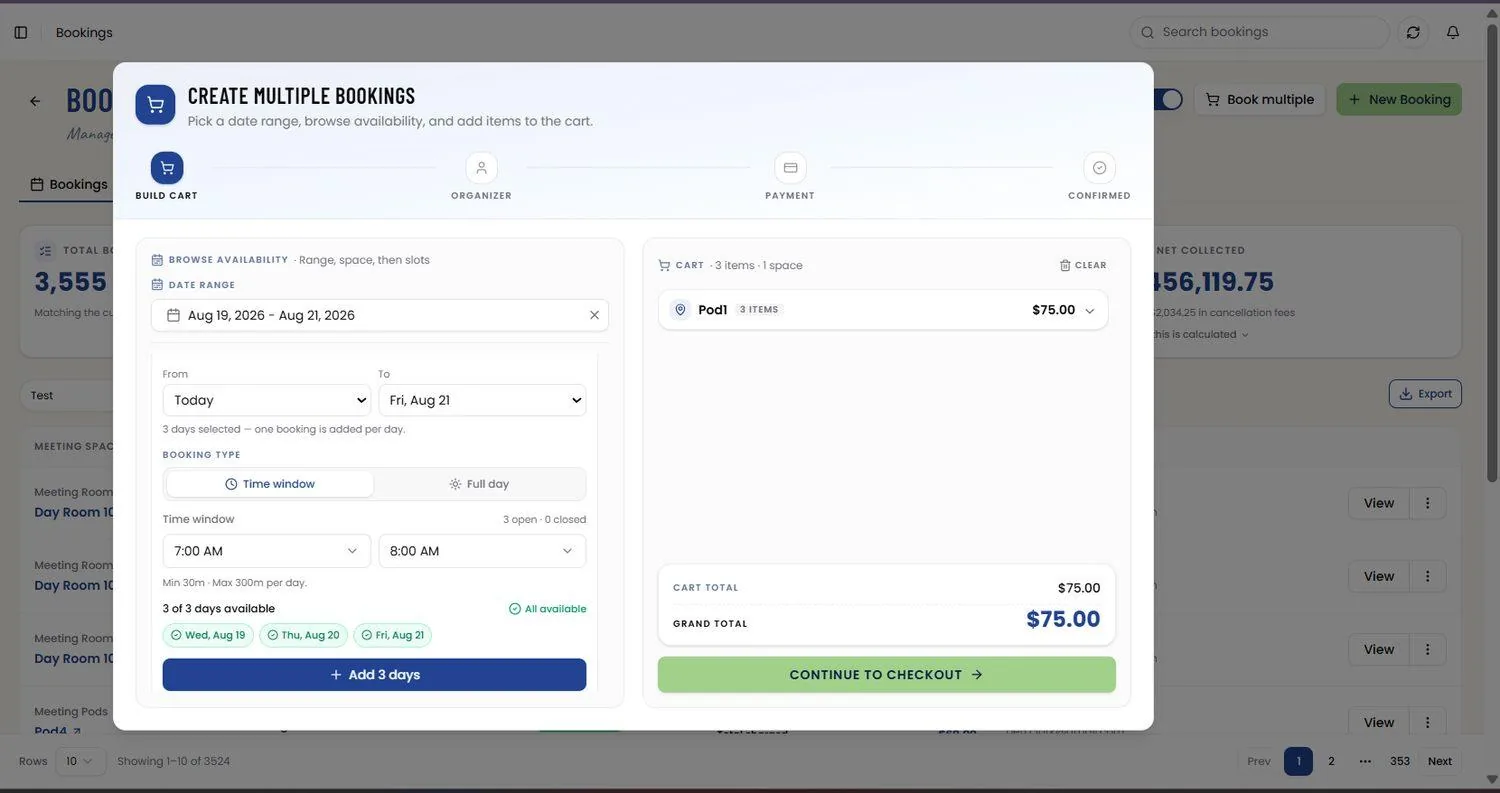
With a date range and meeting space selected, choose Days (From/To — one booking is added per day), Booking type (Time window or Full day), and the time window (with per-day min/max duration limits). Day-level availability chips show open vs closed days before adding. The cart panel groups items by space with per-item Bookable price, Cart total and Grand total, and a Continue to checkout action.
📸 Book Multiple — Organizer & Pricing
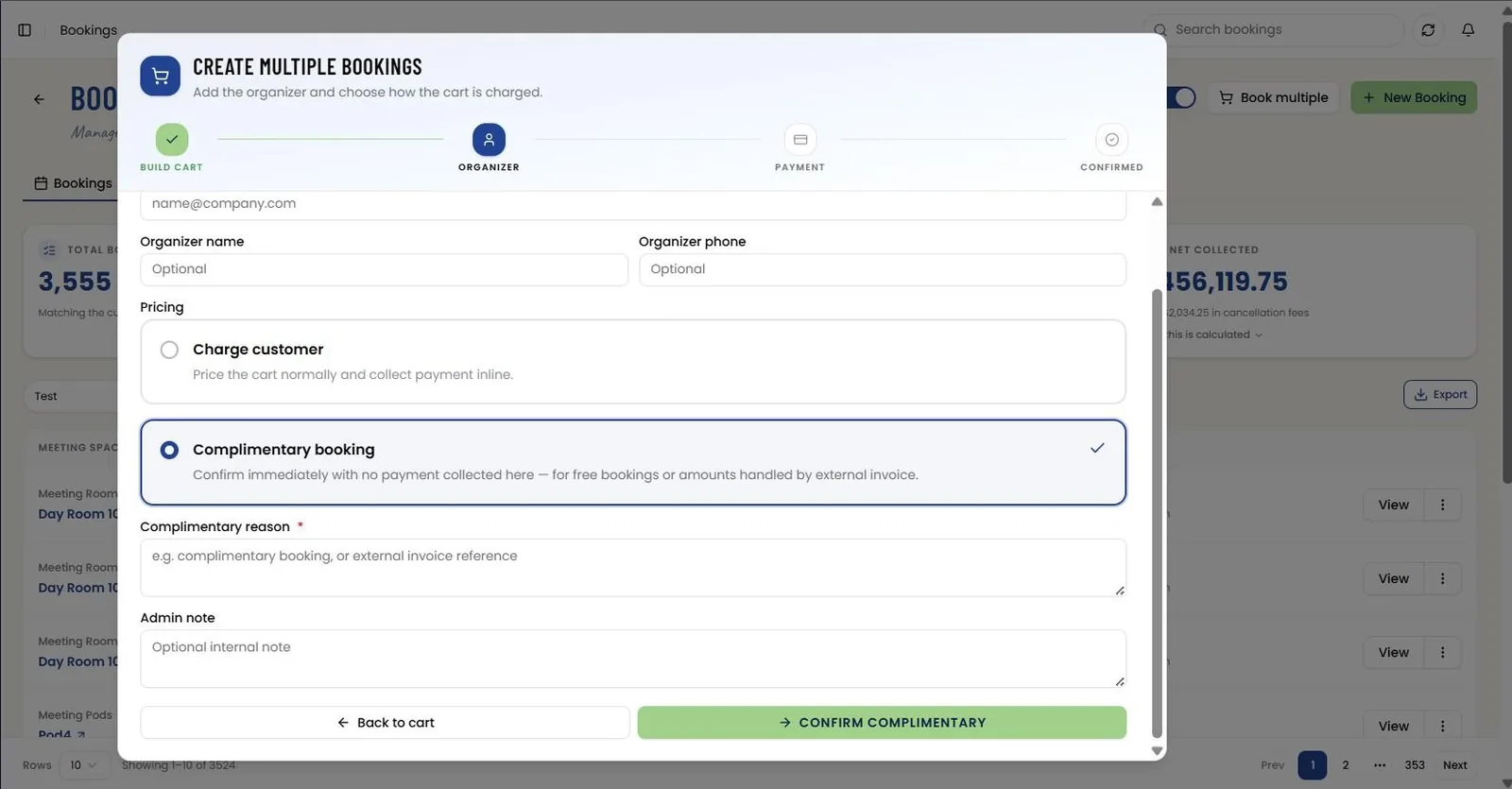
The Organizer step summarizes items in cart with the total, then captures Organizer email (required), name, and phone. Pricing options: Charge customer (price the cart normally and collect payment inline) or Complimentary booking (confirm immediately with no payment — for free bookings or externally invoiced amounts), which reveals a required Complimentary reason field. An optional Admin note can be added before Back to cart or Checkout.
📸 Book Multiple — Payment
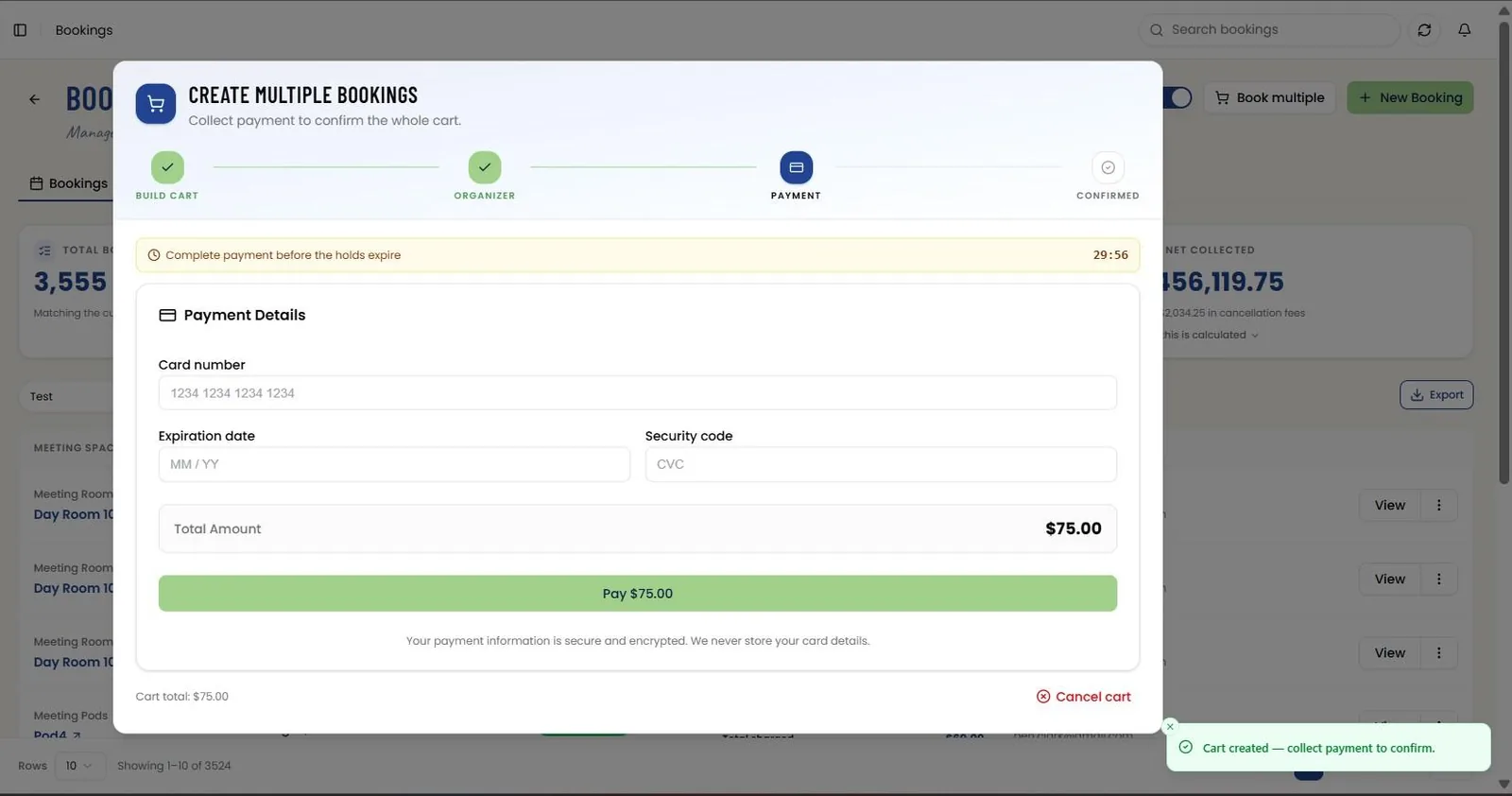
The Payment step shows a countdown banner ("Complete payment before the holds expire", 30 minutes) above the card form and Total Amount, with a Pay button for the whole cart. The footer shows the Cart total and a Cancel cart action.
📸 Book Multiple — Cart Confirmed
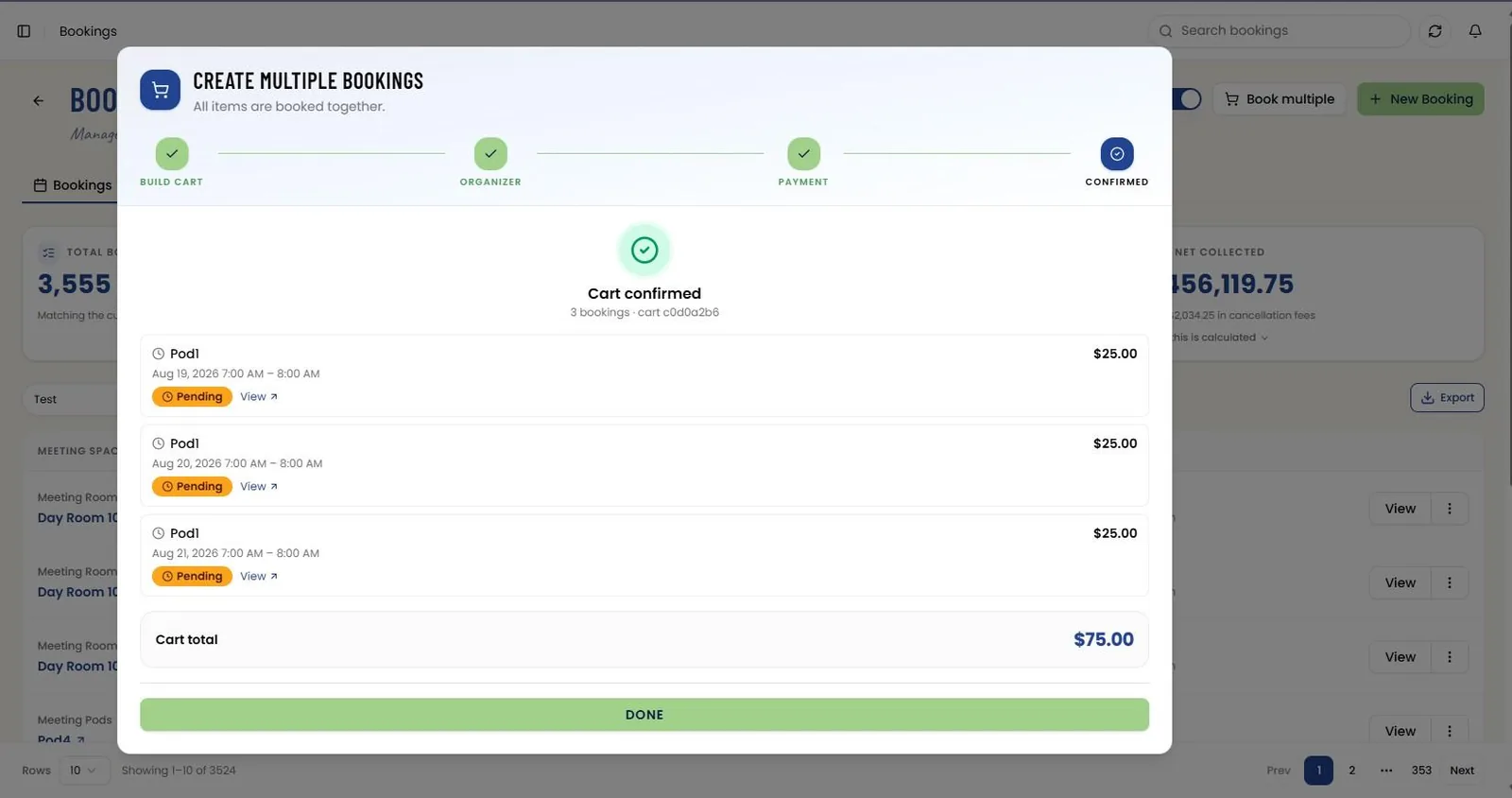
On success, the Confirmed step shows "Cart confirmed" with the cart ID and lists every booking with its date, time, price, per-item status badge, and a View link, plus the Cart total and a Done action.
📸 Cart Items Panel
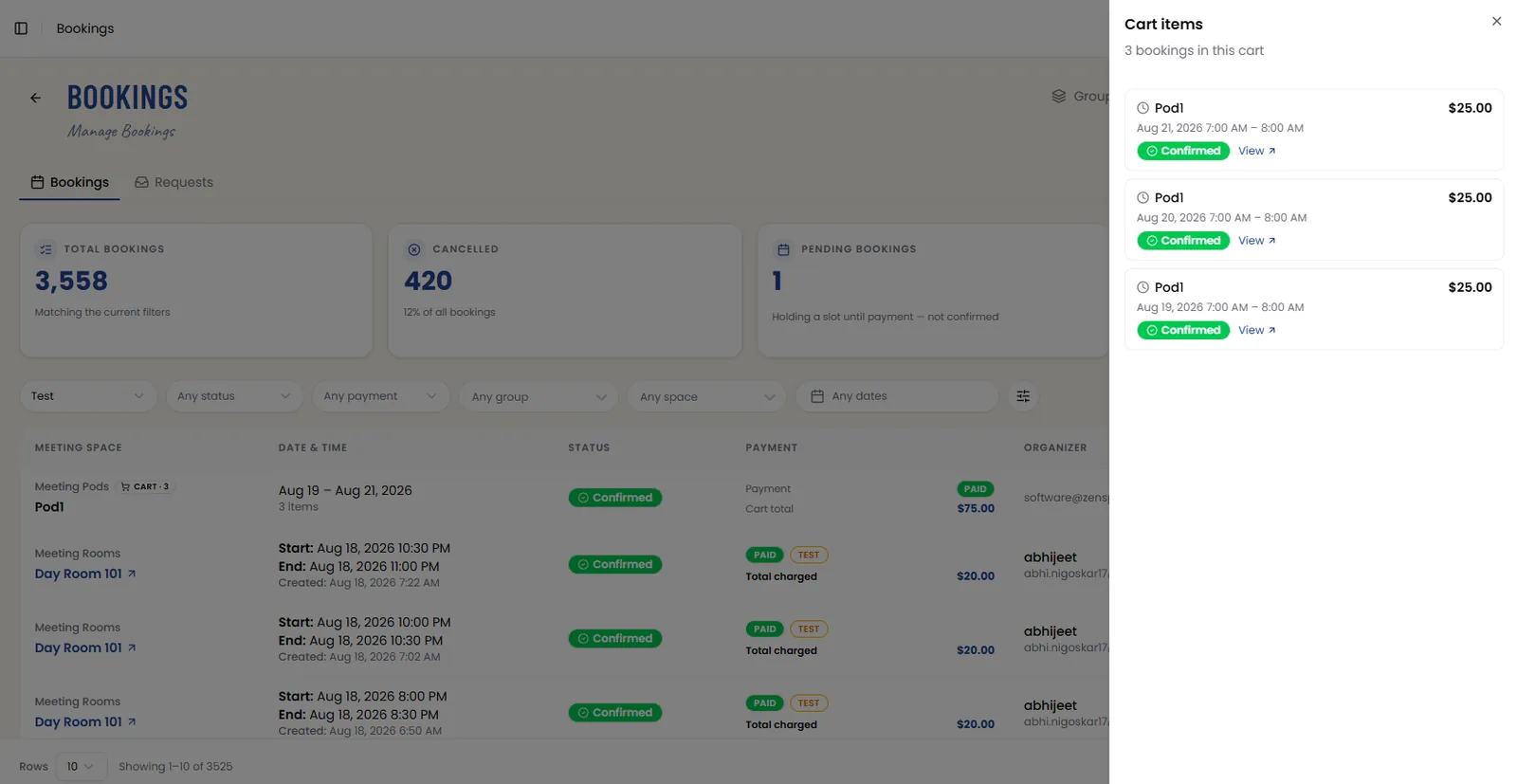
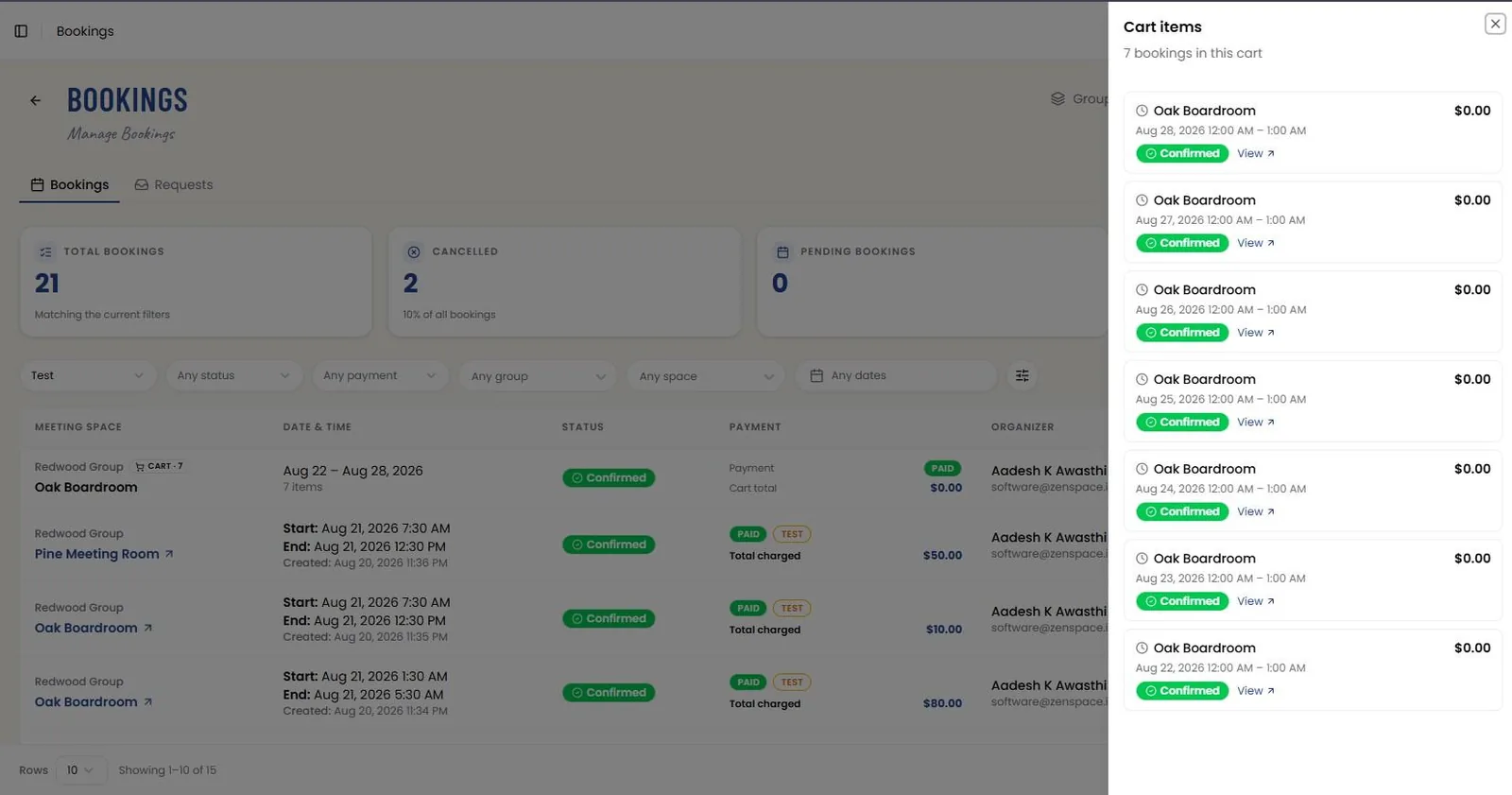
From the bookings list, View items on a cart row opens the Cart items side panel, listing every booking in that cart with its space name, date and time, price, status badge, and a View link to the individual booking. Cart rows in the list show a CART badge with item count, cart totals, and PAID/REFUNDED payment badges, while single bookings show full payment breakdowns (booking amount, security deposit, total charged/refunded).
📸 Booking Requests — List
The Bookings screen carries Bookings and Requests tabs; the Requests tab is where admins review and approve public submit-a-request bookings. Status filters run Pending / Approved / Declined / Expired / All, alongside a search field and a refresh action. The table lists Requester (name and email), Items, the Requested and Expires timestamps, and Status, with sortable columns and row-count and pagination controls beneath.
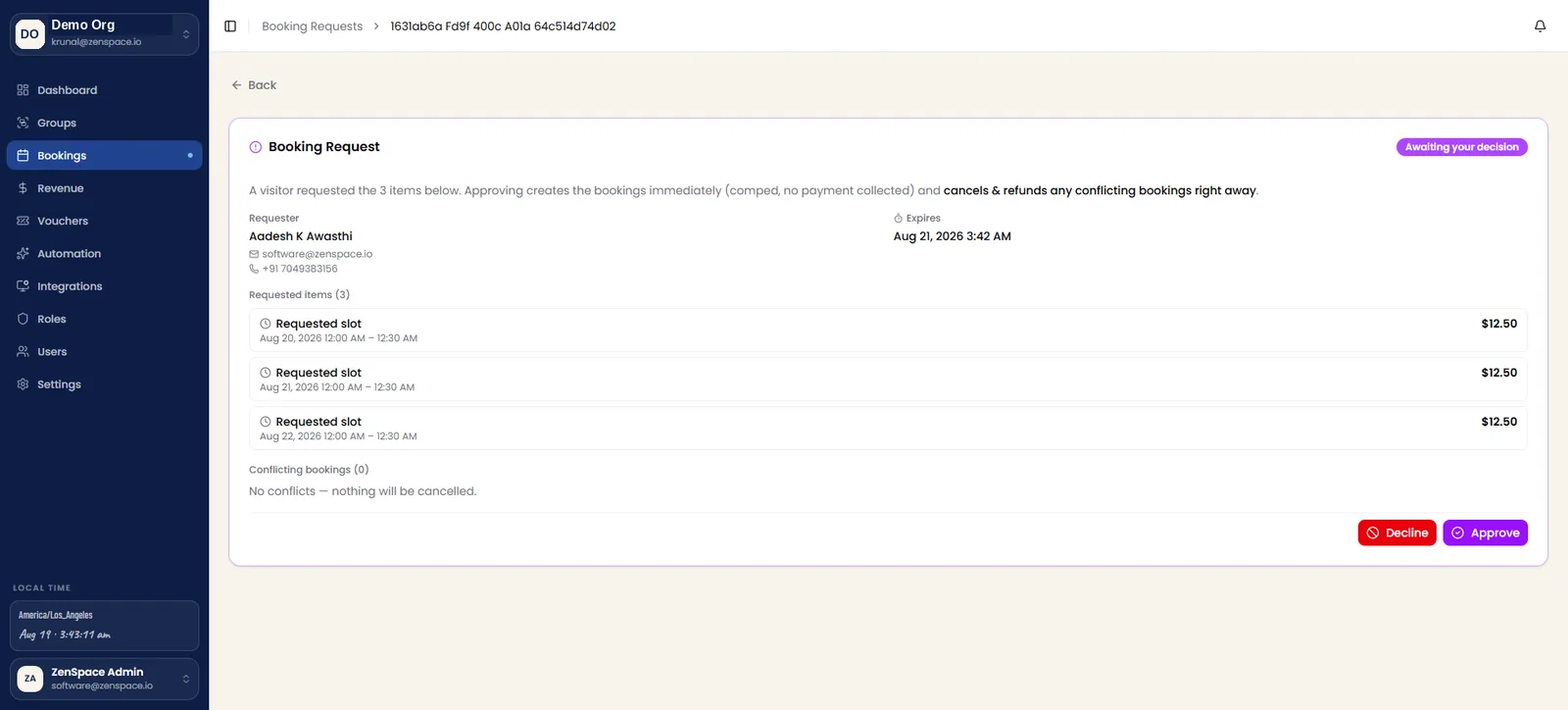
📸 Booking Request — Detail (Awaiting Decision)
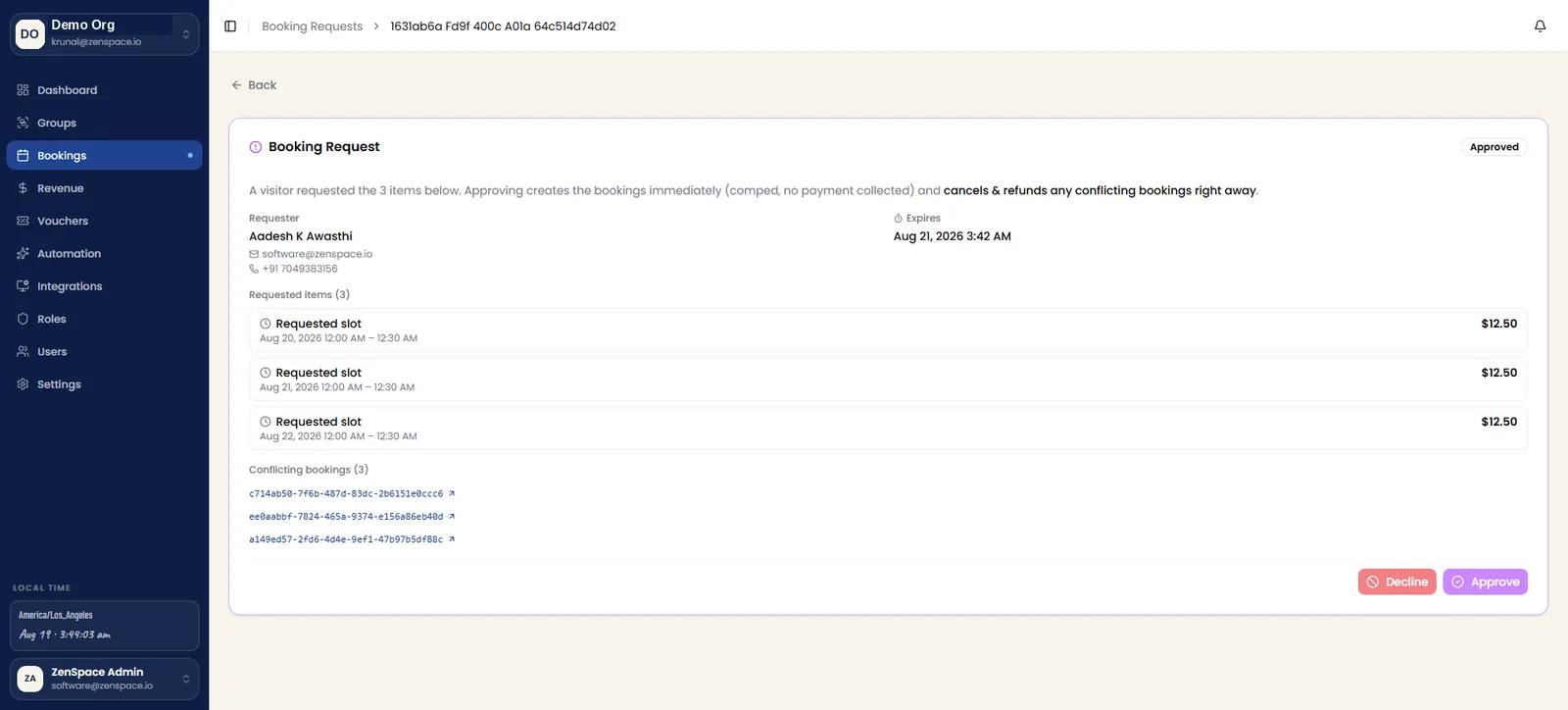
Detail of a pending request, badged Awaiting your decision. A summary line states that approving creates the bookings immediately as comped with no payment collected, and cancels and refunds any conflicting bookings right away.
The screen shows the Requester’s name, email, and phone, the request’s Expires time, and the Requested items — each with its booking mode and date and the amount it represents. A Conflicting bookings section reports how many existing bookings overlap the request; where there are none it confirms that nothing will be cancelled. Decline and Approve close the decision.
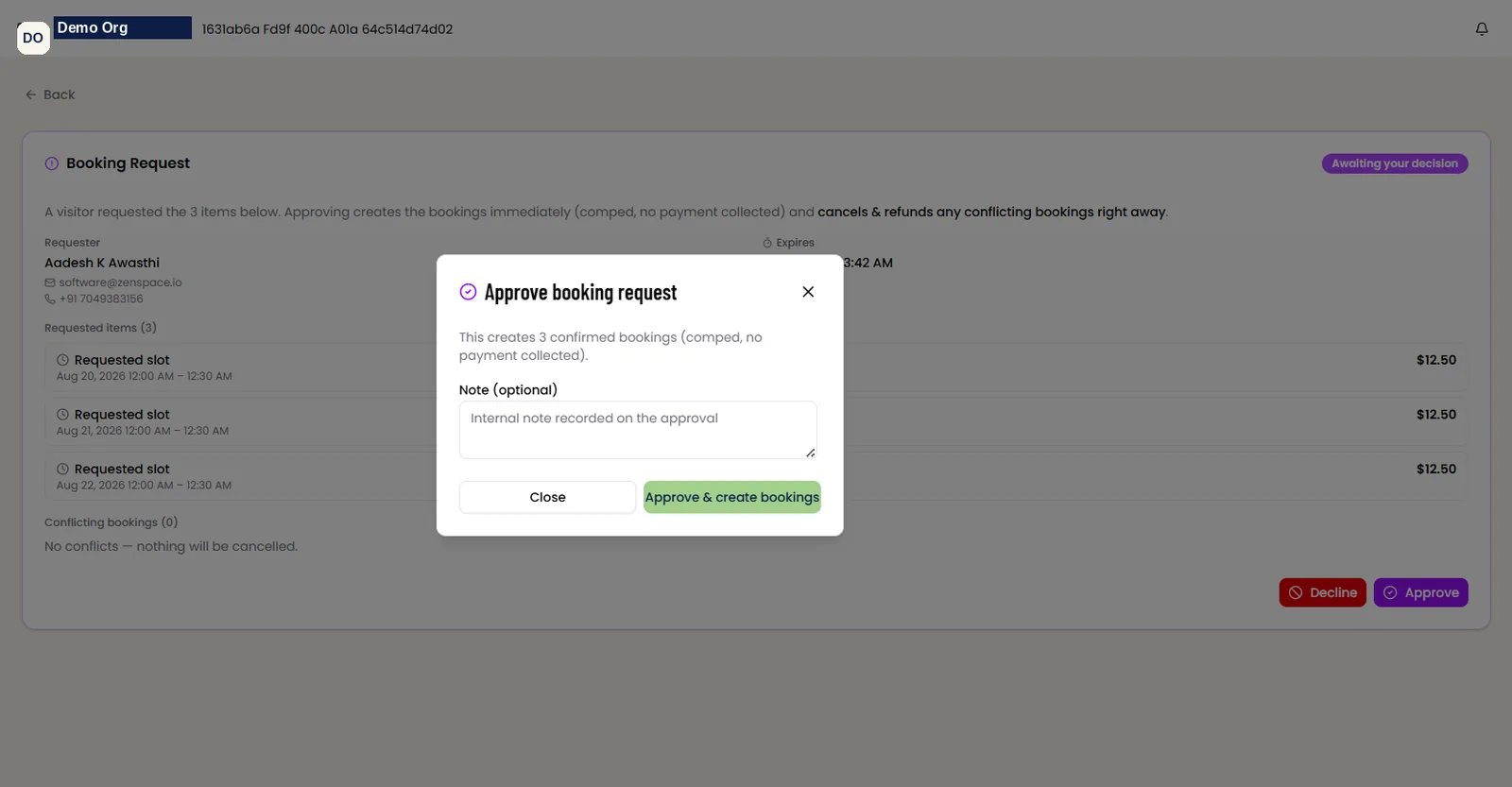
📸 Booking Request — Approve Modal
Approve opens a confirmation modal restating how many confirmed bookings will be created and that they are comped with no payment collected. An optional Note is recorded internally against the approval. Approve & create bookings commits the decision; Close backs out without approving.
📸 Booking Request — Approved
Once approved, the badge changes to Approved and the Decline and Approve actions are disabled. The Conflicting bookings section then lists booking references as links out to the individual bookings.
📸 Approved Request — Resulting Bookings
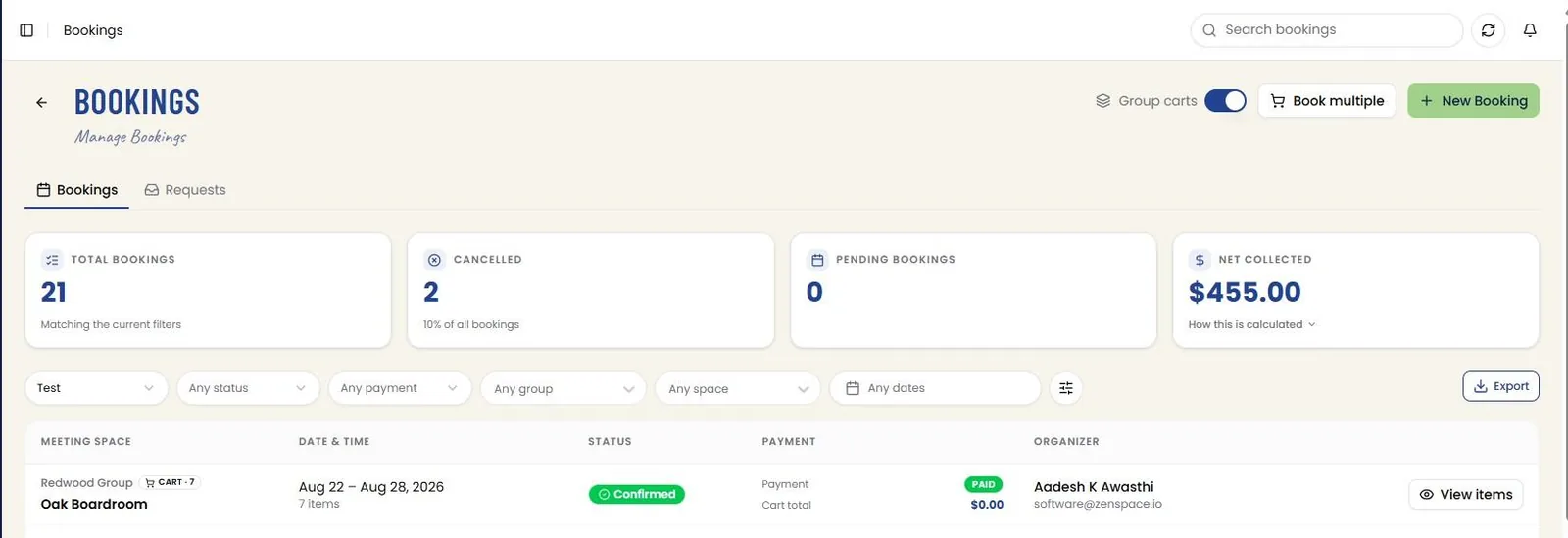
The bookings created by an approval, seen on the meeting space’s Calendar tab under Bookings. Each requested day appears as a Confirmed booking with a payment status of Paid, a payment mode of Test, and Total charged of $0.00 — consistent with approved requests being comped.
The tiles above report Total bookings, Cancelled, Total revenue, and Pending bookings for the filtered set, and the Filters row carries Mode, Status, Payment, Group, Space, and Date Range controls with an Export action.
Pending-Payment Expiry
📸 Bookings List — Pending Payment
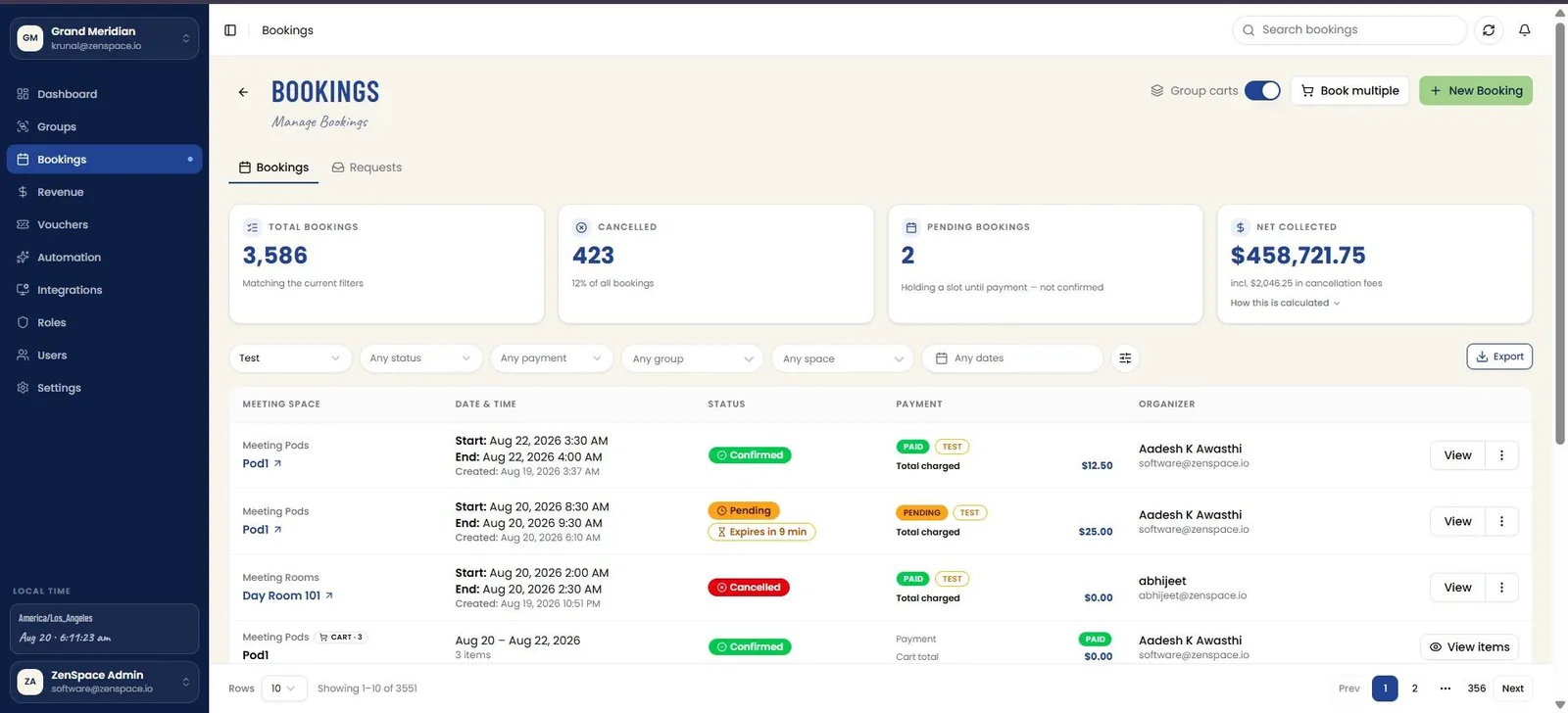
A booking created through the public booking app is held as Pending while the guest completes payment. The slot is reserved for that guest and nobody else can take it, but the booking is not yet confirmed.
A payment deadline is stamped onto the booking the moment it is created. Where the slot is hours away the window is ten minutes; where the slot starts sooner the window is shortened so that it ends near the start time; and for a walk-up booking whose slot is starting immediately a minimum of five minutes is always allowed.
On the Bookings list a Pending bookings tile reports how many bookings are holding a slot until payment and are not confirmed, and each pending row carries an Expires in badge counting down the time left. Amounts for these bookings sit in Outstanding on the Revenue screen and are never counted in Net collected.
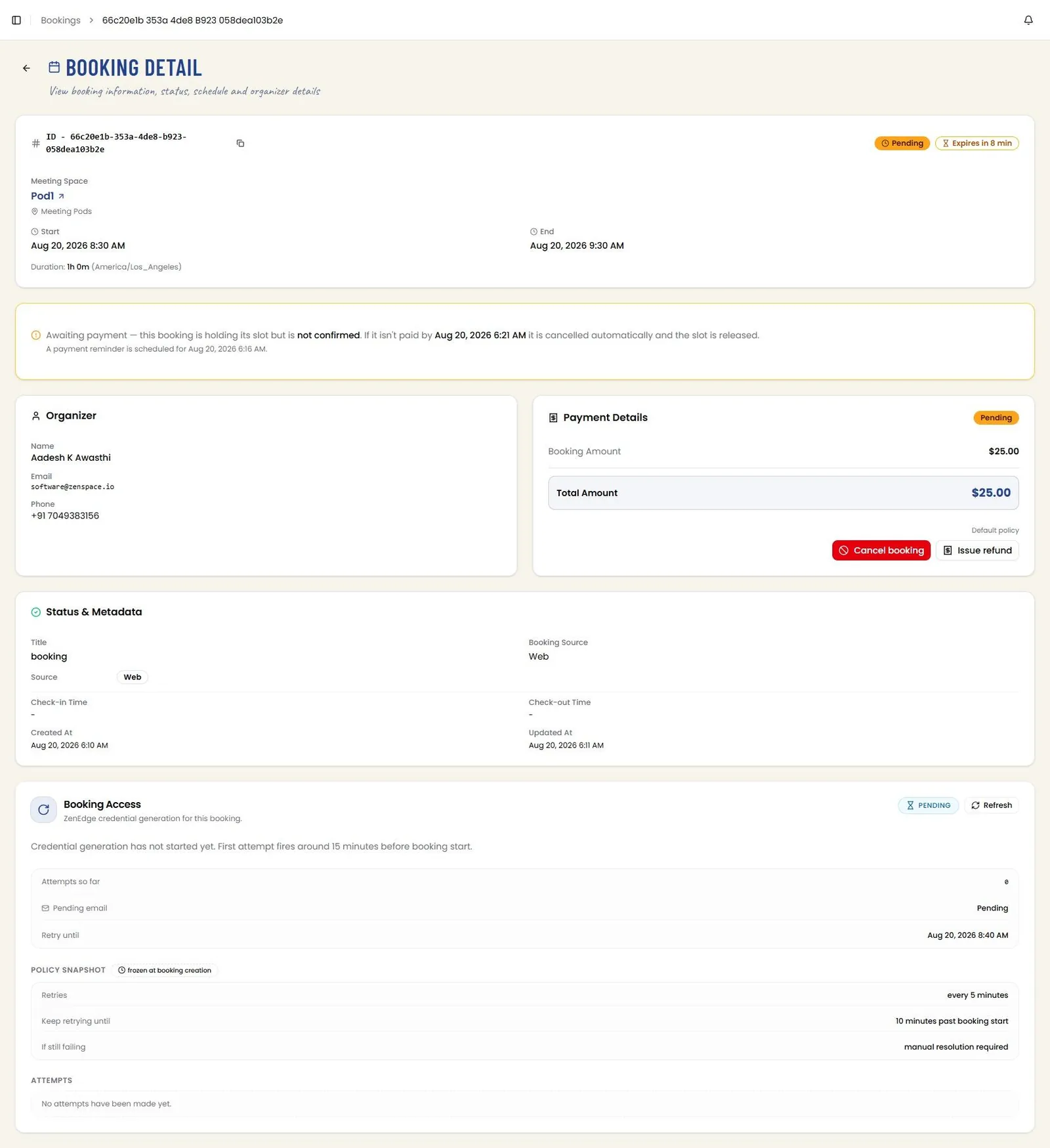
📸 Booking Detail — Awaiting Payment
Opening a pending booking shows an Awaiting payment banner: the booking is holding its slot but is not confirmed, and if it is not paid by the stated time it is cancelled automatically and the slot is released. The banner also gives the time at which the payment reminder is scheduled.
Payment Details is badged Pending with the booking amount and total, the policy in force, and Cancel booking and Issue refund actions. Booking Access reports the ZenEdge credential generation state — not yet started, with the first attempt firing around fifteen minutes before booking start — alongside the attempts made so far, the pending-email state, the retry-until time, and a policy snapshot frozen at booking creation.
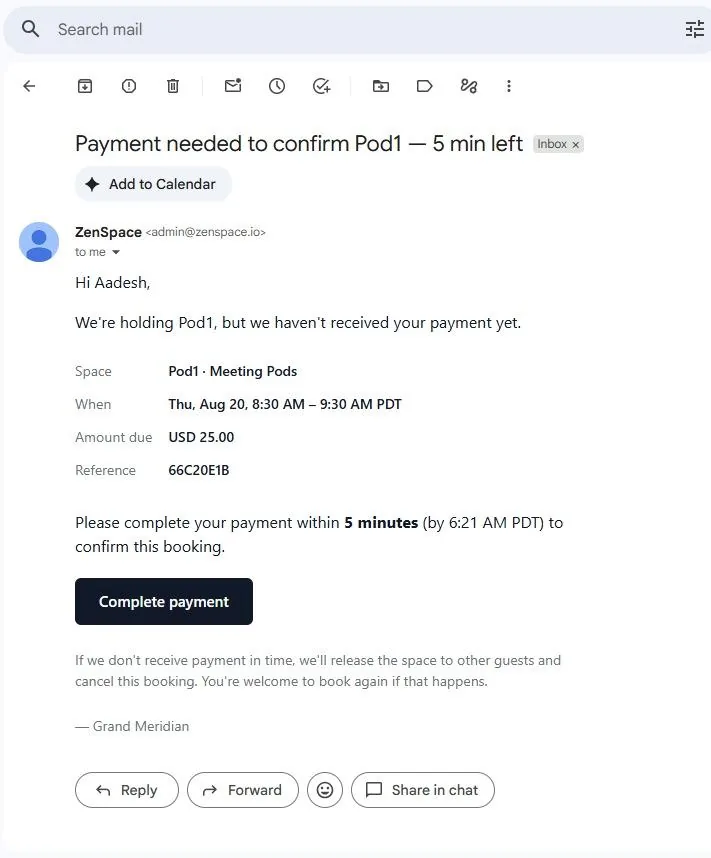
📸 Payment Reminder Email
At roughly the halfway point of the payment window a single reminder email is sent to the organizer. It names the space and its group, the booking window, the amount due, and a reference; states how many minutes remain and the exact deadline; and carries a Complete payment button that opens the public pay page. It closes by warning that the space will otherwise be released to other guests and the booking cancelled.
The reminder is sent once only — the booking records that it has gone out, so it is never repeated.
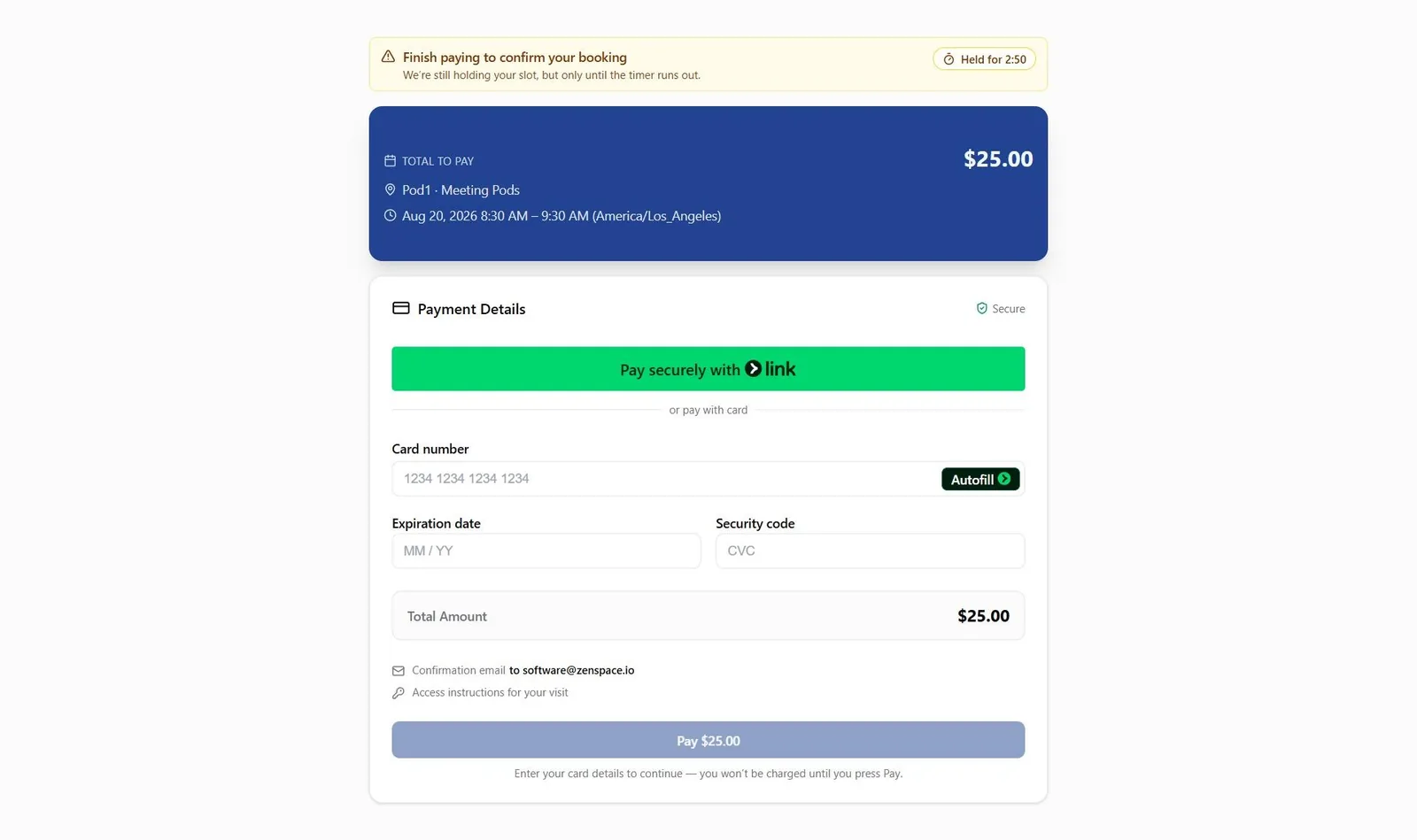
📸 Public Pay Page
Complete payment opens the public pay page. A banner states that the slot is still being held but only until the timer runs out, with a live countdown alongside it. The page shows the total to pay with the space and booking window, then Payment Details offering an express Link option or a card form, the total amount, the address the confirmation email will go to, a note about access instructions, and the Pay button.
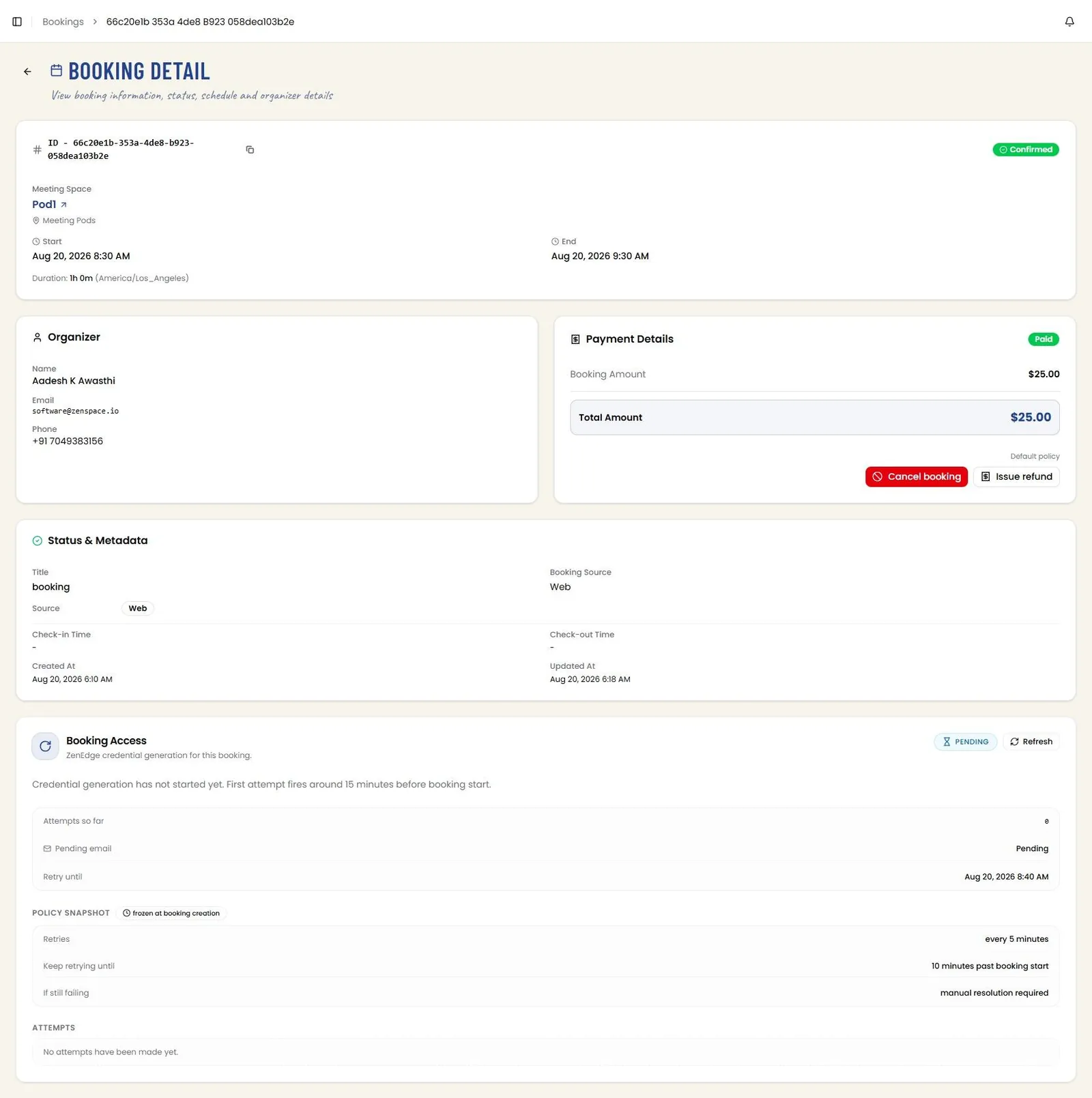
📸 Booking Detail — Confirmed After Payment
Once payment succeeds the booking flips to Confirmed and Payment Details is badged Paid. The header swaps the pending controls for Open access link and Cancel booking, and Updated At records the moment the payment landed. Nothing is cancelled and nothing further expires.
📸 Bookings List — After Payment
Back on the Bookings list the row now reads Confirmed with a payment status of Paid, the Pending bookings count has dropped by one, and Net collected has risen by the amount paid.
Where the deadline passes without payment, a background sweep runs about once a minute and picks the booking up, so cancellation happens within a minute of the deadline rather than exactly on it. Three things then happen together: the booking is cancelled with a reason of payment expired, the slot is released so any guest can book that space and time, and the Stripe payment intent is voided.
A card submitted late from a page left open therefore fails and takes no money, and the emailed link opens an expired page rather than a payment form. The amount leaves Outstanding on the Revenue screen, having never been counted in Net collected.
Five kinds of booking are never subject to this timer:
Admin-created bookings — never auto-cancelled, so an admin can take payment offline.
Cart bookings — covered by their own thirty-minute timer.
Full-day approvals — keep their existing deadline, unchanged by this behaviour.
Free or zero-value bookings — never pending; they are confirmed immediately.
Bookings created from a submitted request — confirmed directly at zero value, so there is nothing to expire.