Automation
📸 Automation Hub
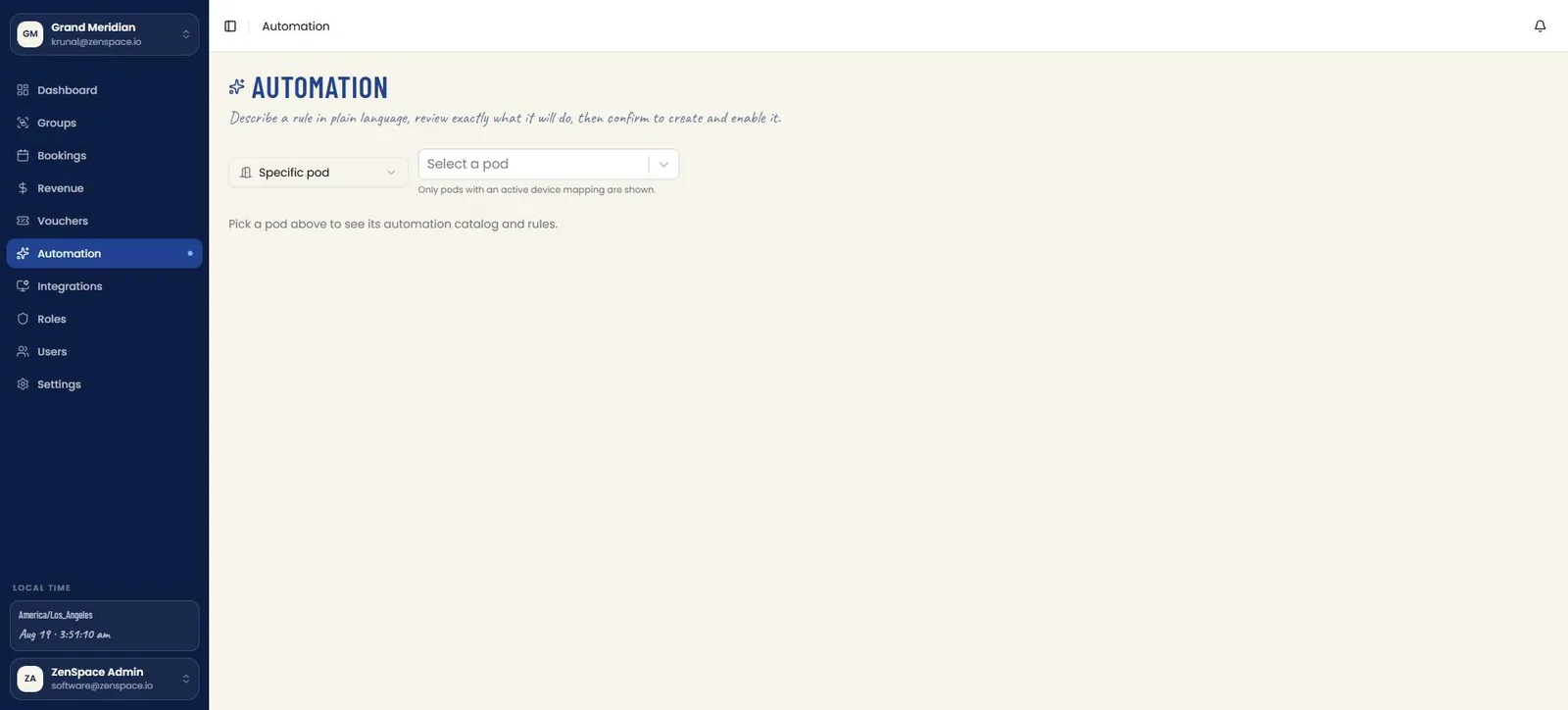
Automation lets a rule be described in plain language, reviewed exactly as it will run, and confirmed before it is created and enabled. A Specific pod selector and a Select a pod field sit above the builder — only pods with an active device mapping are offered — and until a pod is chosen the page simply prompts to pick one to see its automation catalog and rules. Route: /automation
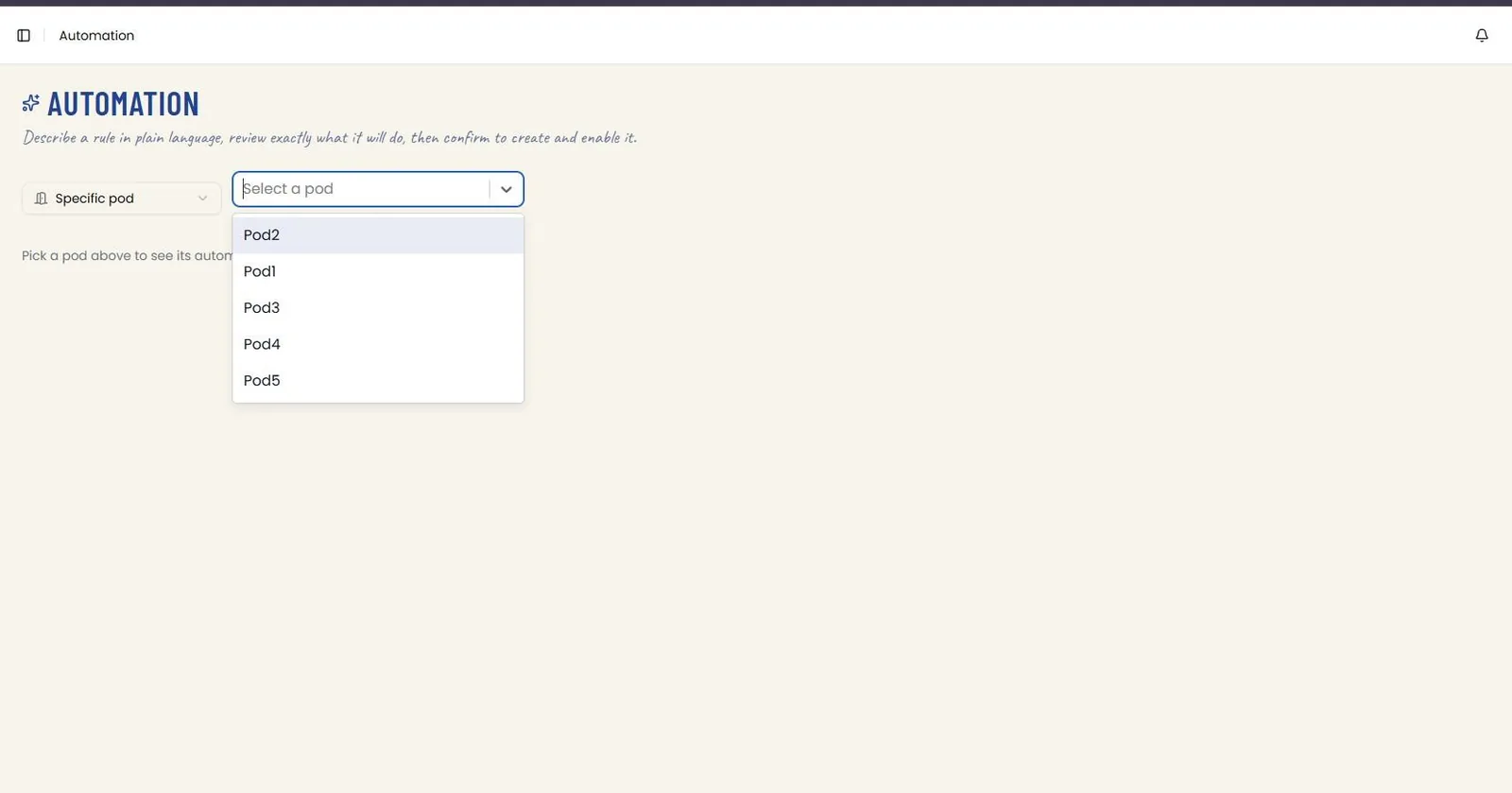
📸 Automation — Pod Selector
Opening Select a pod lists every pod carrying an active device mapping (e.g., Pod1 through Pod5); choosing one loads that pod's builder and its existing rules.
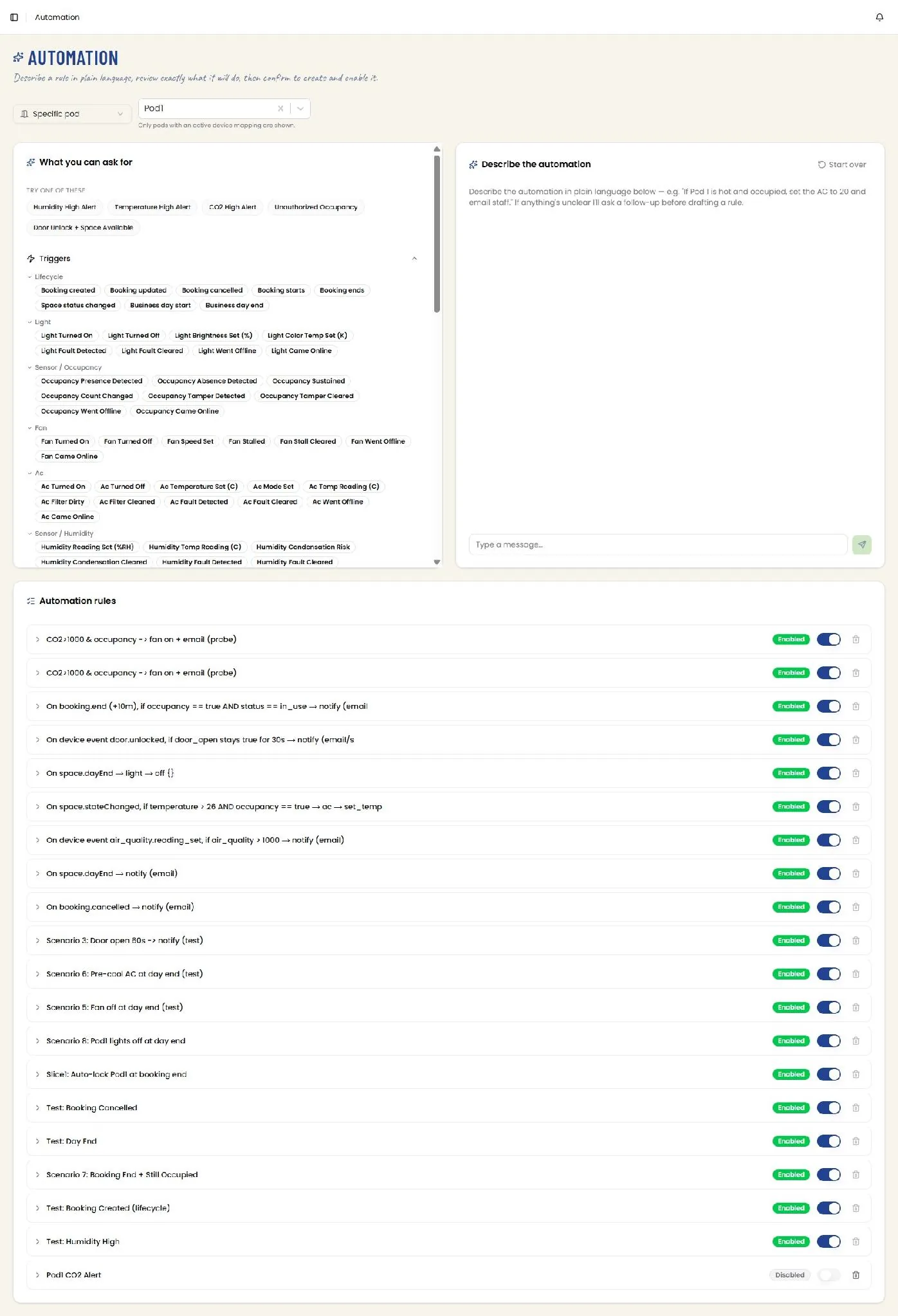
📸 Automation — Rule Builder and Rules
With a pod selected (e.g., Pod1), What you can ask for offers ready-made prompts — Humidity High Alert, Temperature High Alert, CO2 High Alert, Unauthorized Occupancy, Door Unlock + Space Available — above an expandable Triggers catalog grouped by category (Lifecycle, Light, Sensor/Occupancy, Fan, Ac, Sensor/Humidity, and more), each listing the specific events available as chips. Describe the automation takes the rule in plain language and drafts it, asking a follow-up first if anything is unclear; Start over resets the conversation.
Below, Automation rules lists every rule already configured for the pod with its plain-language description, an Enabled/Disabled badge, an on/off toggle, and a delete action.
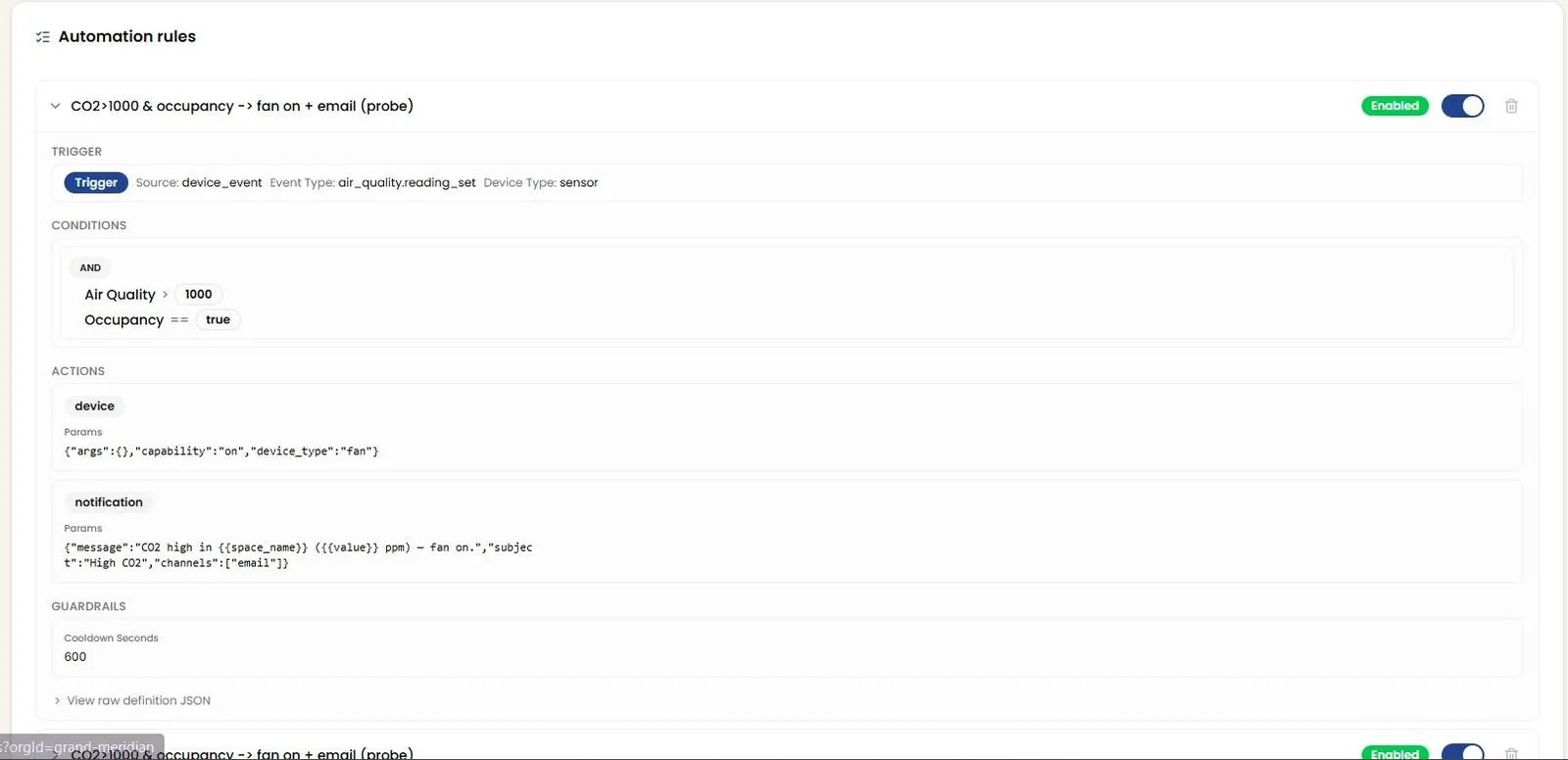
📸 Automation Rule — Expanded Detail
Expanding a rule reveals its full definition: a Trigger card (Source, Event Type, Device Type), a Conditions card showing the AND/OR logic and thresholds that must hold, one or more Actions cards with their parameters (e.g., a device action's capability and device_type, or a notification action's message, subject, and channels), and Guardrails such as a cooldown period between firings. View raw definition JSON exposes the underlying rule definition.