User Flows (Step-by-Step)
Authentication Flow (Login)
Entry: User opens app → default redirect to /auth.
- Login page (/auth) — User sees "Sign in to Meeting Room Display" and email input. User enters work email → clicks Send magic code.
- OTP request — App calls requestOTPSevice(email). On success, UI switches to OTP step with message: "We've sent a verification code to
<email>." User can click Use a different email to go back. - OTP verification — User enters 6-digit OTP → Verify & continue. App calls verifyOTPSevice(session_id, otp). On success: checkAuth() runs, then redirect to /organization.
- Already logged in — If isAuthenticated and user lands on /auth, they are redirected to /organization.
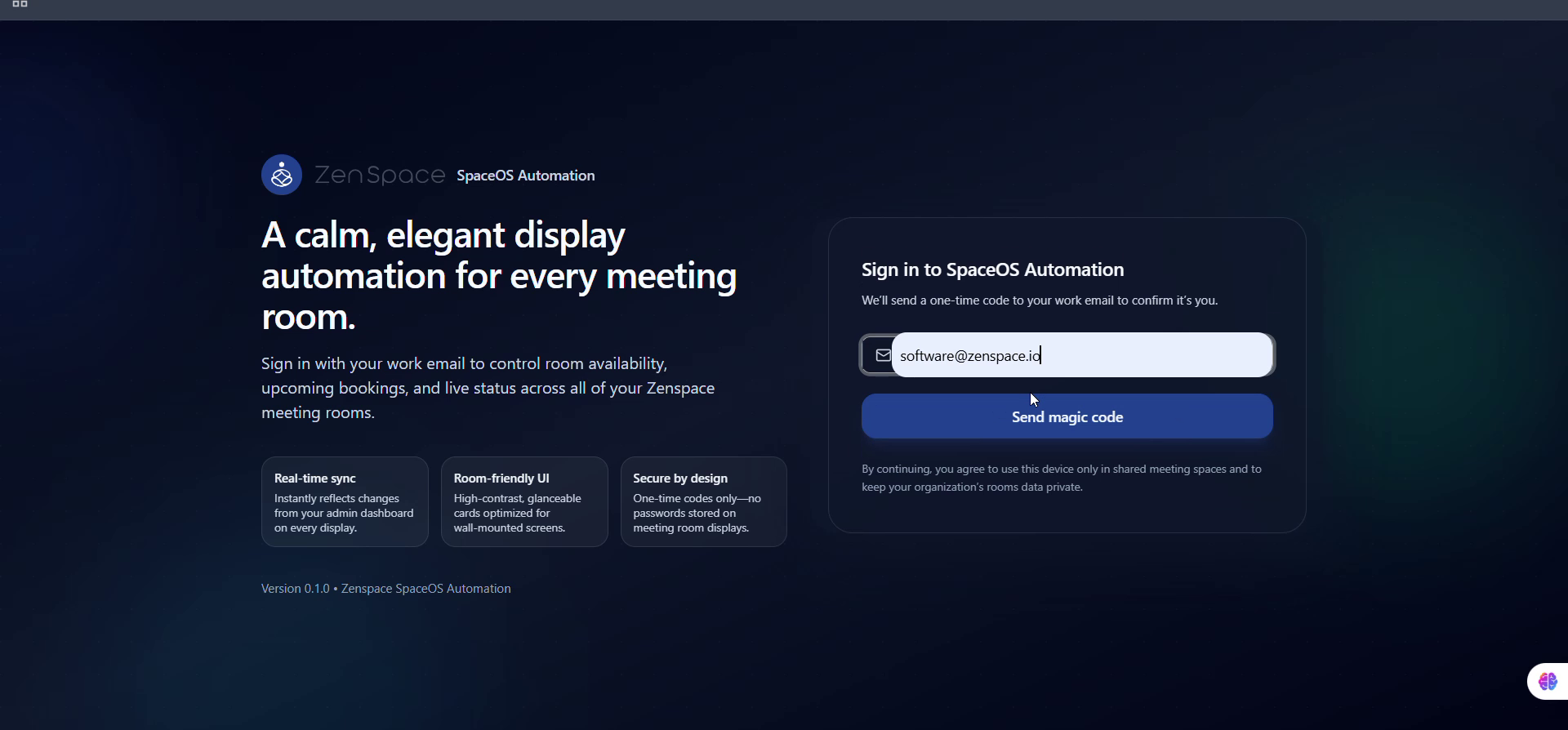
Fig 1 — Login Page: Email input + Send magic code
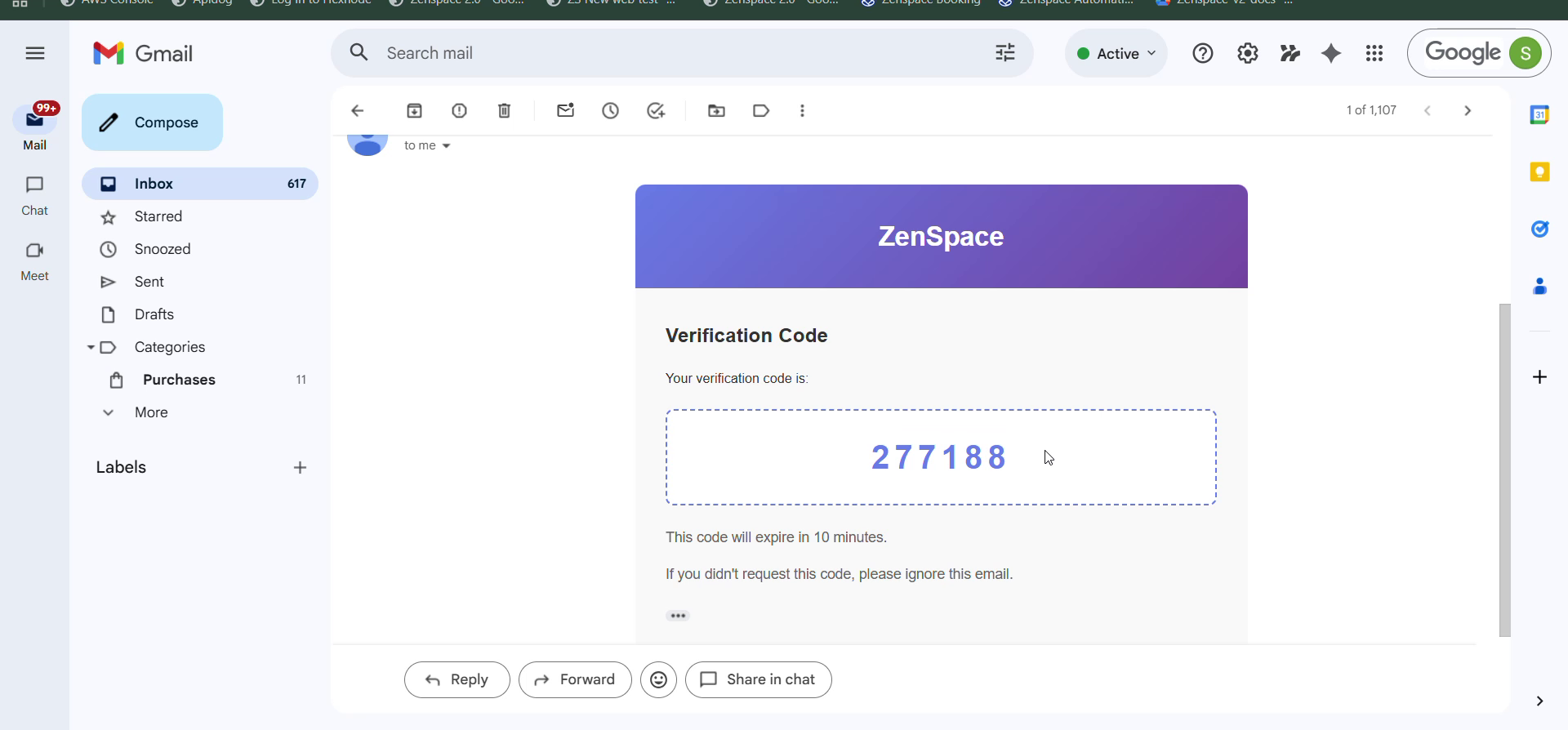
Fig 2 — OTP Email: ZenSpace Verification Code in inbox
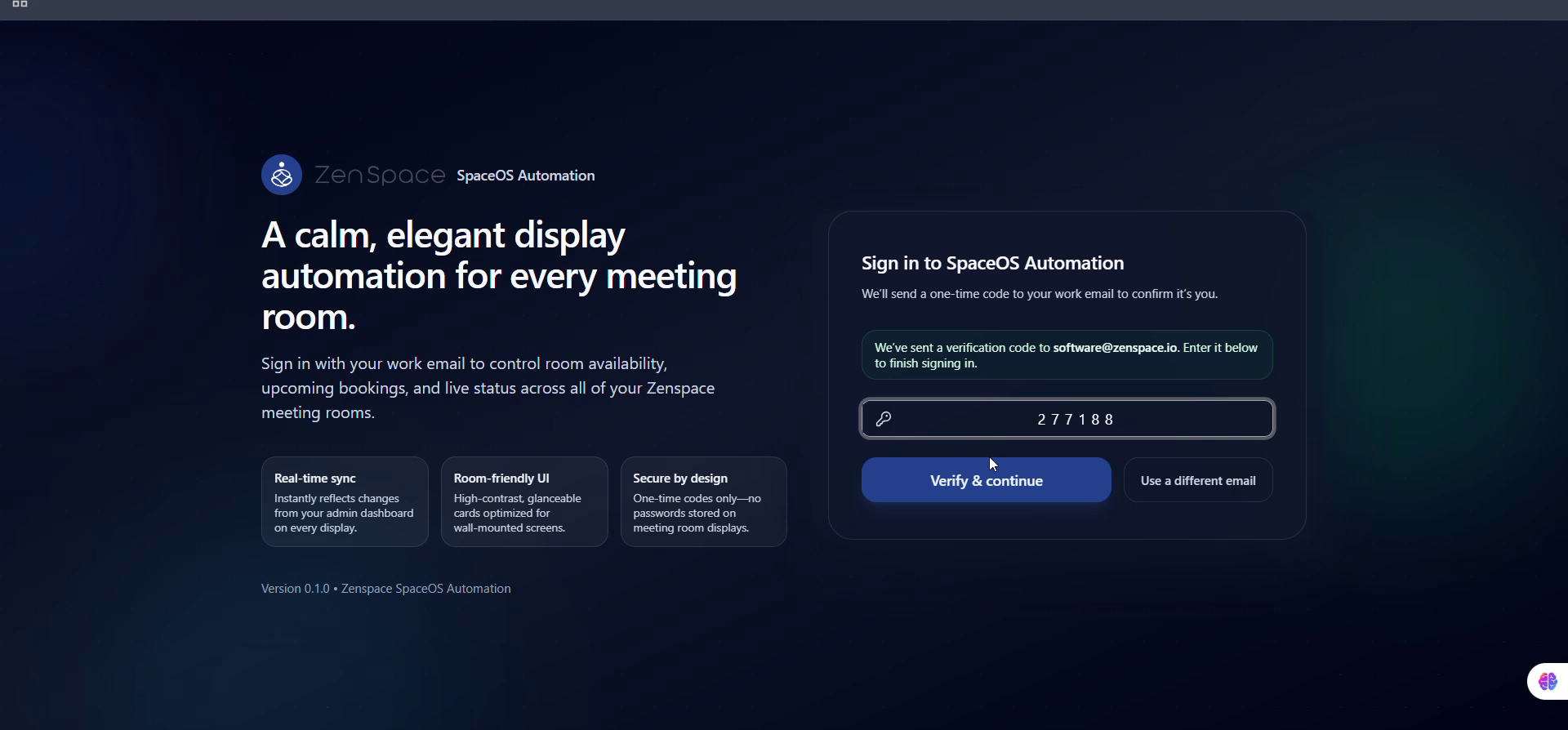
Fig 3 — OTP Step: 6-digit code entered, Verify & continue
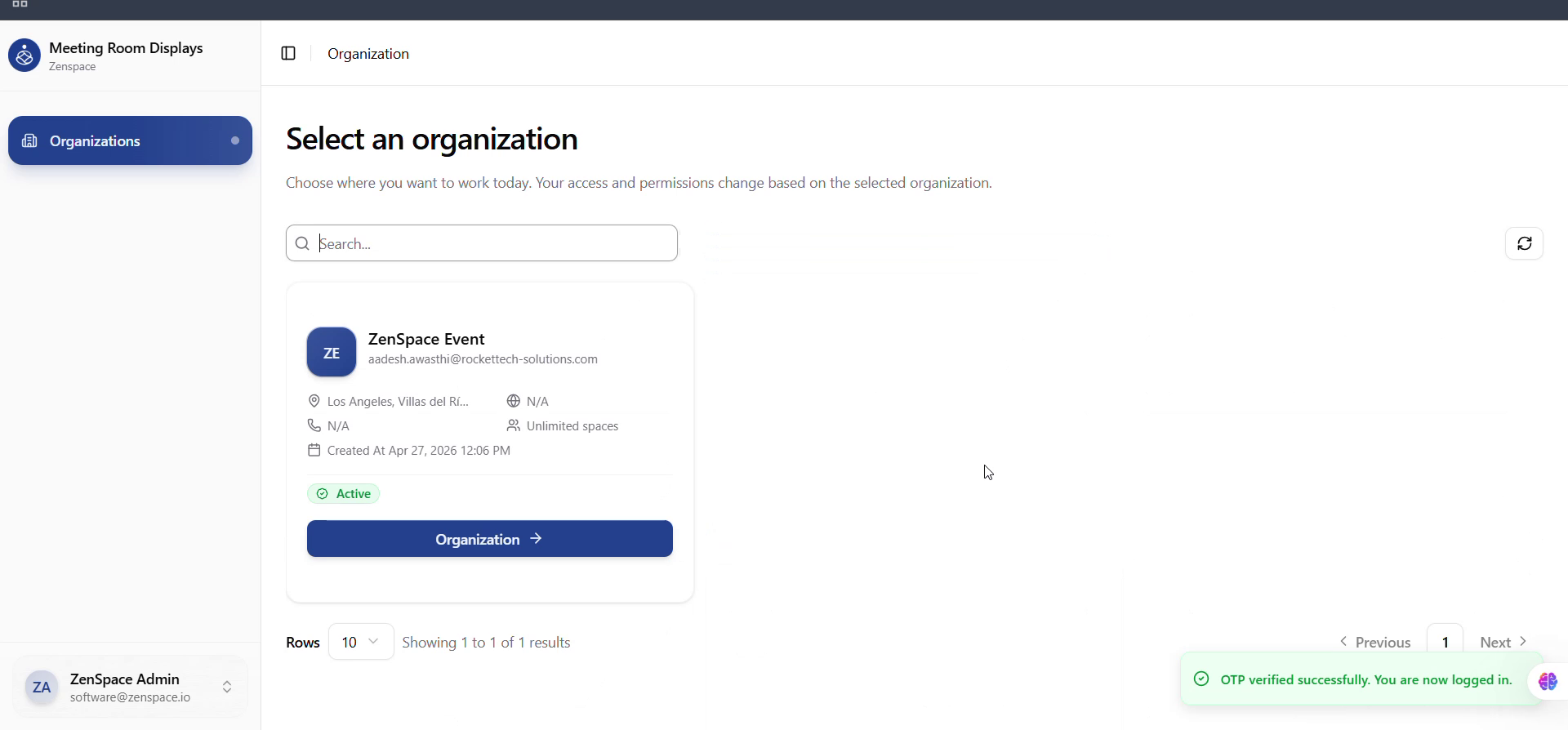
Fig 4 — Login Success: OTP verified, redirected to Organization
Testing focus: Invalid email, OTP request failure, wrong/expired OTP, Use a different email, redirect when already authenticated.
Organization Selection Flow
Entry: After login, user is on /organization.
- Organization list — Page title: "Select an organization." Data from /auth/organizations, rendered as cards showing name, email, address, website, phone, number of spaces, status (Active/Inactive/Suspended), role, and created at. Card action menu (three-dot) is only visible to super_admin users.
- Select organization — Clicking a card calls navigate('/physical-spaces?orgId=
<org.id>') — Physical Spaces is the landing module after org selection. - Organization context — OrganizationProvider reads orgId from URL, fetches org via getOrganizationByIdAction(orgId), and stores it in Redux (organization). All protected pages use this for API org_id, breadcrumbs, timezone formatting, etc.
- Switch organization — From any protected page: sidebar Team Switcher → Switch Organization → navigates to /organization.
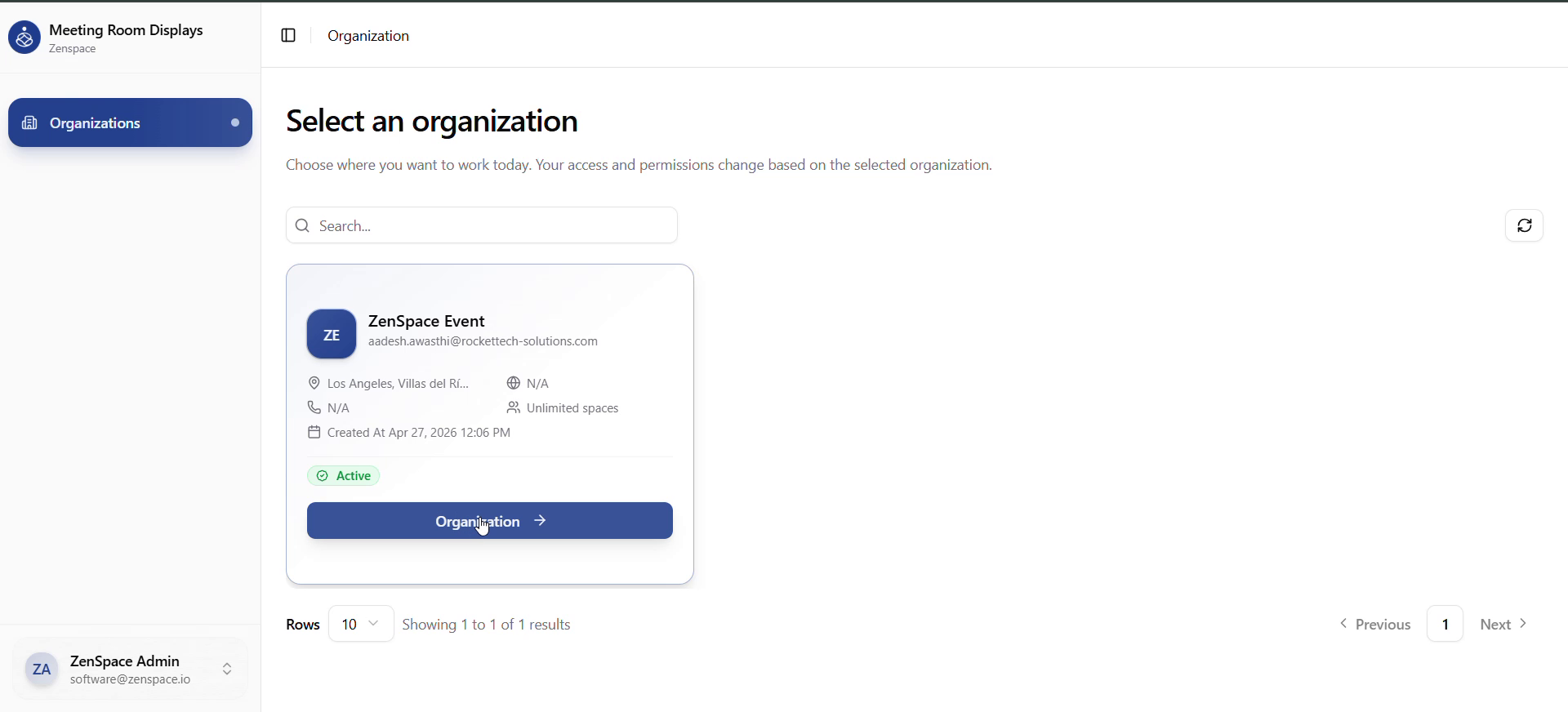
Fig 5 — Organization Selection
Testing focus: No orgs (empty state copy), API failure, missing/invalid orgId on a protected route, Switch Organization from different pages.
Physical Spaces Flow (Primary Module)
Entry: /physical-spaces?orgId=<id> — selected directly from the organization card.
- Physical Spaces list — Fetches from /physical-spaces?org_id=
<org_id>. Cards/table columns: Name + description, Status (Active/Inactive), Created at. Actions: Create Space, per-row View (primary), Edit, Delete. - Create / edit space — Create Space opens PhysicalSpaceForm (modal). Required: name (≤200 chars). Optional: description. Edit opens same form pre-filled.
- Open space detail — Click row/card or View → /physical-spaces/:id?orgId=... (URL built via appendOrgIdToUrl).
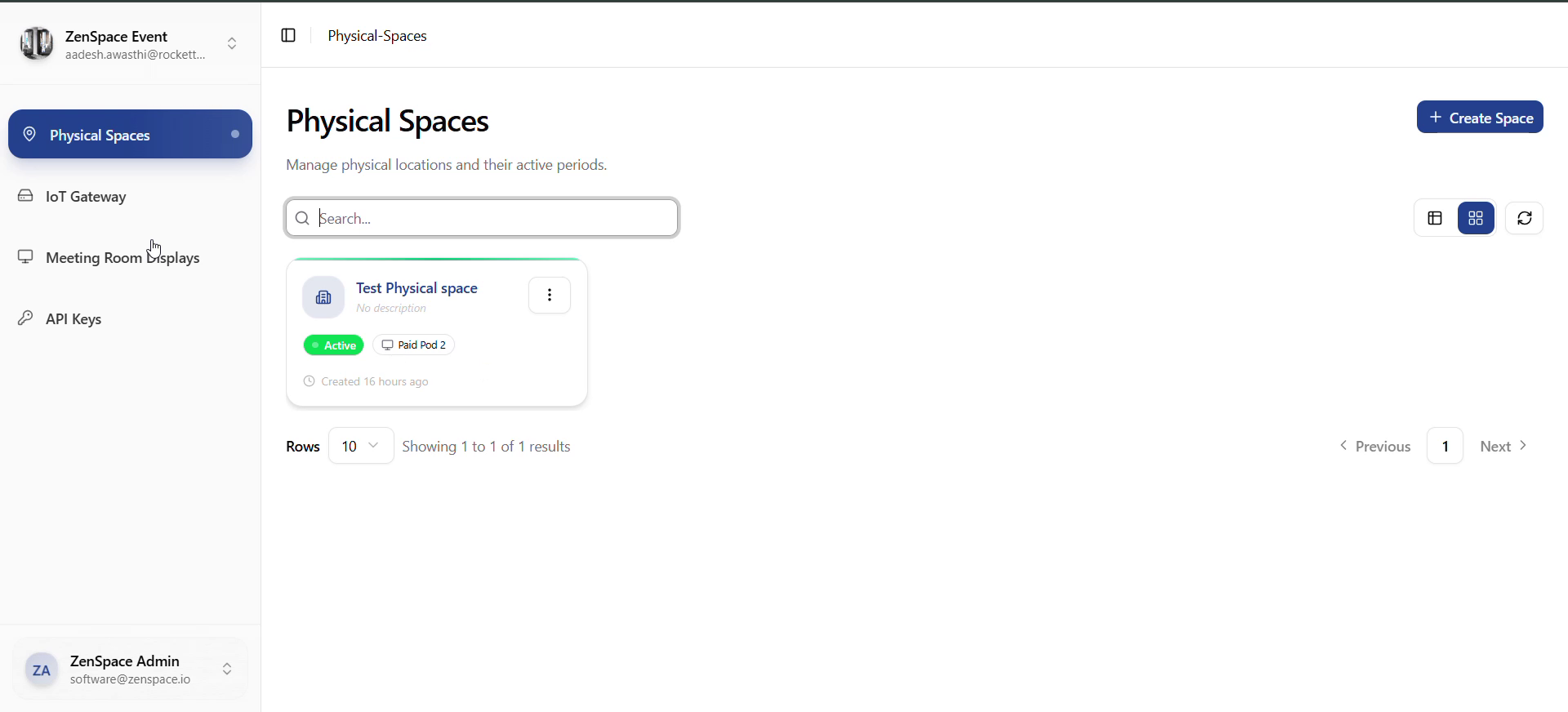
Fig 6 — Physical Spaces: Card View
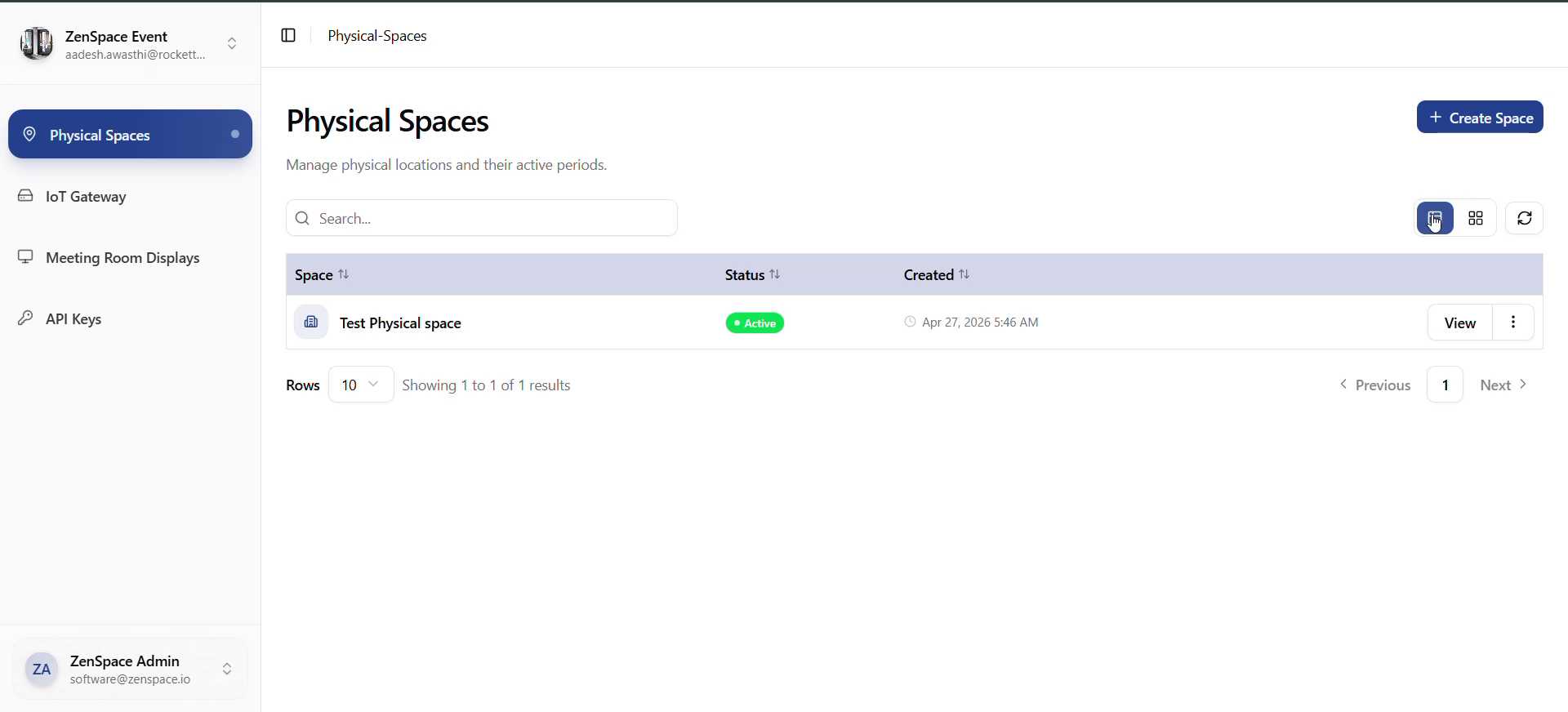
Fig 7 — Physical Spaces: Table View
- Physical space detail — contains five pill-nav sections:
- Mappings — timeline of virtual-pod links with start_at → end_at and status (active, scheduled, expired). Both calendar card view (MappingCalendar) and table view. Each row supports Unlink with confirm.
- Virtual Pod — only shown when a mapping is currently active. Details about the linked virtual meeting space: status timeline, space metadata, and current booking details.
- Devices — third-party adapter devices linked to this physical space, with realtime status from useRealtimeAdapters. Onboard new adapters via AdapterOnboardForm.
- Webhook Logs — list of physical-space webhook logs. Click a row to open /physical-spaces/webhook-logs/:logId. Realtime updates via useRealtimeWebhooks.
- Attempt History — append-only booking-access credential attempt log. Click a row to open /physical-spaces/credential-logs/:requestId.
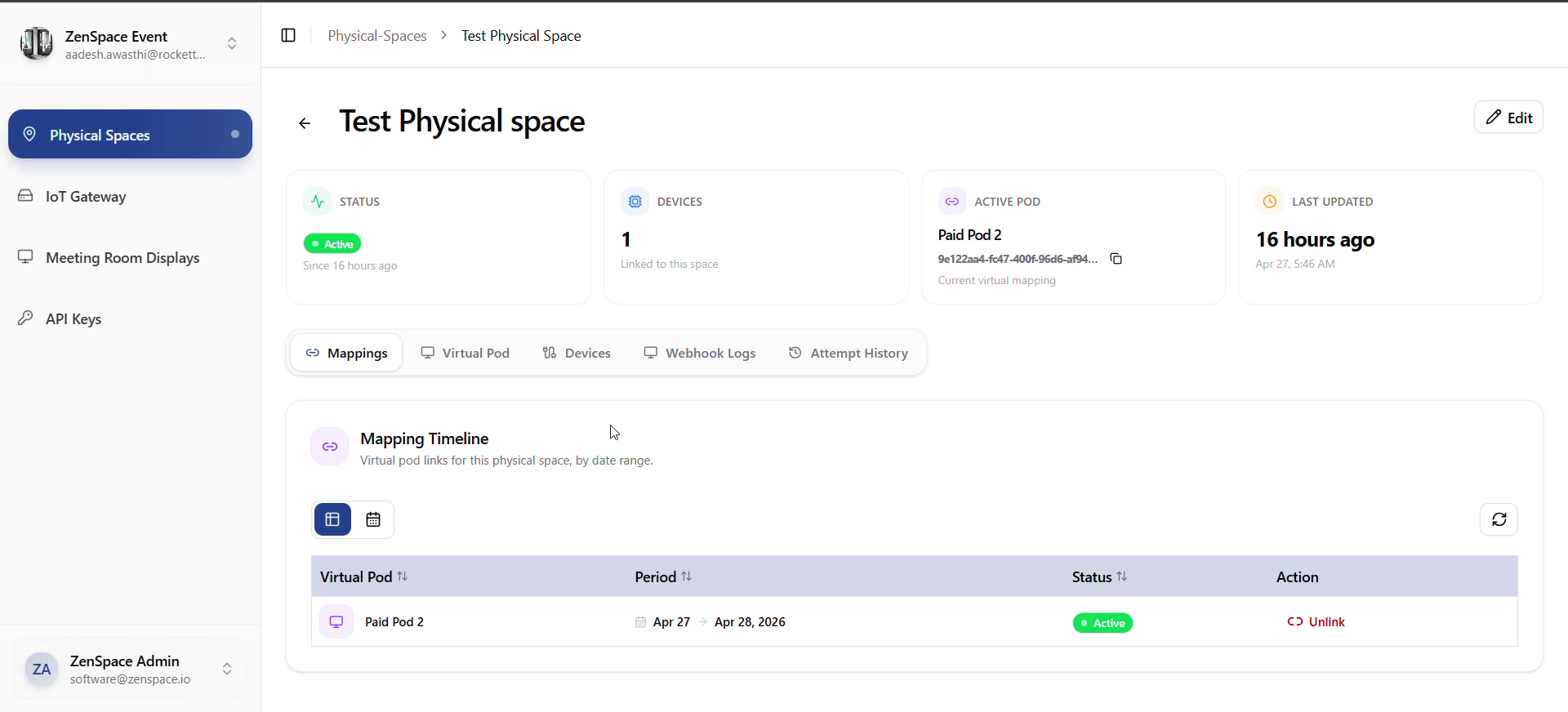
Fig 8 — Physical Space Detail: Mappings Tab
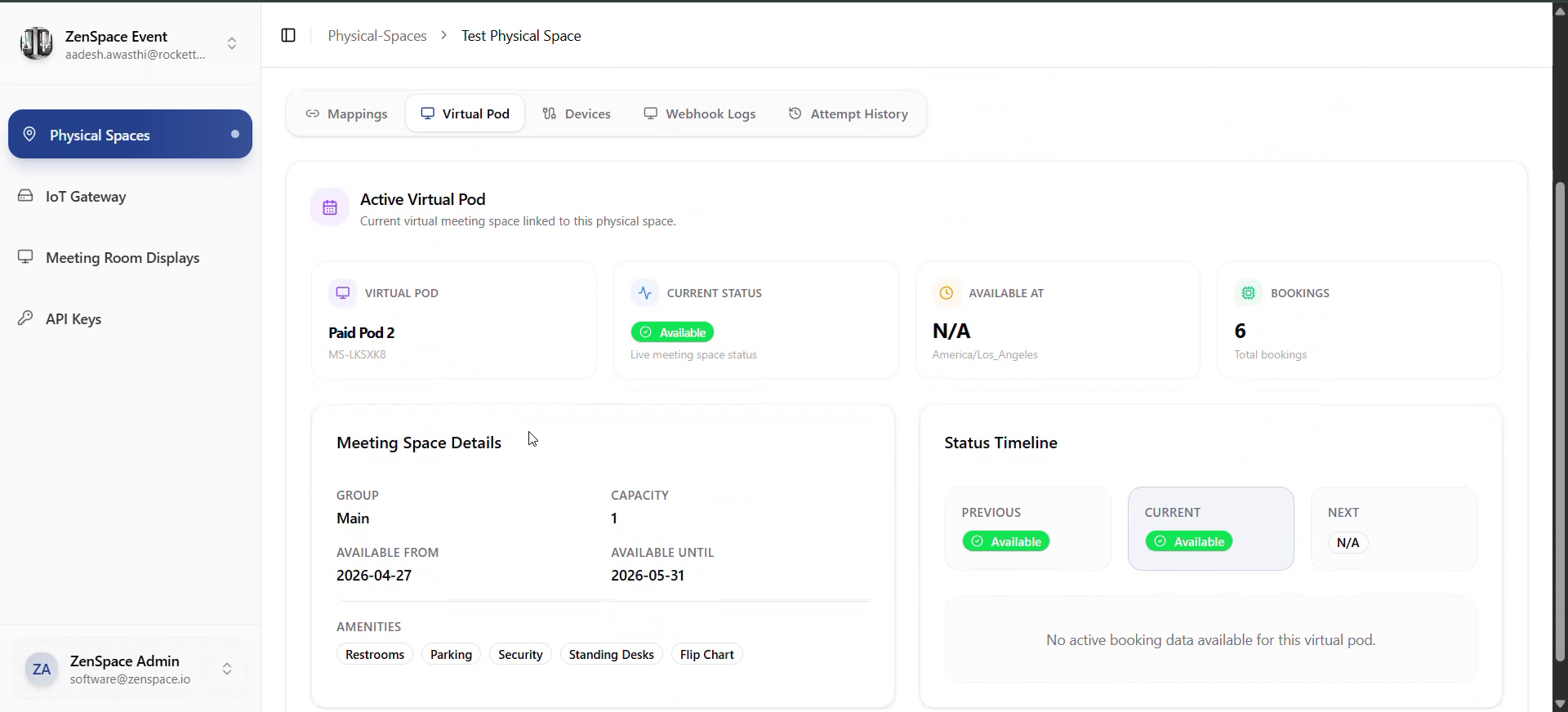
Fig 9 — Physical Space Detail: Virtual Pod Tab
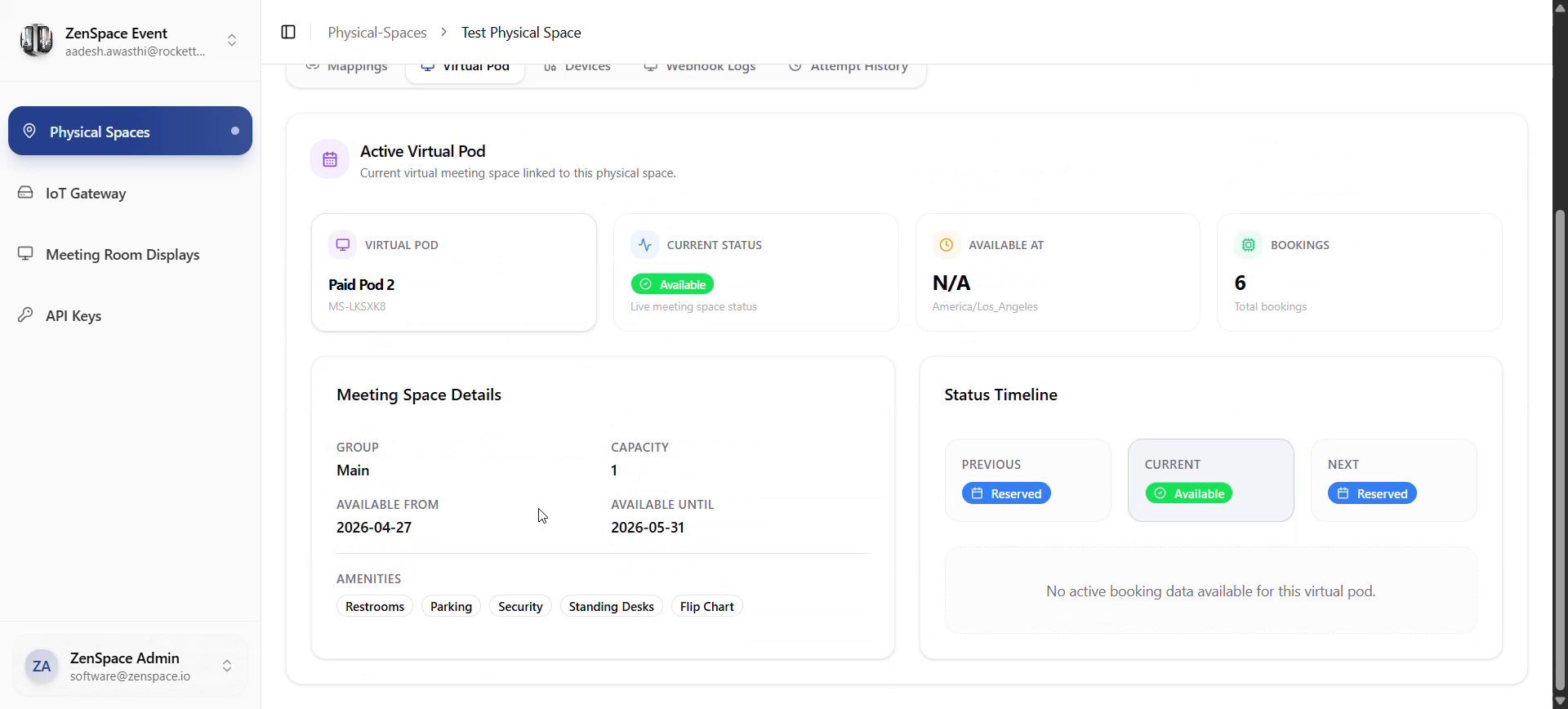
Fig 10 — Virtual Pod: Status Timeline (Reserved → Available → Reserved)
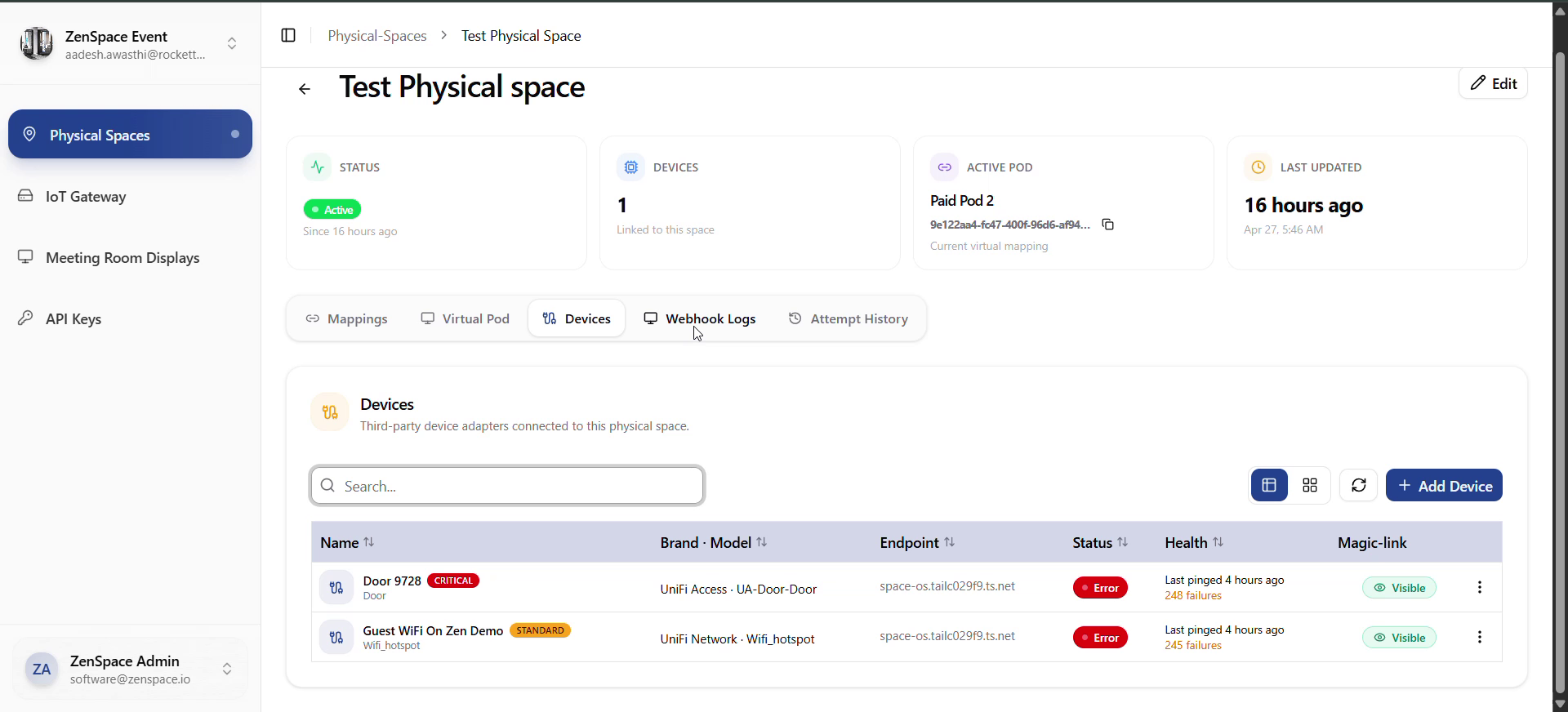
Fig 11 — Physical Space Detail: Devices Tab
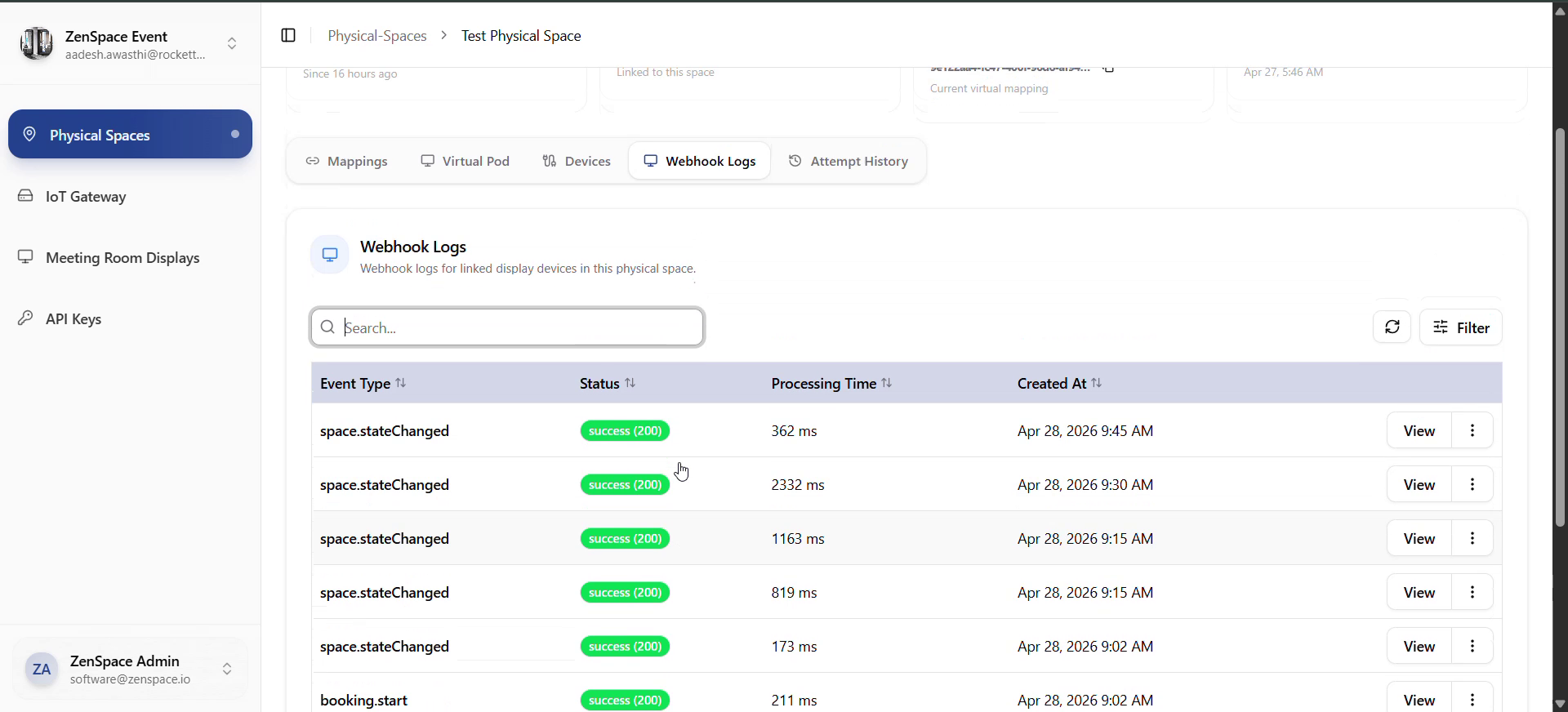
Fig 12 — Physical Space Detail: Webhook Logs Tab
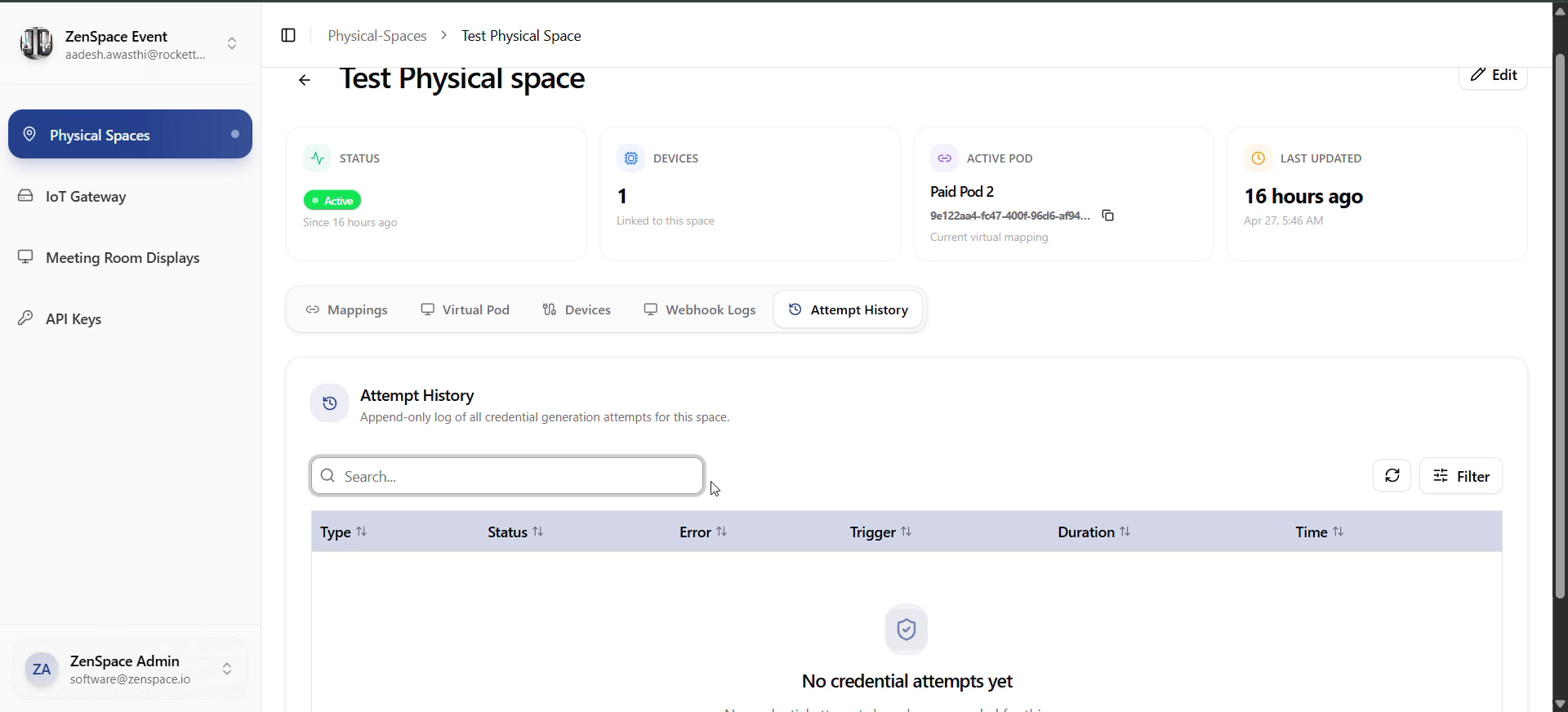
Fig 13 — Physical Space Detail: Attempt History Tab
Testing focus: create/edit/delete space, mapping calendar + table, unlink mapping, virtual-pod state, adapter list realtime status, webhook log + realtime, credential attempt log.
Meeting Room Displays Flow
Entry: Sidebar → Meeting Room Displays → /meeting-room-displays.
- Displays list — Fetches from /displays?org_id=
<org_id>. Columns: Name, Verified status (Not verified / Verified), Created at, Actions. Actions: Create; per row: View, Edit, Delete. - Create display — Create → opens MeetingRoomDisplayForm (modal). Required: physical_space_id. Submit → createMeetingRoomDisplayService → verification step (code shown, to enter on the physical device).
- View display detail (/meeting-room-displays/:id) — Tabs/sections: Overview, Status, Integration, Media, Configuration, Devices, Webhook Logs, Notifications.
- Edit / delete — Edit opens form pre-filled with editData. Delete → confirmation modal → deleteMeetingRoomDisplayService → list refresh.
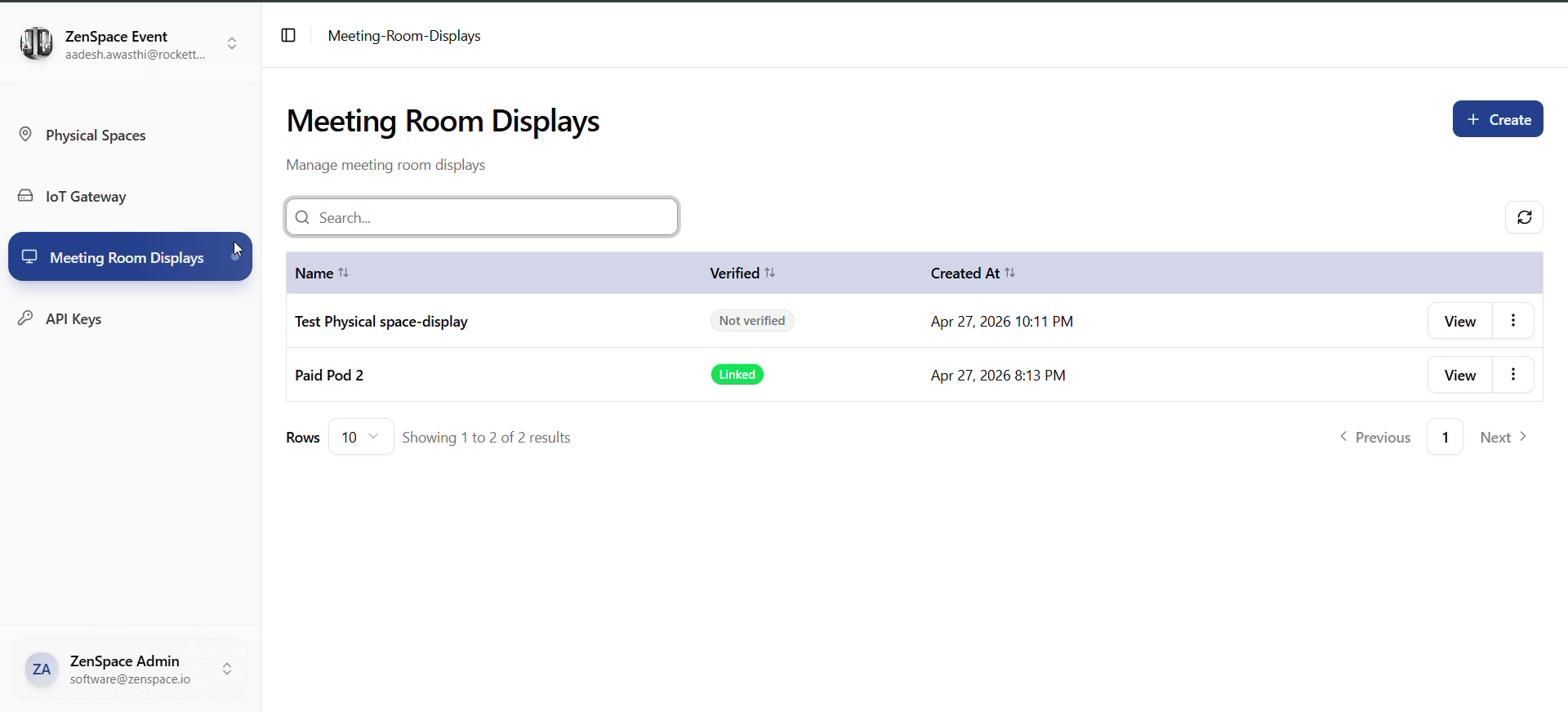
Fig 14 — Meeting Room Displays: List with Not Verified + Linked statuses
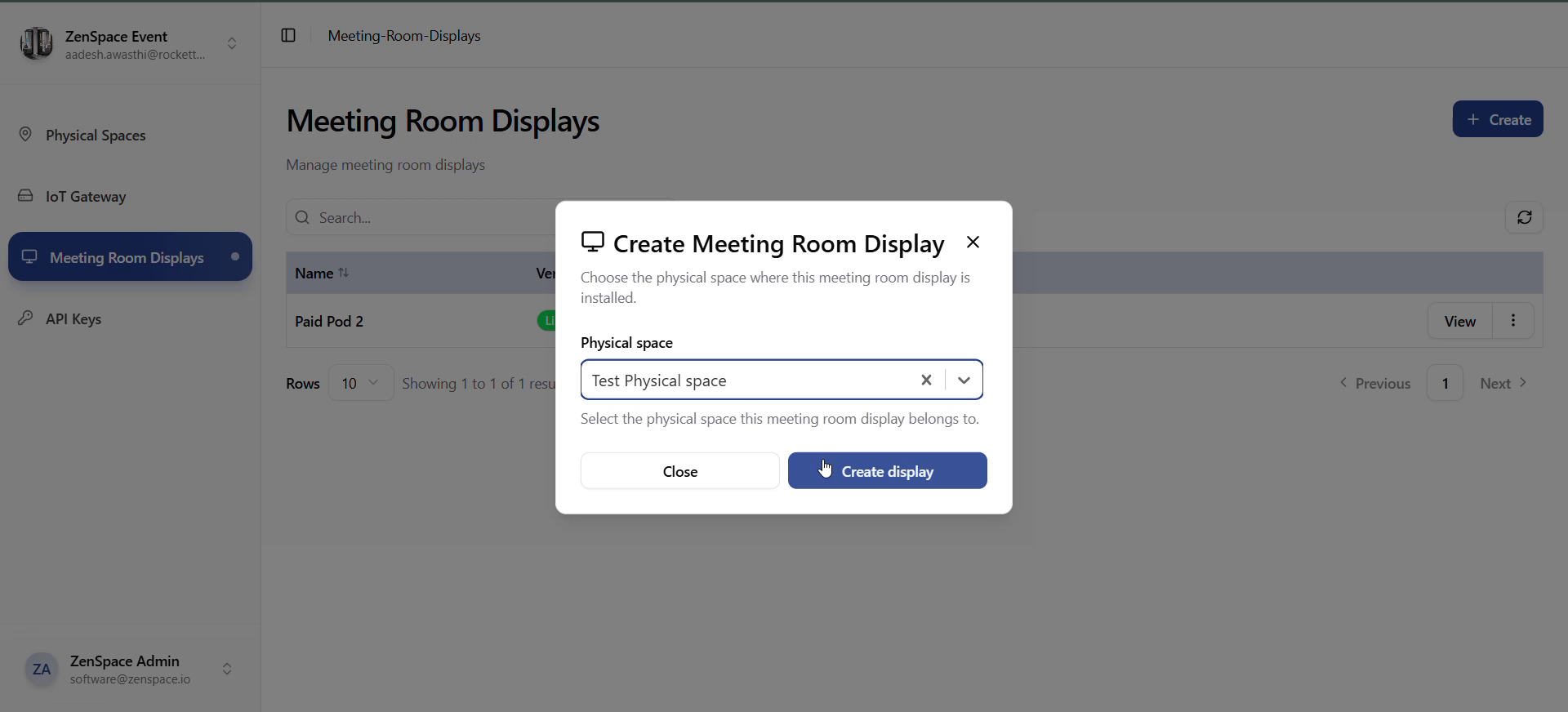
Fig 15 — Create Meeting Room Display form
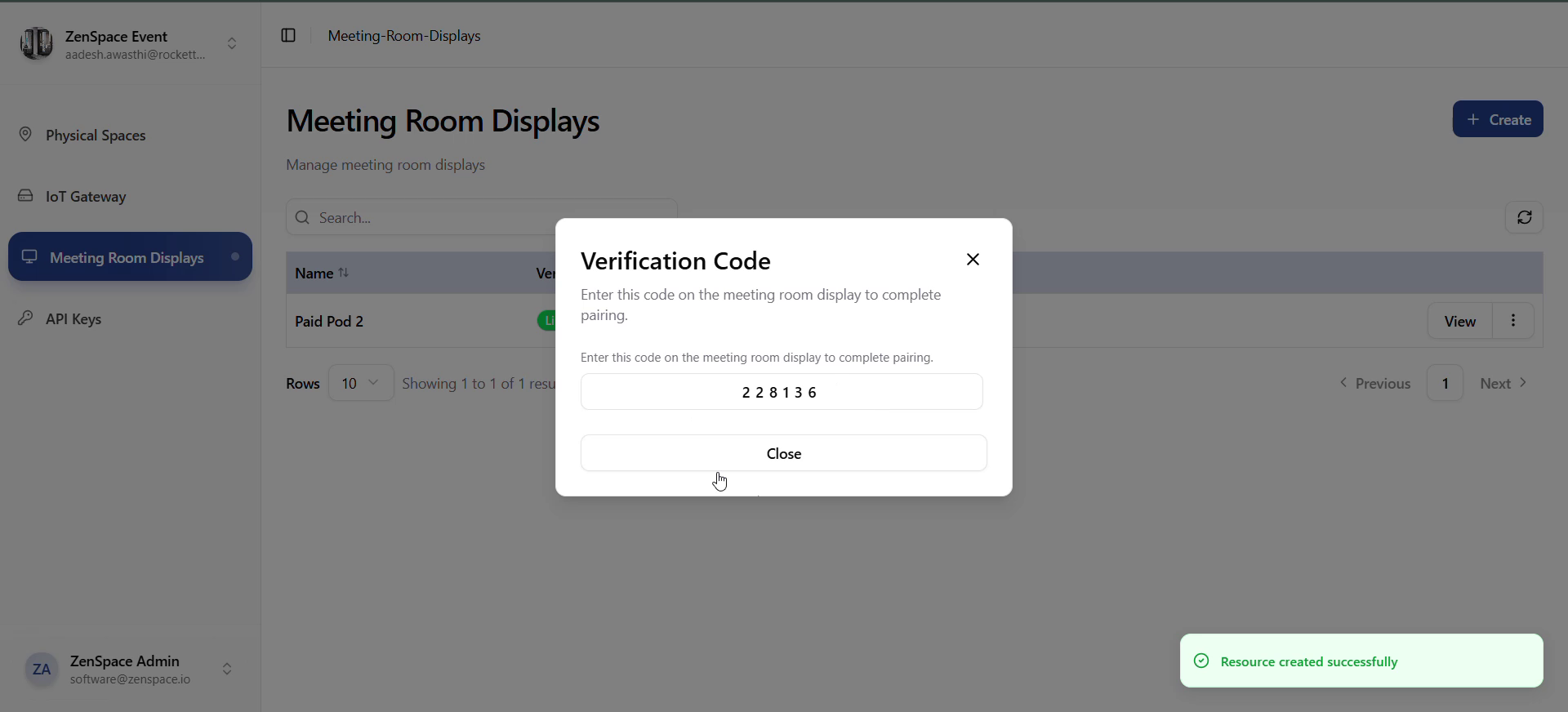
Fig 16 — Verification Code modal (pairing code shown once)
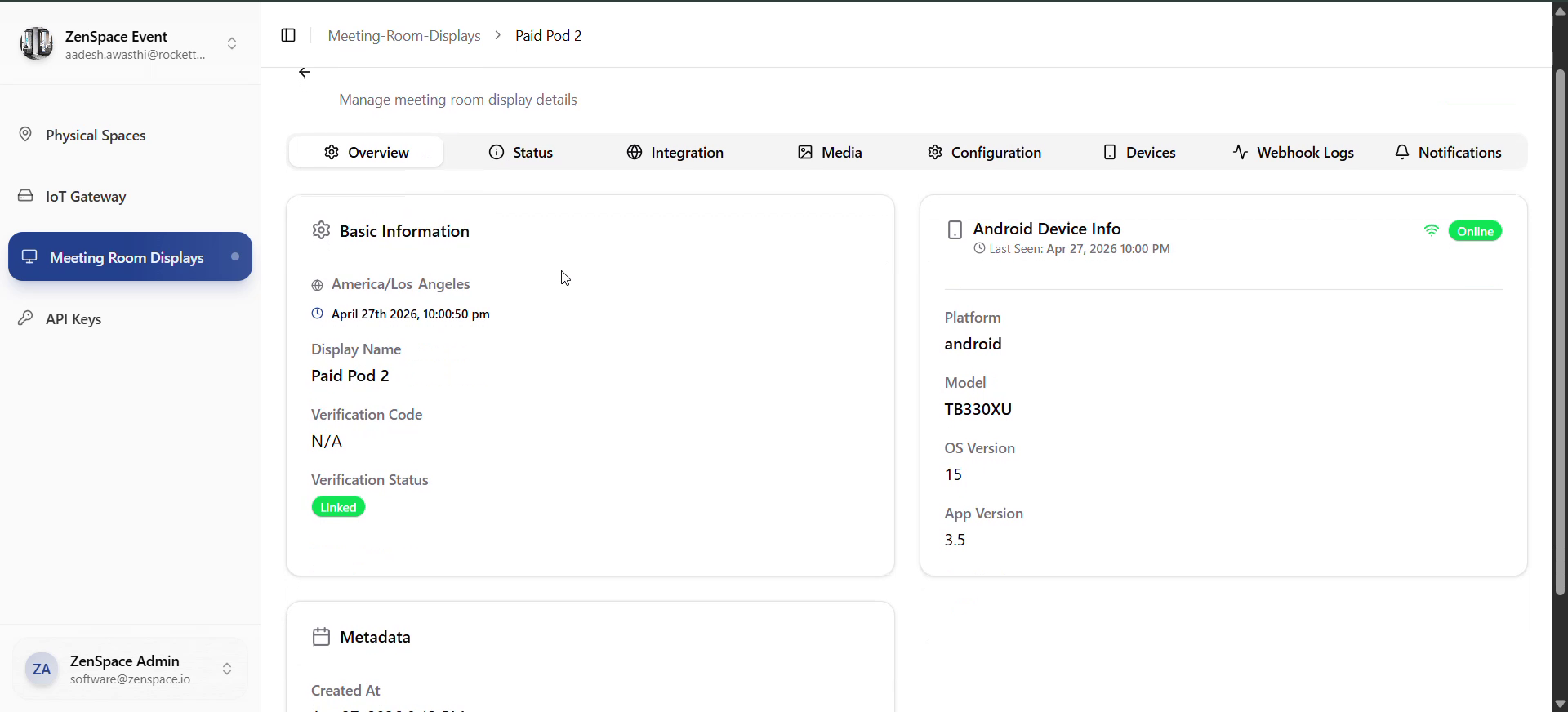
Fig 17 — Meeting Room Display: Detail Overview
Testing focus: Create → realtime verify, edit, delete, screenshots/notifications/webhook logs from detail page.
IoT Gateway Flow
Entry: Sidebar → IoT Gateway → /IoT-Gateway.
- Gateways list — Fetches gateways for current org. Onboarding state derived via resolveGatewayOnboardingState. Actions: Create, Edit, Delete, View.
- Create gateway — Create → IoTGatewayForm. Required: name (≤100). Optional: org_id, tailscale_config_id, adapter_type. Submit → create → verification step. useRealtimeIotVerification listens for mrd:gateway.status.updated. When the gateway verifies, the modal closes and the list hard-refreshes.
- View gateway detail (/iot-gateways/:id) — Shows gateway identity, network info, health, locks, and registered locks (admin endpoints).
- Edit / delete — Edit opens form with existing data; on save, list refreshes. Delete → confirm → delete → refresh.
Testing focus: Create, realtime verification (modal auto-close), edit, delete, gateway detail loading.
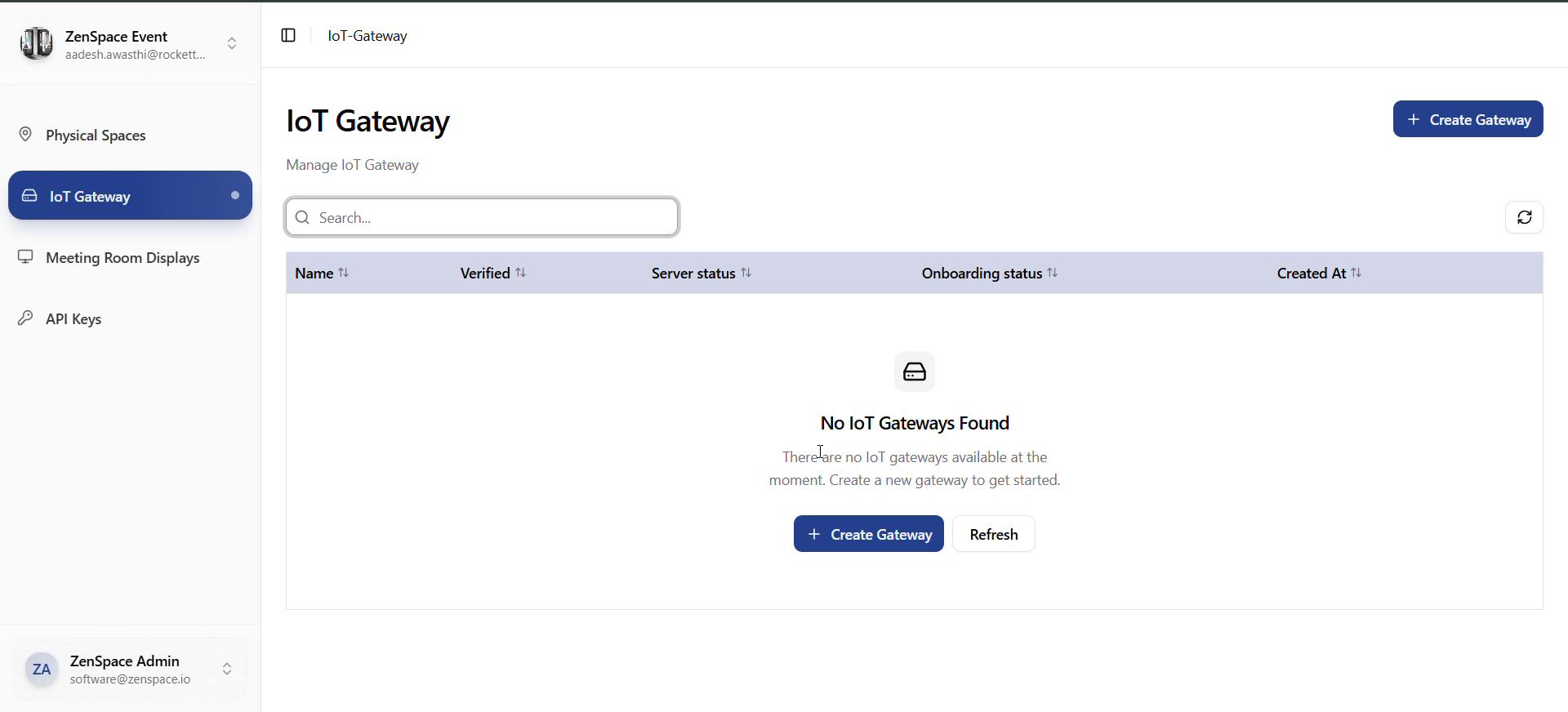
Fig 18 — IoT Gateway List (empty state)
API Keys Flow
Entry: Sidebar → API Keys → /api-keys.
- Keys list — Fetches from /org-api-keys?org_id=
<org_id>. Columns: Name, Permissions (R/W/U/D summary), Status (Active/Inactive), Expiration, Last Used, Created, Revoked At, Actions. - Create key — Create opens OrgApiKeyForm. Required: name (≤200), permissions object. Optional: expires_at. On success the list shows a one-time secret modal. The key is never retrievable again.
- Rotate key — Rotate opens a rotate form. On success: old key is revoked, new plaintext key is shown via the secret modal.
- Revoke key — Revoke → confirm via AlertModal → revokeOrgApiKeyService → list refresh. Only available while the key is active.
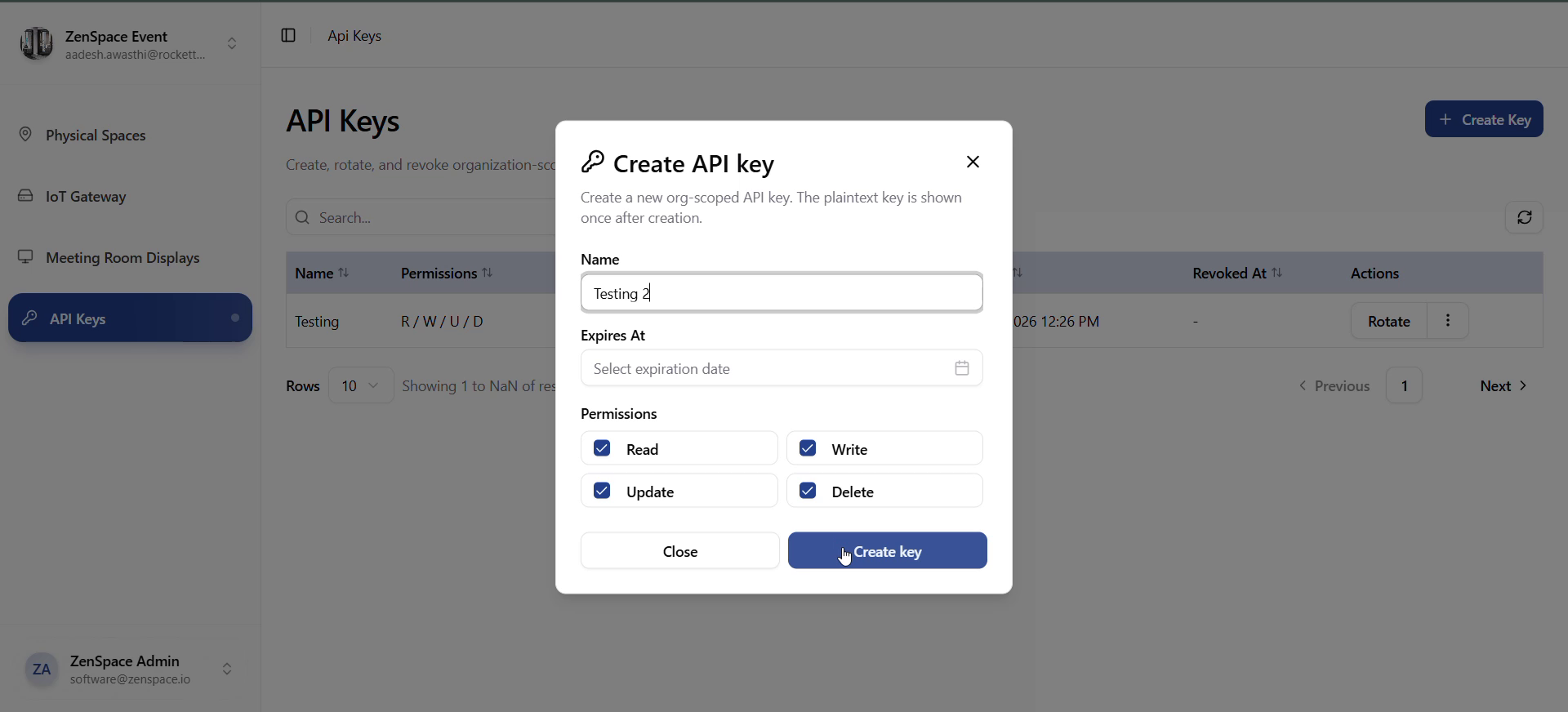
Fig 19 — Create API Key form (name + permissions)
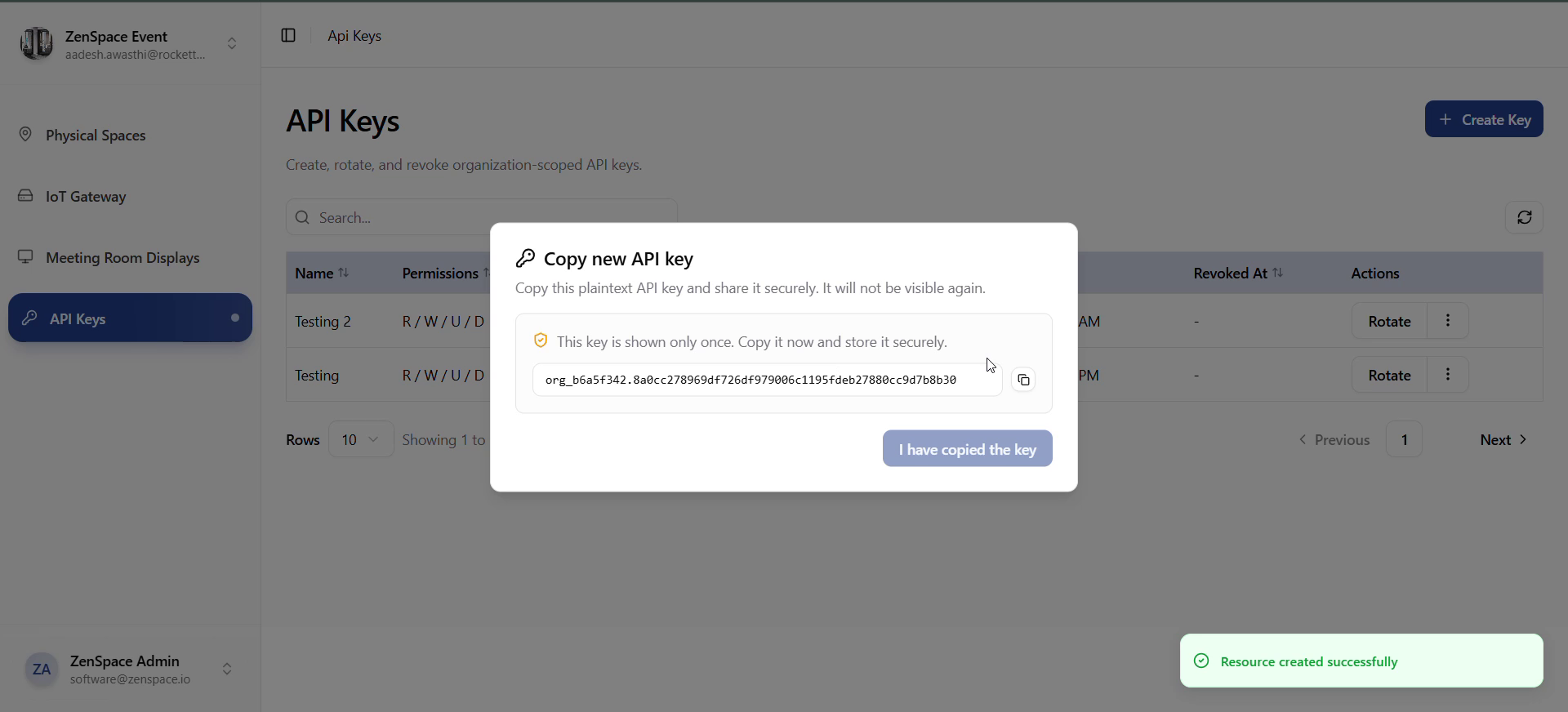
Fig 20 — Copy new API Key modal (plaintext shown once)
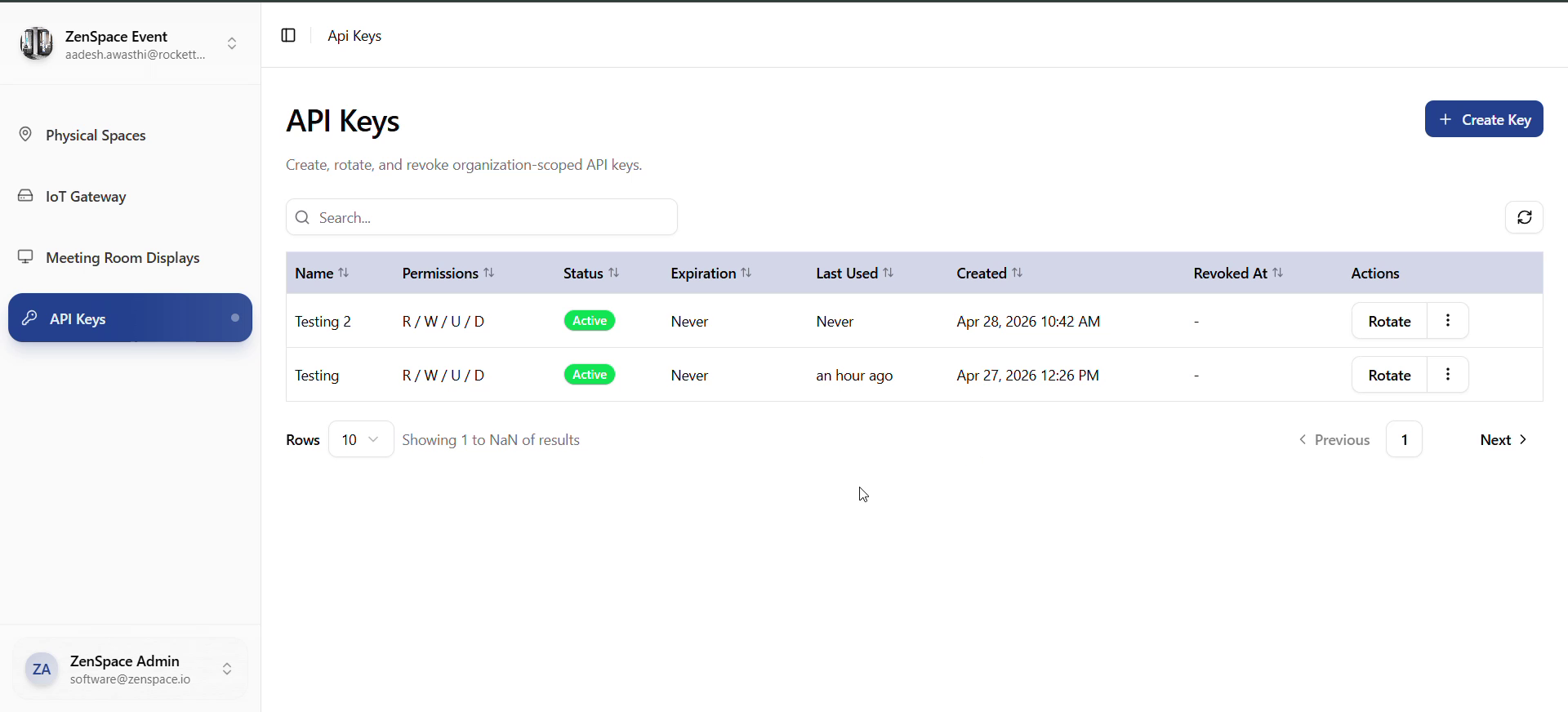
Fig 21 — API Keys List (multiple active keys)
Testing focus: create, copy plaintext from modal, ensure plaintext is no longer accessible after closing, rotate, revoke, expired-key display formatting.
Public Magic Link Flow (/magic/:token)
Entry: Guest opens /magic/:token directly — no login required.
- Bootstrap — Page calls getMagicLinkContext(token) (raw fetch against VITE_BACKEND_URL via joinBackendUrl). Loading state: animated shield with "Verifying your access..."
- Ready state — Banner shows booking space name and formatted booking window. Devices grouped into sections (locks, wifi, fan, AC, lights, sensors, cameras, other). Each device card may render an adapter iframe (adapter_embed_html) or an error state if adapter_embed_error is present. Iframes use sandbox="allow-scripts".
- Error state — Invalid/expired token, network error, or backend rejection → error icon, server message, Try again button.
- Empty state — If context.devices is empty: "No devices are currently available for this booking."
Testing focus: valid token (booking + devices), expired/invalid token, server error → retry, no devices, timezone formatting, iframe rendering.
Webhook Logs Flow
There are two webhook log surfaces:
Display Webhook Logs
- Source: /displays/:id/webhook-logs and the global /webhooks/logs.
- Detail route: /meeting-room-displays/webhook-logs/:logId.
- Realtime: useRealtimeWebhooks consumes mrd:webhook.received.
Physical-Space Webhook Logs
- Source: /webhooks/physical-space/logs?physical_space_id=
<id>. - Detail route: /physical-spaces/webhook-logs/:logId.
- Realtime: mrd:physical-space.webhook.processed.
Both detail pages show the full payload and metadata.
Testing focus: open a log from each surface, deep-link to a logId, realtime list updates without page refresh.
Booking Access Credential Logs Flow
Entry: Physical Space detail → Attempt History section → click a row.
- Credential attempt list is rendered by CredentialLogsList inside the Attempt History section.
- Clicking a row navigates to /physical-spaces/credential-logs/:requestId.
- Detail page shows status, type (LOCK/WIFI), timing metrics, and any error state for the credential generation attempt.
Testing focus: open detail from Attempt History, deep-link a requestId, status/type formatting via formatCredentialStatus / formatCredentialType.
Logout Flow
Entry: Any authenticated page (organization or protected).
- User opens sidebar footer → NavUser (avatar + name).
- Dropdown: user info + Log out.
- On click: localStorage.removeItem('auth_token'), logoutUserService(), checkAuth(), navigate('/auth').
- User lands on login page; protected routes are no longer accessible.
Testing focus: logout from organization page vs from a protected page; after logout, hitting /organization or /physical-spaces redirects to /auth.