Signing In
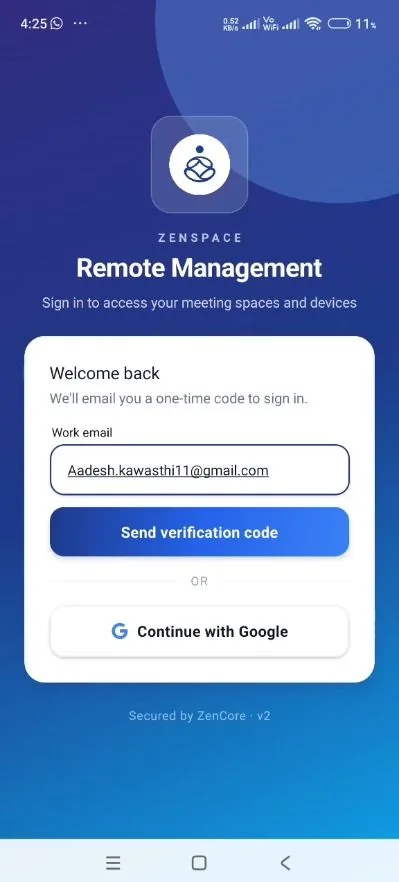
Step 4 — Enter the registered email address. Launch the application. The Welcome back screen offers two sign-in methods: a one-time code sent by email, or Continue with Google. To use the one-time code, enter the work email address registered with ZenSpace in the Work email field and select Send verification code. A one-time six-digit verification code is delivered to the address provided; no password is required. The footer of the screen records that the session is secured by ZenCore.
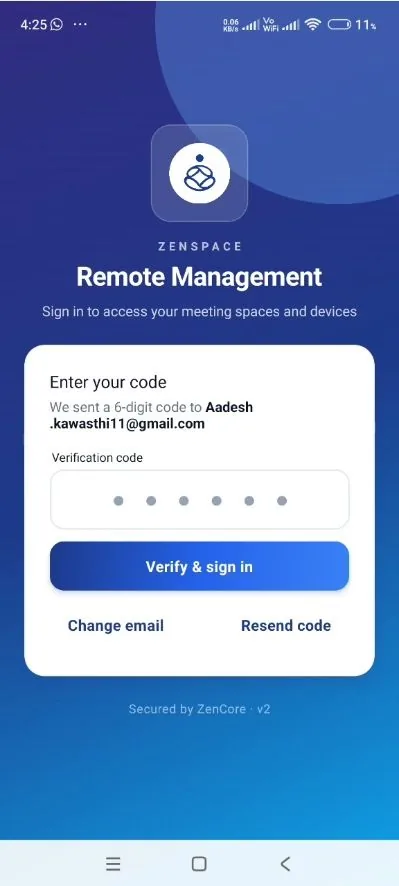
Step 5 — Verify the code. On the Enter your code screen, enter the six-digit code received by email and select Verify & sign in. If the code does not arrive, select Resend code; to correct the email address, select Change email.
Step 4 — The Welcome back screen: work email with a one-time code, or Continue with Google. |
Step 5 — Enter the six-digit code and select Verify & sign in. |
|---|
Step 6 — Sign in with Google (alternative). Users who hold a Google work account may sign in without requesting a one-time code. On the Welcome back screen, select Continue with Google below the OR divider.
Step 7 — Choose the Google account. A Choose an account dialog opens over the application, listing every Google account already signed in on the device. Select the required account to continue. If the required account is not signed in on the device, select Add another account and complete Google sign-in first, then select the account from the list. Once the account is accepted, the application proceeds directly to the Choose organization screen (Section 4); the email code steps are not required. The sign-in provider used is recorded on the profile page and shown in Account Details (Step 17).