Installation
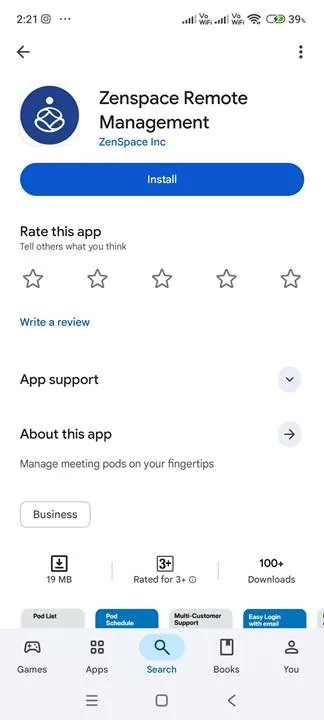
Step 1 — Locate the application on the Google Play Store. On the mobile device, open the Play Store and search for Zenspace Remote Management. The listing published by ZenSpace Inc appears in the results; select it to open the application page.
Step 2 — Install the application. On the application page, select Install. The download is approximately 19 MB. The listing also records the About this app summary, the Business category, and the content rating. Once installation is complete, open the application from the Play Store page or from the device home screen.
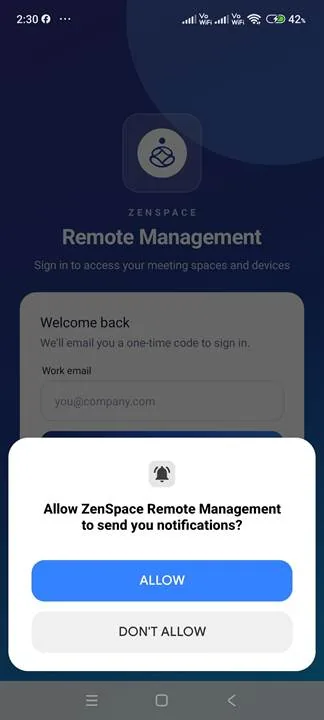
Step 3 — Allow notifications. On first launch, the application requests permission to send notifications; the prompt is displayed over the Welcome back screen. Select ALLOW to enable notifications, or DON’T ALLOW to continue without them. The sign-in screen becomes available once the prompt is dismissed.
Steps 1 and 2 — The ZenSpace Remote Management listing on the Google Play Store. |
Step 3 — The notification permission prompt displayed on first launch. |
|---|