Controlling Devices
The devices attached to a space are operated directly from the Access & Controls section of the space detail screen. Each device is shown as a card with its name, its device label, and the controls available for it.
Step 13 — Switch a device on or off. For switchable devices such as a Fan or Light, select Turn On or Turn Off to change the device state remotely.
Step 14 — Use the access PIN. The Access PIN card displays the four-digit PIN to be entered at the door keypad. Where no PIN is currently available, the four boxes show placeholder dashes.
Step 15 — Lock or unlock the door. On the Door card, select Unlock to unlock the door remotely or Lock to secure it. The door may also be unlocked from the Unlock shortcut on the Meeting Spaces list (Step 10).
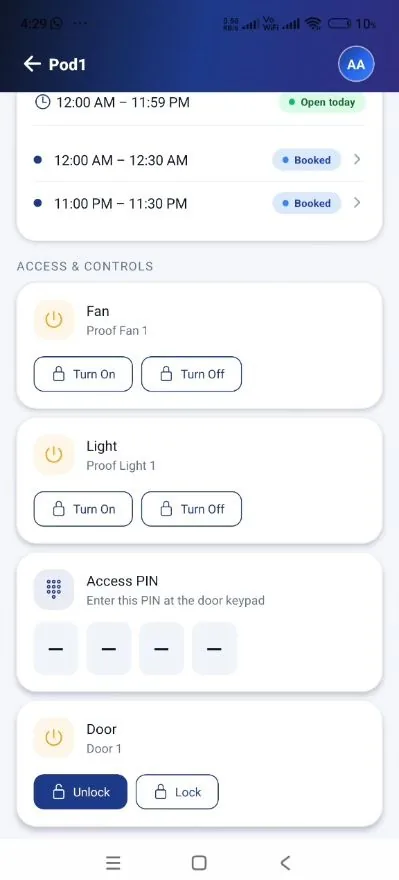
Steps 13 – 15 — Access & Controls: Fan, Light, Access PIN, and Door.
Security note. Access PINs and remote unlock are security-sensitive. PINs should be treated with the same care as passwords and shared only with the individuals attending the booking; the door should be unlocked remotely only when the space is about to be used.