Browsing Meeting Spaces
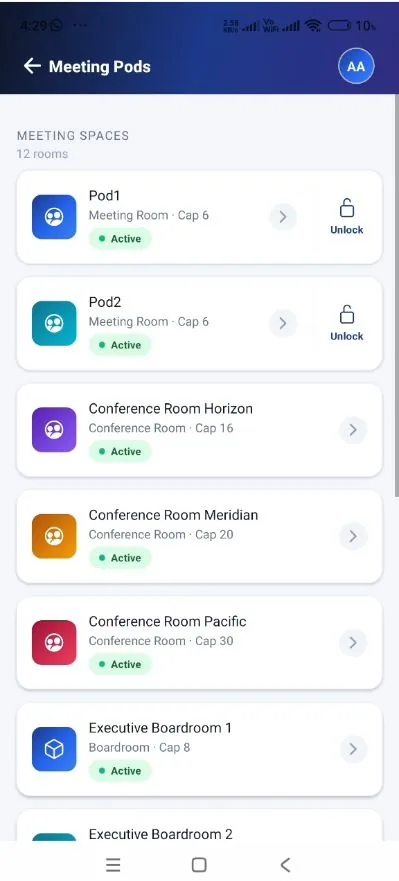
Step 10 — Browse the meeting spaces. The selected group opens on its Meeting Spaces list, which shows the number of rooms and presents each room with its type, capacity, and current status. Spaces fitted with a smart door display an Unlock shortcut on the right of the card, allowing the door to be unlocked directly from the list. Select the arrow on a card to open the space detail screen.
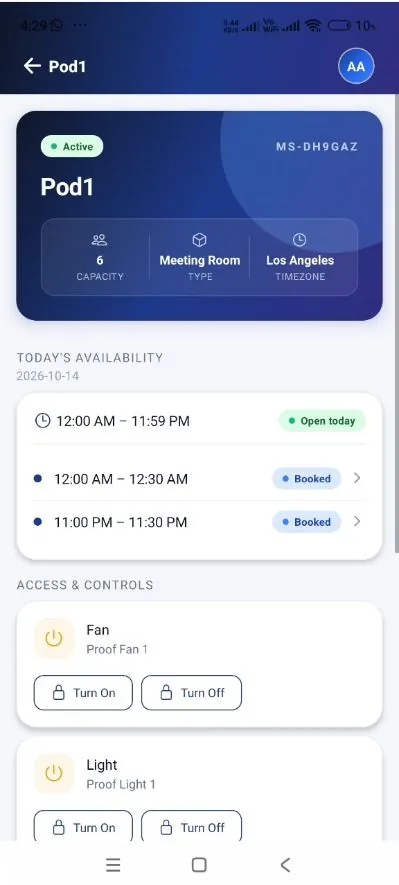
Step 11 — Review the space detail. The detail screen presents the space header (status, name, and space code), followed by its capacity, type, and timezone; Today’s Availability — the date, the open window for the day, and each booked slot; and the Access & Controls section, which lists the devices that can be operated for the space (refer to Section 6).
Step 10 — The Meeting Spaces list, with capacity, status, and the Unlock shortcut. |
Step 11 — Space detail: code, capacity, type, timezone, and today’s availability. |
|---|
Step 12 — View booking details. Under Today’s Availability, select any slot marked Booked to open its booking card. The card shows the booking Time, its Status, and the Email address associated with the booking. Select the close (X) control to return to the space detail screen.
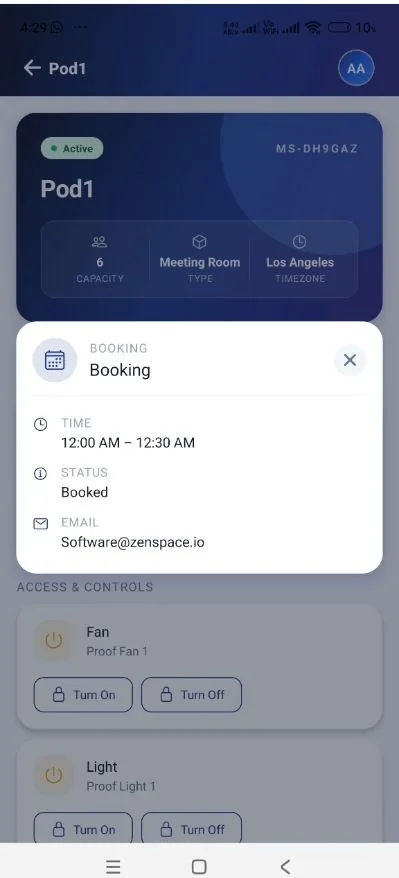
Step 12 — The booking card: time, status, and booking email.