Account & Profile
Step 16 — Open the account menu. Select the avatar in the top-right corner of any screen. The menu displays the account name and email address, together with three options: My profile, Switch organization, and Sign out.
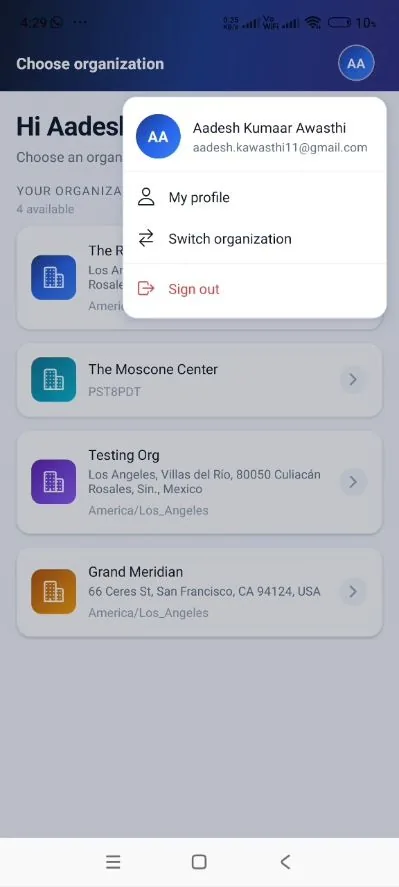
Step 16 — The account menu: My profile, Switch organization, and Sign out.
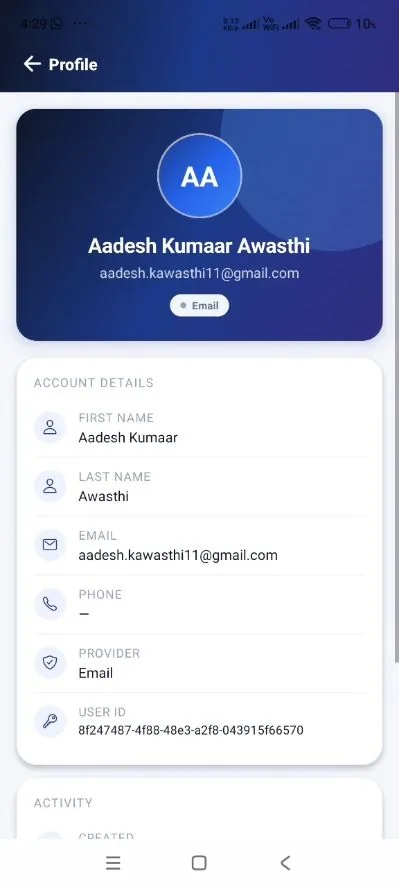
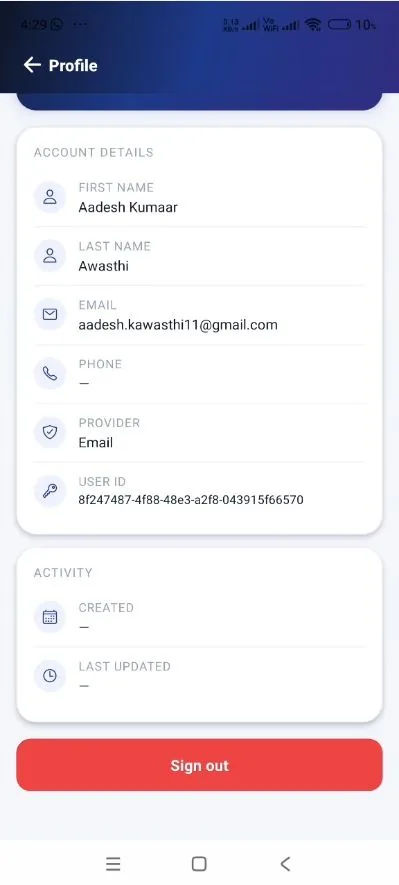
Step 17 — View the profile. Selecting My profile opens the account page: a header card presenting the name, email address, and sign-in provider, followed by Account Details (first name, last name, email, phone, provider, and user ID) and an Activity section (created and last updated).
Step 17 — Profile header with name, email address, and provider. |
Account details, activity, and the Sign out control. |
|---|
Step 18 — Switch organization. To manage a different organization, open the account menu (Step 16) and select Switch organization. The application returns to the Choose organization screen (Section 4), from which any other authorised organization may be selected without signing in again.
Step 19 — Sign out. To end the session, select Sign out — available from the account menu (Step 16) and from the control at the bottom of the profile page (Step 17). The application returns to the Welcome back sign-in screen; signing in again requires a new verification code delivered by email, or re-authentication with Google.