Pay Securely
Payment is step 3 of a four-step checkout — Choose time, Your details, Payment, Confirmed — shown as a progress bar across the top of the page. The slot is held on a visible countdown while the guest pays, and the booking remains PENDING until payment completes successfully.
-
Watch the hold timer. A banner reads “Action required — your booking isn’t confirmed yet” and explains that the slot is held until the timer runs out; the remaining time is displayed alongside (for example, Held for 7:13).
-
Pay by Link or card. A Pay securely with Link button sits above an “or pay with card” divider, where card number, expiration date, and security code are entered on an encrypted page marked Secure.
-
Pay unlocks on entry. The Pay button stays disabled until card details are entered, and a line beneath confirms no charge is taken until it is pressed.
-
Confirm the summary. Booking ID, meeting space, time, duration, and organizer are shown alongside for a final check, together with where the confirmation email and access instructions will be sent.
-
Don’t navigate away. The banner warns the guest not to refresh or use the back button while payment is processing.
Tip Card details are never stored — the page states this explicitly and carries a Secure badge, which reassures the guest at the most sensitive step.
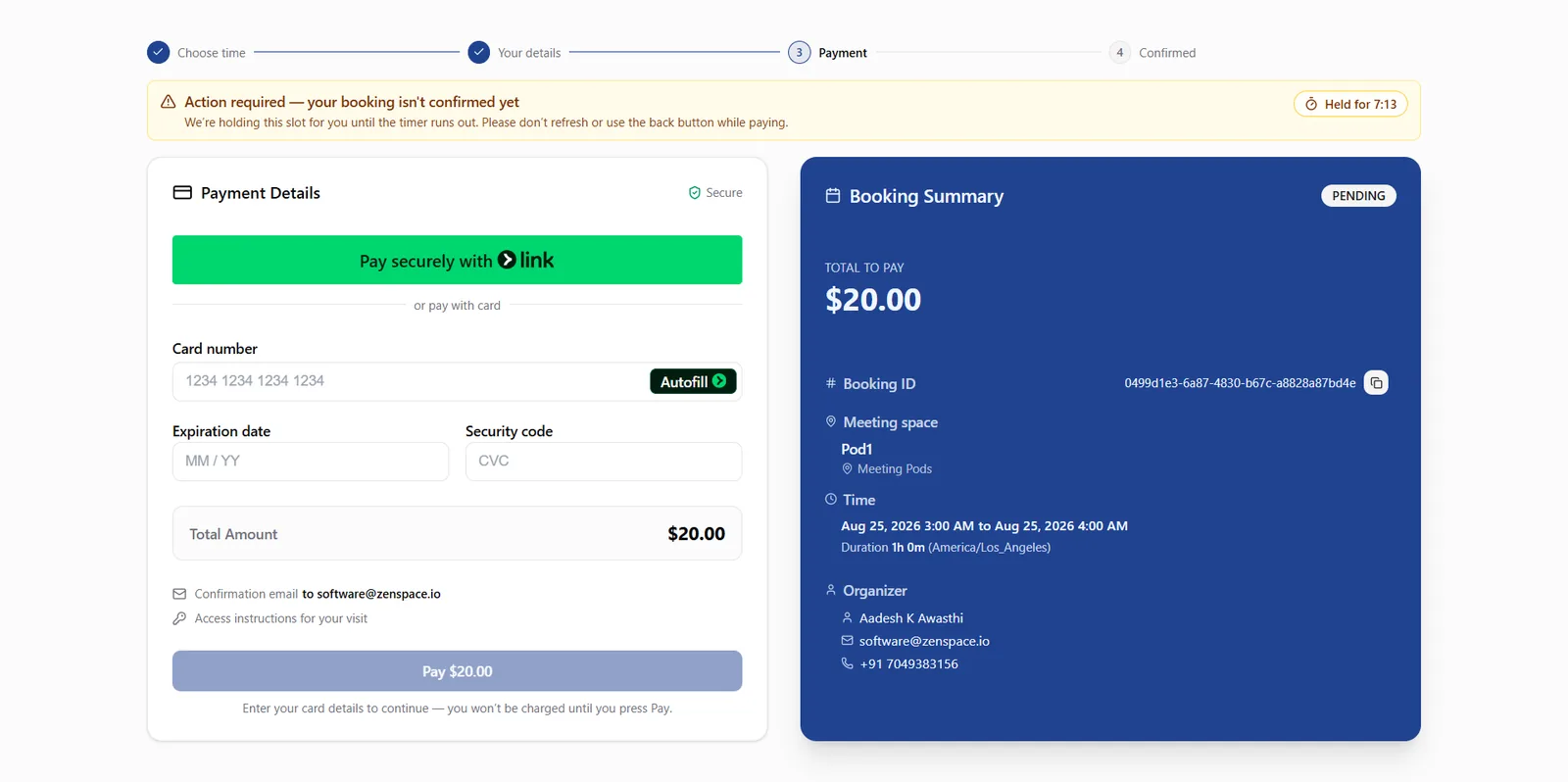
Figure 9 — The payment step — progress bar, slot-hold countdown, Link and card options, and the pending booking summary.