Check Space Status
The Available / Status toggle switches the space list between two views. Available shows only what is free for the selected window; Status shows every space in the group with its schedule for the day, so a guest can see when a busy space next frees up instead of only whether it is free right now.
-
Every space, taken or free. Each card names the space, its group, and its space code — for example, Pod1 · MS-DH9GAZ.
-
Free for the selected time. A green banner confirms the space is open for the window currently selected above.
-
Today’s schedule. A timeline bar spans the operating day with the total free time called out (for example, 20h 46m) and the first, middle, and last hours labelled beneath.
-
Free vs taken slots. Slot counts sit side by side. Where a space has activity, badges break it down — for example, 2 bookings and 2 blocked against 42 free slots.
-
Capacity & operating hours. Capacity and the bookable window (12:00 AM – 11:59 PM) sit at the foot of each card, above its own Book now button.
Tip Status is the fastest way to answer “when does this room next free up?” without leaving the booking page — useful for walk-ups and phone enquiries.
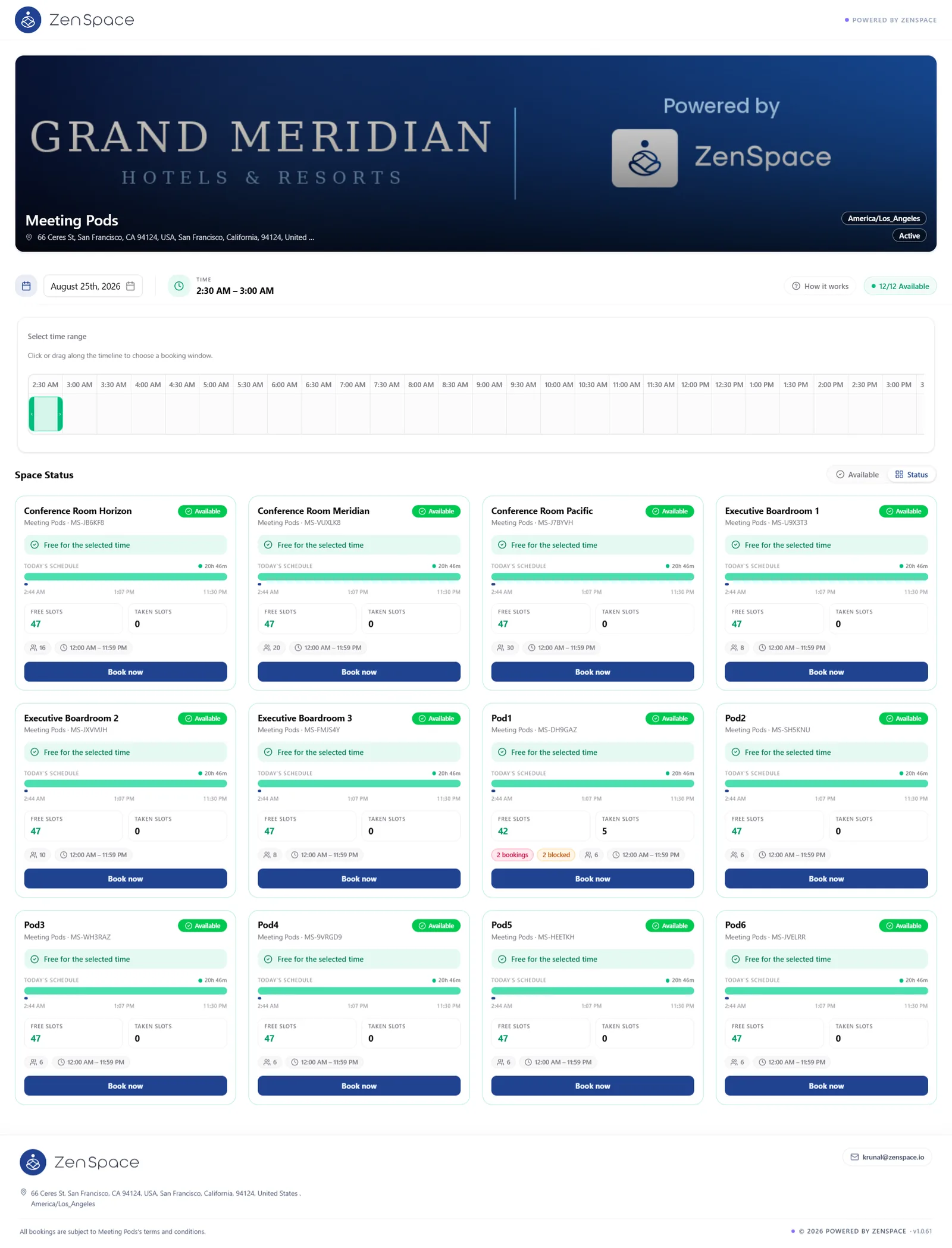
Figure 6 — The Status view — every space in the group with today’s schedule and free/taken slot counts.