ZenEdge Integration Panel
Below Capabilities + UI Preview, every device detail page has a ZENEDGE INTEGRATION panel. The intro line reads:
Paste these into ZenEdge to wire this device.
This is the panel ZenEdge cloud operators use to connect a specific device into their cloud configuration. It’s also a tester — you can run any contract endpoint right from the browser.
Device Base URL
The first field shows a full URL like:
https://spaceos.tailc029f9.ts.net/?device_id=ada-8591f5bc-8bbd-48bd-bb20-a68240101593
Hint below: “Paste this URL into ZenEdge to wire up this device. All other endpoints are returned in the response.”
Click Copy to copy the URL. In ZenEdge cloud, the same URL goes into the device’s configuration; ZenEdge then discovers all the other endpoints from the response.
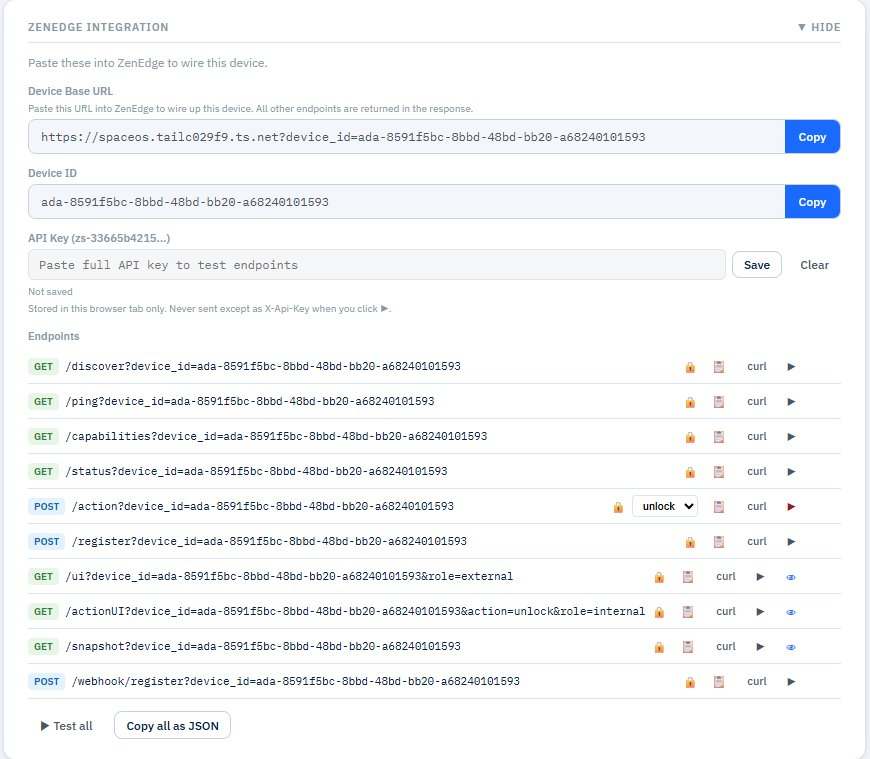
Figure 14 — ZenEdge Integration panel: Device Base URL, Device ID, API Key tester, all 10 contract endpoints with per-row test buttons
Device ID
A separate field showing just the ada-<uuid> portion, with its own Copy button. Use this when you need only the device ID (for log lookups, manual API calls, etc.).
API Key Tester
A field labelled API Key (zs-33665b4215…) with placeholder “Paste full API key to test endpoints.”
This is where you paste an adapter API key (created on the System page) to test endpoints right from the browser. The hint below explains:
Not saved Stored in this browser tab only. Never sent except as X-Api-Key when you click ▶.
The key is stored in sessionStorage — it survives page reloads in this tab but vanishes when the tab closes. It’s never written to disk. The format hint zs-... matches what adapter API keys look like.
Save stores the key in this tab’s session storage. Clear removes it.
Endpoints
A list of every contract endpoint for this device. Each row shows:
[METHOD] /endpoint?device_id=ada-... 🔒 (lock icon) 📋 curl ▶
For a door, you’ll see ten endpoints:
A WiFi AP shows a similar list minus /snapshot and with /actionUI?action=status instead of unlock.
The icons on each row:
- 🔒 (lock) — endpoint requires the adapter API key in X-Api-Key header
- 📋 — copy the URL only
- curl — copy a ready-to-run curl command (with the API key from the tester field, if set)
- ▶ — execute the request in the browser and show the response inline
- 👁 (eye, where present) — open the rendered HTML response in a new browser tab (for /ui and /actionUI)
- For /action, an inline dropdown picks which action to send (unlock, status, etc.)
All routes require the adapter API key. JWT does not work on contract routes. If you click ▶ without setting an API key in the tester field, the call returns 401.
Test all
A ▶ Test all button at the bottom runs every endpoint in sequence and shows status codes inline. Quick health check of every contract surface for this device.
Copy all as JSON
A Copy all as JSON button copies a structured object with every endpoint URL — useful for dropping into ZenEdge cloud configuration, sharing with engineers when reporting issues, or running through Postman.
Webhook Subscriptions
ZenEdge cloud subscribes to events (door opened, AP went offline, snapshot taken) by calling POST /webhook/register with a target URL and an HMAC secret. The adapter:
- Stores the subscription
- Posts events to the target URL via outbound HTTPS
- Signs each delivery with HMAC-SHA256 over the body
- Retries on 5xx responses with exponential backoff
- Logs every delivery attempt in the event log
The Recent Activity panel at the bottom of the device page shows webhook.registered events confirming successful subscription.